
-
×InformationNeed Windows 11 help?Check documents on compatibility, FAQs, upgrade information and available fixes.
Windows 11 Support Center. -
-
×InformationNeed Windows 11 help?Check documents on compatibility, FAQs, upgrade information and available fixes.
Windows 11 Support Center. -
- HP Community
- Printers
- Scanning, Faxing, and Copying
- Problems with scan

Create an account on the HP Community to personalize your profile and ask a question
Your account also allows you to connect with HP support faster, access a personal dashboard to manage all of your devices in one place, view warranty information, case status and more.
Common problems HP Solution Center not working : Adobe Flash Player Error and Unable to scan
We would like to share some of the most frequently asked questions about HP Solution Center not working : Adobe Flash Player Error and Unable to Scan.

It has been a while since anyone has replied. Simply ask a new question if you would like to start the discussion again.

05-03-2021 03:02 AM
 HP Recommended
Product: HP DESKJET 2540
Operating System: Microsoft Windows 10 (64-bit)
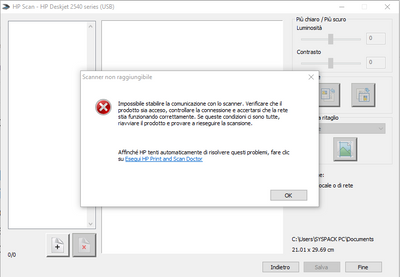
I have a deskjet 2540. When I try to scan a document, the system gives me the folollowing message: "unable to establish communication ". Until a few days ago the scanner was working perfectly. I have already tried uninstalling and reinstalling the drivers.
10 REPLIES 10

05-04-2021
02:28 AM
- last edited on
05-04-2021
05:31 AM
by
 BiancaS
HP Recommended
Model name: Deskjet 2540 All-in-One Printer series
Firmware: CBP1FN1437AR
Serial number: [Personal Information Removed]
Assistance ID: 25073
IK number: 946-20210504-0
Software version: 032.002.188.47710
Driver version: 11.21.00.1607
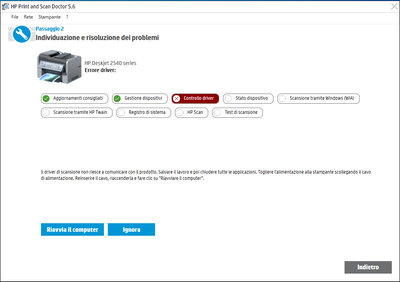
Running HP Scan Doctor, I get the following message: "the scan driver cannot communicate with the product"


05-07-2021 01:20 PM
HP Recommended
Thank you for posting on HP Support Community.
Don't worry as I'll be glad to help, I have a few troubleshooting steps we could try to fix the issue:
- With the printer turned on, disconnect the power cord from the rear of the printer and also unplug the power cord from the wall outlet.
- Remove USB cable, if present.
- Wait for 2-3 minutes, press and hold the power button on your printer for about 30 seconds to remove any additional charge.
- Now plug back the power cable straight to a wall outlet without any surge protector or an extension cord (This is important) and then plug back the power cord to the printer.
- Turn on the printer and wait till the warm-up period finishes and the printer is idle.
Hope this helps! Keep me posted for further assistance.
Please click “Accept as Solution” if you feel my post solved your issue, it will help others find the solution.
ECHO_LAKE
I am an HP Employee
05-08-2021 04:15 PM
HP Recommended
Thank you for posting back.
Let's try this:
Root level uninstall and reinstall printer drivers:
- Go to Control panel – Programs and feature – Select all the HP DeskJet printer entries and uninstall them.
- Now go to Control panel – Devices and printer – Select all the printer entries and remove the device.
- Then press the "windows key" + "r" to get the "Run" window open - Type "printui.exe /s" and press enter.
- Under print server properties, go to drivers - remove any entry there as well.
- Again, go to run window, type – “c:/programdata” – Go to Hewlett Packard folder, remove any printer related folders & files.
To reinstall, click here.
Hope this helps! Keep me posted for further assistance.
Please click “Accept as Solution” if you feel my post solved your issue, it will help others find the solution.
ECHO_LAKE
I am an HP Employee
05-11-2021 09:09 AM
HP Recommended
Thank you for posting back.
I appreciate your efforts to try and resolve the issue.
I would request you to contact our Support and our Support Engineers should be able to sort this out. HP Support can be reached by clicking on the following link: www.hp.com/contacthp/
Please feel free to contact us here anytime you need any further assistance. Please click “Accept as Solution” if you feel my post solved your issue, it will help others find the solution.
ECHO_LAKE
I am an HP Employee

Be alert for scammers posting fake support phone numbers and/or email addresses on the community.
If you think you have received a fake HP Support message, please report it to us by clicking on "Flag Post".
† The opinions expressed above are the personal opinions of the authors, not of HP. By using this site, you accept the Terms of Use and Rules of Participation.


Didn't find what you were looking for?
Ask the community
† The opinions expressed above are the personal opinions of the authors, not of HP. By using this site, you accept the <a href="https://www8.hp.com/us/en/terms-of-use.html" class="udrlinesmall">Terms of Use</a> and <a href="/t5/custom/page/page-id/hp.rulespage" class="udrlinesmall"> Rules of Participation</a>.