
-
×InformationNeed Windows 11 help?Check documents on compatibility, FAQs, upgrade information and available fixes.
Windows 11 Support Center. -
-
×InformationNeed Windows 11 help?Check documents on compatibility, FAQs, upgrade information and available fixes.
Windows 11 Support Center. -
- HP Community
- Printers
- Scanning, Faxing, and Copying
- Re: Scan to computer stopped working

Create an account on the HP Community to personalize your profile and ask a question
Your account also allows you to connect with HP support faster, access a personal dashboard to manage all of your devices in one place, view warranty information, case status and more.
Common problems HP Solution Center not working : Adobe Flash Player Error and Unable to scan
We would like to share some of the most frequently asked questions about HP Solution Center not working : Adobe Flash Player Error and Unable to Scan.

It has been a while since anyone has replied. Simply ask a new question if you would like to start the discussion again.

07-12-2020 01:15 PM
 HP Recommended
Product: HP Office Jet 8600e all-in-one-printer series N911
Operating System: Microsoft Windows 10 (64-bit)
HP Office Jet 8600e
all-in-one-printer series N911
Scan to computer stopped working, worked but stopped by itself
7 REPLIES 7


07-15-2020 05:36 AM
HP Recommended
Hi @ShellyK
Welcome to the HP Support Community. I'd be happy to assist you.
Are you using the 'scan to computer' option on the printer screen?
This feature requires a full-featured driver to be installed on the computer.
Click here to download the HP Full-featured driver. (If not already installed)
Once downloaded, make sure to run the file to start the installation and follow the on-screen instructions.
Open the HP Full-featured software by clicking on the printer icon on the desktop screen or by searching windows for HP Officejet Pro 8600.
Search Windows for HP > HP OfficeJet 8600 > double click to open the HP Printer assistant > Click on Scan

Click on Manage scan to computer >

Click on Enable > Check the box at the bottom > Close
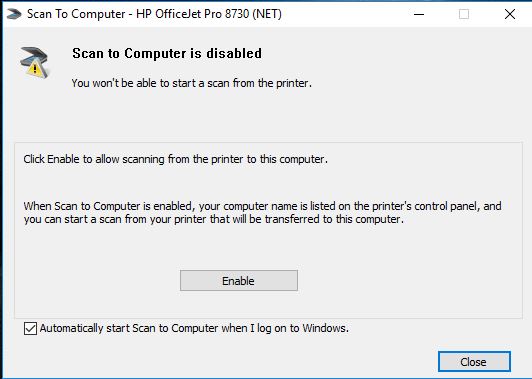
Hope this helps! Keep me posted.
Please click “Accept as Solution” if you feel my post solved your issue, it will help others find the solution.
Click the “Kudos, Thumbs Up" on the bottom right to say “Thanks” for helping!
Have a great day!
KUMAR0307
I am an HP Employee

07-15-2020 07:29 AM
HP Recommended
- What model printer are you using?
- Do you get any errors while trying to scan?
- Are you scanning from the printer screen?
Run HP Print and Scan Doctor to diagnose and fix any driver issue
Click here to download the file. Once downloaded, make sure to run the file to start the installation and click on 'Fix scanning'.
Keep me posted.
KUMAR0307
I am an HP Employee
08-04-2020 06:13 PM
HP Recommended
Did anyone get this resolved? I'm having the same issue. Worked on it for 6 hours. HP chat didn't help. Tried many combinations of resetting the printer to factory defaults, re-installing the printer from scratch, obviously downloaded the latest drivers and firmware, scan doctor countless times, etc. Even dropping the firewalls completely on the computers. Nothing.
Scanning works if initiated from the computers. Scanning from the printer to the workstations via the panel on the printer appears to work. No errors. But nothing ever shows up on the computers. And this was working fine last week.
08-05-2020 02:59 AM
HP Recommended
Hi @John375,
I'd like to help with scan to computer concern.
To assist better-
May I have the exact model name of the product? Refer to this document for steps to find the product details. Do not share any of your personal information such as serial, phone number, email ID, etc
What device are you using the printer with, a Windows computer, Mac, Android or an iPhone?
How is the printer connected to your device Wifi or USB?
Hope this helps! Keep me posted.
And, Welcome to the HP Support Community.
Please click “Accept as Solution” if you feel my post solved your issue, it will help others find the solution.
Click the “Kudos, Thumbs Up" on the bottom right to say “Thanks” for helping
08-08-2020 12:09 PM
HP Recommended
I have tried scanning from the same printer to multiple computers. Here's the model info:
HP Color LaserJet Pro MFP M479w
Formatter serial number: 7P200DA
Service ID: 30195
Serial Number: MXBCM8N1GM
One notebook is a Dell with service tag (in private reply) from 2015
Another notebook is Dell with service tag (in private reply) from 2017
I'm not sure what you need to know about the notebooks but by providing the service tag you should be able to determine anything from the Dell site.
All products have all the latest software and firmware updates.
The notebooks are on the local network. There is no 3rd party virus protection or firewall. Both of the above are using the standard MS firewall and virus protection.
All devices are hard wired on the Ethernet.
Thanks for you help.

Be alert for scammers posting fake support phone numbers and/or email addresses on the community.
If you think you have received a fake HP Support message, please report it to us by clicking on "Flag Post".
† The opinions expressed above are the personal opinions of the authors, not of HP. By using this site, you accept the Terms of Use and Rules of Participation.


Didn't find what you were looking for?
Ask the community
† The opinions expressed above are the personal opinions of the authors, not of HP. By using this site, you accept the <a href="https://www8.hp.com/us/en/terms-of-use.html" class="udrlinesmall">Terms of Use</a> and <a href="/t5/custom/page/page-id/hp.rulespage" class="udrlinesmall"> Rules of Participation</a>.