• ×
    Information
    Need Windows 11 help?
    Check documents on compatibility, FAQs, upgrade information and available fixes.
    Windows 11 Support Center.
  • post a message
  • ×
    Information
    Need Windows 11 help?
    Check documents on compatibility, FAQs, upgrade information and available fixes.
    Windows 11 Support Center.
  • post a message
Guidelines
Join the HP Community Solve‑a‑thon | Help Others & Share Your Solutions | Live on Zoom | 2:30 PM to 2:30 AM IST | Every Wednesday Click here to know more
Common problems HP Solution Center not working : Adobe Flash Player Error and Unable to scan
We would like to share some of the most frequently asked questions about HP Solution Center not working : Adobe Flash Player Error and Unable to Scan.
HP Recommended
HP Laser Jet MFP M277dw
macOS 10.14 Mojave

I have been able to scan to email with no problems. I attempted to use it today and I have gotten the error: username or password are incorrect. I have verified that the username and password are correct in the scan to email setup. Not sure what else I can do to correct this issue.

1 REPLY 1
HP Recommended

Hi @cmcc5

Welcome to the HP Support Community. I understand you are not able to scan to email from your MAC. I'd be happy to assist you.


Which email account are you using?

If you are using an iCloud Mail account and have two-factor authentication enabled, you do not need to disable. You would need to create an app-specific password to use with the printer.  You can follow this Apple support document for help.


https://support.apple.com/en-us/HT204397


To know how to setup scan to email, follow these steps:

  1. Confirm the following requirements for the scan to email feature. If you do not meet these requirements, you can manually attach the file to an email message by saving the scan to a folder on the computer.

    • Scan to email works best when a local email client, such as Apple Mail, is installed and set up on the computer.

    • Web-based email accounts (Gmail, Yahoo Mail, Hotmail) must be configured through your local email client to scan to them. Check your local email support site for additional information.

  2. Start the scan.

    • Printers with touchscreen or LCD menu control panels: From the Scan menu on the printer, select your computer name, and then select Email as PDF or Email as JPEG A new email message automatically opens on the computer.

      Some Web-enabled HP printers have a Scan to Email app in the Apps menu that sends emails from the printer using your printer's ePrint email address.

    • Printers with buttons only or printers without scan to email menu options: Continue to the next step to start the scan from the computer.

  3. Open Finder , click Go in the top menu bar, click Applications, and then double-click Image Capture.
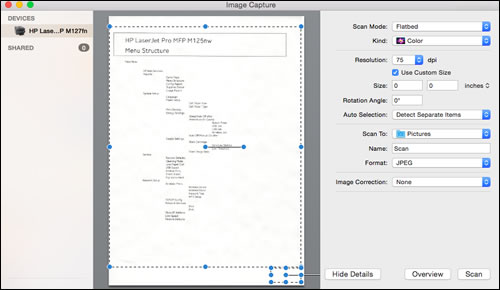
     Apple Image Capture

  4. Click your printer name in the Devices or Shared list, and then click Show Details at the bottom of the screen, if necessary.

    After the preview of the scan displays, change the following settings:

    • Scan Mode: Select the scanning bed or automatic document feeder.

    • Scan to: Select Mail.

    • Name: Type a name for the scan file.

    • Format: Select the file type for the scan. When you select the PDF or TIFF format, the Combine into a single document feature is available to save multiple page documents or multiple images into a single file.

  5. Click Scan.

    A new email message automatically opens with the scan attached.

Hope this helps! Keep me posted. 


Please click “Accept as Solution” if you feel my post solved your issue, it will help others find the solution.

Click the “Kudos, Thumbs Up" on the bottom right to say “Thanks” for helping!

Have a great day! 

KUMAR0307
I am an HP Employee

† The opinions expressed above are the personal opinions of the authors, not of HP. By using this site, you accept the <a href="https://www8.hp.com/us/en/terms-of-use.html" class="udrlinesmall">Terms of Use</a> and <a href="/t5/custom/page/page-id/hp.rulespage" class="udrlinesmall"> Rules of Participation</a>.


