-
×InformationNeed Windows 11 help?Check documents on compatibility, FAQs, upgrade information and available fixes.
Windows 11 Support Center. -

-
×InformationNeed Windows 11 help?Check documents on compatibility, FAQs, upgrade information and available fixes.
Windows 11 Support Center. -
- HP Community
- Printers
- Scanning, Faxing, and Copying
- Scan to mutiple pdf files

Create an account on the HP Community to personalize your profile and ask a question
08-25-2021 04:09 AM
I want to use the document feeder to scan multiple A4 pages to individual pdf files? But it appears the default is to scan multiple pages into a single PDF File, where is the setting to control this?
Solved! Go to Solution.
Accepted Solutions
08-25-2021 07:57 AM
Welcome to the HP Community.
HP Scan - part of the Full Feature Software - can easily separate your scan pages into separate files.
True, the "default" is to save multiple pages as a single file.
Change the setup for the one job or change the setup and then create a Custom Shortcut to use again later.
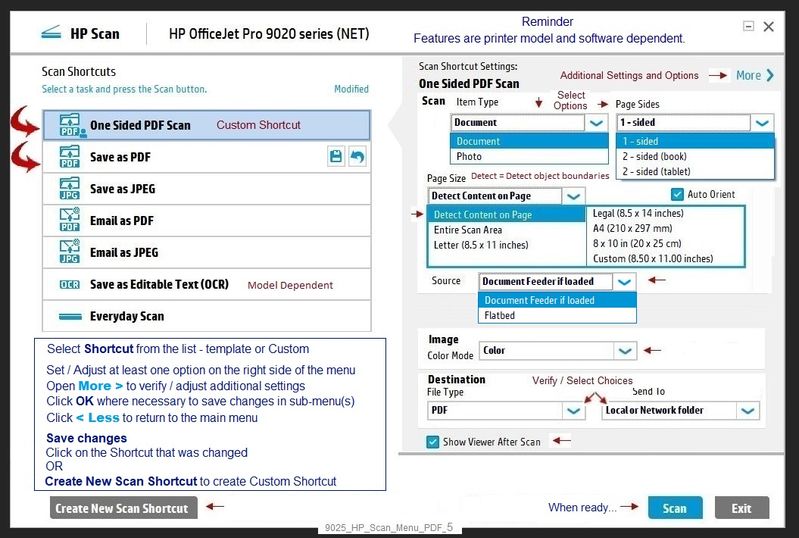
HP Scan
Select Save to PDF
Adjust settings on main menu
Select More >
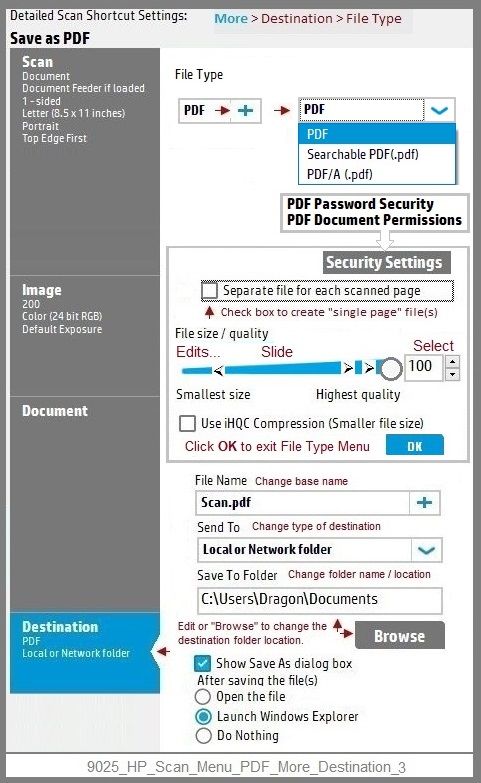
Select Destination
Open PDF + menu
Check box "Separate file for each scanned page"
Click OK to save and exit sub-menu
Check other sections
When ready, < Less
Back on the main menu, final check and Scan
Example - HP Scan - Main Menu > More > Destination
9025_HP_Scan_Menu_PDF_5
9025_HP_Scan_Menu_PDF_More_Destination_3
References / Resources
========================================================================
The full driver provides the foundation on which other programs and printing software depend.
Printer Software - Preparation
If you have not done so,
In addition to the HP Smart application,
Install the Full Feature Software / full driver printer software for the printer.
HP Smart and other print software / applications benefit from having the full driver installed.
Printer Software Check
Notes
If the full driver printer software is installed, you will see the printer listed in Control Panel > icon view > Programs and Features.
The installation of the printer software adds two shortcut icons to the Desktop.
The Printer Assistant is named for the printer and provides access to Print , Scan , and Tools
HP Scan is named for itself and provides a direct call to the HP Scan software.
Programs_and_Features_Printer_Desktop_Icons_3
Printer software not installed?
Method - Use the Easy Start Wrapper to Install the Full Feature / Full Driver Software
For printers that support the option,
Use the Easy Start wrapper to install and configure the printer software.
- Home Page - HP Easy Start
- Open Category Software and Drivers
- Topic: Software-Utility
- Download-and-Save the current version of the Easy Start wrapper to install your print software
- If using USB: Disconnect the USB cable between the printer and computer before installing the software.
- Right-Click on the downloaded package and "Run as Administrator" to start the installation
- When asked, Select to install the “Full Driver” / “Full Feature Software”
- If using USB: Connect the cable when instructed to do so (near the end of the installation process).
- After the software is installed, Restart the computer and log in.
Notes >> Easy Start... The Journey
- Full Administrator Rights are required to complete the HP Software installation.
- About 2/3 of the way through the setup, you will be given the opportunity to select the software - select the "Full Driver" set (as opposed to the basic driver or other application).
- You can skip / ignore suggestion(s) that you add the HP Account – you’ll need the account at some point, for now, you can skip this suggestion (as many times as it insists it’s a good idea) during the full driver software installation.
- If you see it, you can skip / ignore suggestion(s) regarding Instant Ink subscription. Instant Ink subscription is NOT mandatory.
- Disconnect from Virtual Private Network (VPN) connection while installing printer software.
- Full driver includes print and scan functions supported by your printer and provides the printer features on which other applications / software might depend.
========================================================================
Adobe Reader DC – Install Whether You Use It or Not
If you have not done so,
Reinstall / Update your PDF Reader (Adobe Reader DC /Optional Foxit Reader)
HINT: Watch out for and UNCHECK unwanted extra software
NOTE: Adobe Reader DC software can be installed even if you do not normally open / view / print PDF files directly from the Adobe Reader DC software.
================================================================================
HP Printer Home Page - References and Resources – Learn about your Printer - Solve Problems
“Things that are your printer”
NOTE: Content depends on device type and Operating System
Categories: Alerts, Access to the Print and Scan Doctor (Windows), Warranty Check, HP Drivers / Software / Firmware Updates, How-to Videos, Bulletins/Notices, Lots of How-to Documents, Troubleshooting, Manuals > User Guides, Product Information (Specifications), more
When the website support page opens, Select (as available) a Category > Topic > Subtopic
HP OfficeJet 8010 All-in-One Printer
08-25-2021 07:57 AM
Welcome to the HP Community.
HP Scan - part of the Full Feature Software - can easily separate your scan pages into separate files.
True, the "default" is to save multiple pages as a single file.
Change the setup for the one job or change the setup and then create a Custom Shortcut to use again later.
HP Scan
Select Save to PDF
Adjust settings on main menu
Select More >
Select Destination
Open PDF + menu
Check box "Separate file for each scanned page"
Click OK to save and exit sub-menu
Check other sections
When ready, < Less
Back on the main menu, final check and Scan
Example - HP Scan - Main Menu > More > Destination
9025_HP_Scan_Menu_PDF_5
9025_HP_Scan_Menu_PDF_More_Destination_3
References / Resources
========================================================================
The full driver provides the foundation on which other programs and printing software depend.
Printer Software - Preparation
If you have not done so,
In addition to the HP Smart application,
Install the Full Feature Software / full driver printer software for the printer.
HP Smart and other print software / applications benefit from having the full driver installed.
Printer Software Check
Notes
If the full driver printer software is installed, you will see the printer listed in Control Panel > icon view > Programs and Features.
The installation of the printer software adds two shortcut icons to the Desktop.
The Printer Assistant is named for the printer and provides access to Print , Scan , and Tools
HP Scan is named for itself and provides a direct call to the HP Scan software.
Programs_and_Features_Printer_Desktop_Icons_3
Printer software not installed?
Method - Use the Easy Start Wrapper to Install the Full Feature / Full Driver Software
For printers that support the option,
Use the Easy Start wrapper to install and configure the printer software.
- Home Page - HP Easy Start
- Open Category Software and Drivers
- Topic: Software-Utility
- Download-and-Save the current version of the Easy Start wrapper to install your print software
- If using USB: Disconnect the USB cable between the printer and computer before installing the software.
- Right-Click on the downloaded package and "Run as Administrator" to start the installation
- When asked, Select to install the “Full Driver” / “Full Feature Software”
- If using USB: Connect the cable when instructed to do so (near the end of the installation process).
- After the software is installed, Restart the computer and log in.
Notes >> Easy Start... The Journey
- Full Administrator Rights are required to complete the HP Software installation.
- About 2/3 of the way through the setup, you will be given the opportunity to select the software - select the "Full Driver" set (as opposed to the basic driver or other application).
- You can skip / ignore suggestion(s) that you add the HP Account – you’ll need the account at some point, for now, you can skip this suggestion (as many times as it insists it’s a good idea) during the full driver software installation.
- If you see it, you can skip / ignore suggestion(s) regarding Instant Ink subscription. Instant Ink subscription is NOT mandatory.
- Disconnect from Virtual Private Network (VPN) connection while installing printer software.
- Full driver includes print and scan functions supported by your printer and provides the printer features on which other applications / software might depend.
========================================================================
Adobe Reader DC – Install Whether You Use It or Not
If you have not done so,
Reinstall / Update your PDF Reader (Adobe Reader DC /Optional Foxit Reader)
HINT: Watch out for and UNCHECK unwanted extra software
NOTE: Adobe Reader DC software can be installed even if you do not normally open / view / print PDF files directly from the Adobe Reader DC software.
================================================================================
HP Printer Home Page - References and Resources – Learn about your Printer - Solve Problems
“Things that are your printer”
NOTE: Content depends on device type and Operating System
Categories: Alerts, Access to the Print and Scan Doctor (Windows), Warranty Check, HP Drivers / Software / Firmware Updates, How-to Videos, Bulletins/Notices, Lots of How-to Documents, Troubleshooting, Manuals > User Guides, Product Information (Specifications), more
When the website support page opens, Select (as available) a Category > Topic > Subtopic
HP OfficeJet 8010 All-in-One Printer