• ×
    Information
    Need Windows 11 help?
    Check documents on compatibility, FAQs, upgrade information and available fixes.
    Windows 11 Support Center.
  • post a message
  • ×
    Information
    Need Windows 11 help?
    Check documents on compatibility, FAQs, upgrade information and available fixes.
    Windows 11 Support Center.
  • post a message
Guidelines
Join the HP Community Solve‑a‑thon | Help Others & Share Your Solutions | Live on Zoom | 2:30 PM to 2:30 AM IST | Every Wednesday Click here to know more
Common problems HP Solution Center not working : Adobe Flash Player Error and Unable to scan
We would like to share some of the most frequently asked questions about HP Solution Center not working : Adobe Flash Player Error and Unable to Scan.
HP Recommended
Officejet 6600
macOS 10.14 Mojave

I am no longer able to scan wirelessly from my OfficeJet 6600 and I cannot connect the scanner via USB cable.  I get the following error message when trying to scan using either Apple Image Capture or the Office Jet scan feature: SOFTWARE FOR "%@" FAILED TO RUN (-9927).  I am able to print wirelessly with no problem.  I tried to update the software using HP EasyJet but I am being asked for PROXY SETTINGS, which I do not know.  Any ideas?  This problem started occuring after upgrading to OS Mojave (OS 10.14).

1 REPLY 1
HP Recommended

Hey there! @newyorkshopper, Welcome to HP forums.


I understand you have issues scanning from USB or wireless on your printer.


Don't worry I'll try to help you out.


Did you make any changes to your printer?


Does the issue persist when you make a copy from your printer?


Do you see the scanner bulb glowing while scanning from your printer?


Have you tried checking with a different USB cable?


Try updating the printer firmware and MAC OSX to the latest version and check if it helps.


Try the steps recommended below.


Restart the computer and printer

Restarting the computer and printer can restore the scan connection and scan options.

  1. Turn off the printer.

  2. Make sure the printer power cord connects directly to an electrical outlet and not through a surge protector or power strip.

  3. Close all running programs on your computer then shut down the computer.

  4. Turn on the computer.

  5. Turn on the printer.

  6. Try to scan.

Remove the printer queue from the list of printers, and then add it again. Doing so creates a new printing session.

  1. Make sure your Mac is connected to the Internet.

  2. In the Printers list, click your HP printer, and then click the Minus button  to delete it.

  3. Click the Add button .

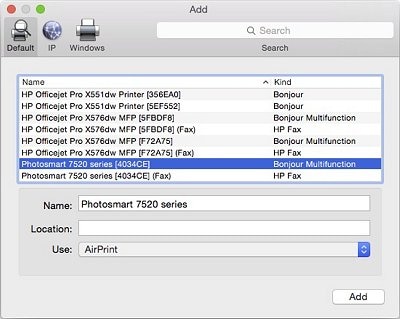
  4. Find and select the name of your printer from the Printer list, and then click Add to add your printer. Do not select an HP Fax driver.

       NOTE:

    If your printer does not display in the list, make sure the printer is connected, turned on, has power, and is ready to print.

    Figure : Example of the printer selection list

    Image: The Add window showing a selection of printers with one model selected.
  5. Click Print Using or Use.

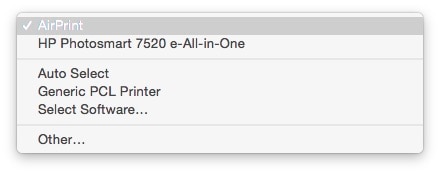
  6. Select AirPrint.

    Figure : Menu showing AirPrint selected

    Image: Menu showing AirPrint selected

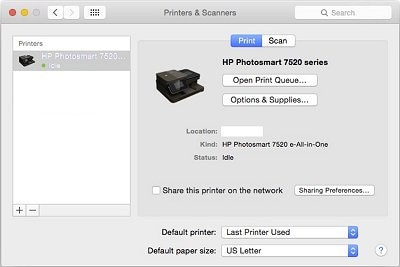
    Your new printer queue displays in the Printers list in an Idle status .

    Figure : Example of a newly added printer in the Printers & Scanners list

    Image: The printers and scanners windows with one printer in the printers list
  7. Try printing again.

Refer this article to further troubleshoot scanner connection error on your printer. Click Here


Let me know how it goes!

Have a great day ahead! 🙂


Please click “Accept as Solution” if you feel my post solved your issue, it will help others find the solution.

Click the “Kudos, Thumbs Up" on the bottom right to say “Thanks” for helping!

A4Apollo
I am an HP Employee

† The opinions expressed above are the personal opinions of the authors, not of HP. By using this site, you accept the <a href="https://www8.hp.com/us/en/terms-of-use.html" class="udrlinesmall">Terms of Use</a> and <a href="/t5/custom/page/page-id/hp.rulespage" class="udrlinesmall"> Rules of Participation</a>.