-
×InformationNeed Windows 11 help?Check documents on compatibility, FAQs, upgrade information and available fixes.
Windows 11 Support Center. -
-
×InformationNeed Windows 11 help?Check documents on compatibility, FAQs, upgrade information and available fixes.
Windows 11 Support Center. -
- HP Community
- Printers
- Scanning, Faxing, and Copying
- Scanner broken

Create an account on the HP Community to personalize your profile and ask a question
01-30-2019 02:37 PM - edited 01-30-2019 02:38 PM
My scanner does not work properly. There is a vertical line on the side of every document i scan. Is this a hardware issue? And if so, how can this be repaired?
Thank you,
01-31-2019 02:30 PM
Good Day. A warm welcome to the HP community. I reviewed the case regarding issues with the printer. I will be delighted to assist you here.
Clean the scanner
Fingerprints, smudges, dust, or debris on the scanner glass, under the scanner lid, or in the document feed slot can cause lines and color bands. Clean these parts with a soft, lint-free cloth sprayed with glass cleaner.
Clean the plastic and glass strips inside the document feeder with a soft, lint-free cloth sprayed with glass cleaner.
NOTE:Some printers ship with a document feeder cleaning cloth. If you have the cloth, load it into the document feeder and start a copy job to clean the scanner mechanism.
-
Turn the printer off, disconnect the power cord, and then remove the battery if your printer has one.
-
Depending on your printer model, open any top cover, document feeder tray, and scan document feeder cover.
-
Look for and remove any dust or debris from inside the document feeder.
-
Spray a soft, lint-free cloth with glass cleaner, and then wipe the scanner glass and the white strip on the underside of the document feeder until clean, dry, and streak-free.
CAUTION:
To protect the interior printer parts, do not spray the cleaner directly on or into the printer.
-
Completely close any covers and trays that you opened.
-
Reconnect the power cord, reinstall the battery if necessary, and then turn on the printer.
-
Load the original document or photo, and then start a copy job.
If the issue persists, continue to the next step.
Step 2: Clean the ADF rollers
Dust or paper residue on the rollers or separator pad inside the automatic document feeder (ADF) can result in copy quality issues.
-
Gather the following materials:
-
A clean, lint-free cloth, or any cloth that does not come apart or leave fibers
-
Distilled, filtered, or bottled water (tap water might damage the printer)
-
-
Remove the original document from the ADF.
-
Turn the printer off, disconnect the power cord, and then open the ADF cover.
-
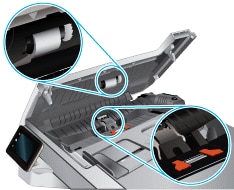
Find any paper pick rollers and the separator pad inside the ADF. These parts have a rubber covering.

-
Lightly dampen the cloth with the water, squeeze any excess liquid from the cloth, and then wipe any residue off the rollers and separator pad.
-
Leave the ADF cover open for two minutes to allow the parts to dry, and then close the cover.
-
Reconnect the power cord, turn on the printer, and then start a copy job.
If the issue persists, continue to the next step.
Step 3: Reset the printer and check the power source
Reset the printer to clear certain error states by calibrating the copier mechanism, and then check the power source to confirm the printer is getting enough power to operate the copier.
-
Press the Power button to turn on the printer, if it is not already on.
-
With the printer turned on, disconnect the power cord from the printer.
-
Disconnect the power cord from the power source, and then wait 60 seconds.
-
If you previously connected the power cord to a power strip or multi-plug outlet adapter, reconnect the cord directly to a wall outlet to ensure the printer is getting enough power.
-
Reconnect the power cord to the rear of the printer, and then turn on the printer.
-
If you have an HP DeskJet 3700 series printer, calibrate the scanner after resetting the printer.
-
Load the original document or photo, and then start a copy job.
-
If the issue persists, connect the printer power cord to a different wall outlet to determine if the original outlet is causing the issue.
-
Keep me posted. 🙂
Barachiel
I am an HP Employee