• ×
    Information
    Need Windows 11 help?
    Check documents on compatibility, FAQs, upgrade information and available fixes.
    Windows 11 Support Center.
  • post a message
  • ×
    Information
    Need Windows 11 help?
    Check documents on compatibility, FAQs, upgrade information and available fixes.
    Windows 11 Support Center.
  • post a message
Guidelines
Seize the moment! nominate yourself or a tech enthusiast you admire & join the HP Community Experts!
Common problems HP Solution Center not working : Adobe Flash Player Error and Unable to scan
We would like to share some of the most frequently asked questions about HP Solution Center not working : Adobe Flash Player Error and Unable to Scan.
HP Recommended

Hi everyone. UK. HP envy 4527. Windows 10.

All up to date software and drivers.

Scanning in lots of my old photos

Having issue with some of them, particularly those with white borders, that when scan saves it cuts off about a third of the photo. This cut out area appears as white.

Strange thing is in preview of initial scan is perfect. But then when try and save the above happens.

Tried clean install of windows in addition to reinstalling printer software/drivers from HP website multiple times. 

I notice that the March 2019 software update has now been removed from product support page and only 2017 so perhaps ongoing issues.

Would appreciate any solutions/advice. Seems to only happen with certain photos which odd.

Thanks!

Would appreciate

4 REPLIES 4
HP Recommended

@MrT39 


The Basics here:

How to Scan (Windows)


Discussion

Assuming you are using the printer Software (HP Scan) to scan the photos, it is important that the "scan field" size is the right shape and size to capture the entire photo in the scan.


Alternatively, set the "Scan Size" to the "entire" scan field.  This has the unfortunate result of also capturing a lot of "white" space - at least the photo should be somewhere in the capture and be complete.


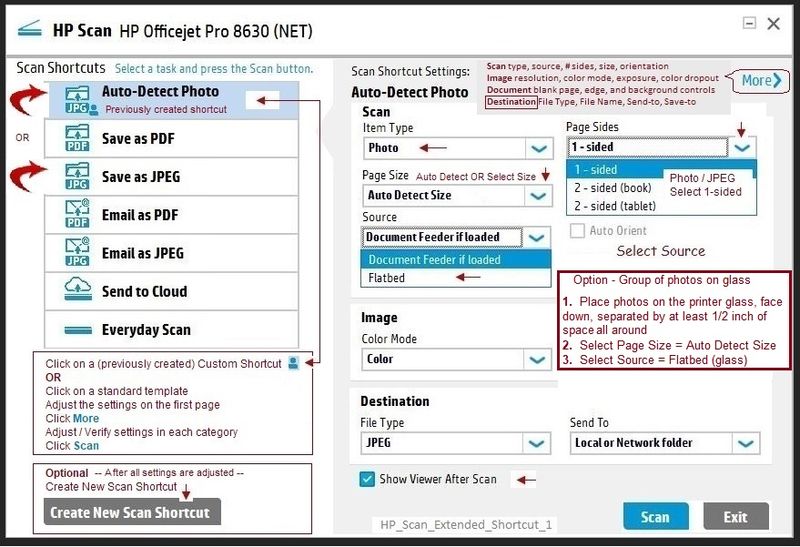
Even better, add the "HP Scan Extended" software to your retinue and make use of the "Auto Detect Size" feature to capture the exact size of the photo / image on the glass.  You can also use this feature to capture more than one photo / image on the glass and save each photo as a separate file.  Nice.


Link / Download:  HP Scan Extended 

Download, save, and install to use.  Exceptional free HP scan program:  HP Scan Extended features include (and are not limited to): Single, Multiple scans, Image and PDF scans, Email as PDF / JPEG, Source selection, Page Size choices include Auto-Detect (extracts image / document boundary).  May include OCR (Save as Editable Text).


NOTES

  • HPSE is an older subset of the printer software; features are very similar to scan software included in 2015 or newer Full Feature Software packages.
  • If you have the newer version of the scan software inside your Full Feature Software, use that: Printer Assistant shortcut icon on Desktop (named for printer) > Scan a document or image (wording varies).
  • Although the HPSE program works as a separate program, HPSE is dependent on the infrastructure provided by the printer software. The Full Feature Software for your printer should be installed before installing HPSE.
  • OPTIONAL: Add HP Scan Extended shortcut to Taskbar / Send to Desktop / Pin to Start
    • Open File Explorer > Navigate to C:\Program Files (x86)\HP\HP Scan Extended\bin
    • Right-Click exe > Select Pin to Taskbar / Send to Desktop / Pin to Start


Example: HP Scan Extended Shortcut -- Auto Detect Size Feature


Place photo(s) on the scanner glass - separate each photo by at least 1/2 inch

Open the HPSE software

Select to Save as JPEG

Select Auto Detect Size as your Page size

Click More >

Set option(s) in Sub-menus, including Destination

When ready, click Scan

HP_Scan_Extended_Shortcut_1HP_Scan_Extended_Shortcut_1


More / For Later:


Link and Download  NAPS2 

NOTES

  • Not another PDF Scanner – free program scans PDF files and image(s) as .jpeg or PDF file(s).
  • Includes an OCR feature – may need Ghostscript add-on (See NAPS2 forum entry)
  • Read the Support pages for information
  • Download, save, and install the NAPS2 software to use.


Printer Software (Full Feature Software) - Install from your printer's Website Support for Software and Drivers

Double-Click the Printer Assistant shortcut ion on the Desktop named for the printer 

Wait several seconds for the software to open on the screen

Tab Print, Scan & Fax > Select Scan a Document or Photo)


HP Scan and Capture

Windows Store - Requires Windows 8 or higher


HP Printers - Using the HP Smart App (Windows 10)


Embedded Web Server (EWS) Webscan

If the printer is on the network,

  • Open your favorite browser > type / enter Printer IP address into URL / Address bar
  • Tab Scan > Webscan(Does not require installed printer software)


Reference and Resources – Places to find (more) help and learn about your Printer

Printer Homepage – “Things that are your printer”

Drivers / Software / Firmware Updates, Videos, Bulletins/Notices, How-to, Troubleshooting, User Guides, Product Information, more

HP ENVY 4527 All-in-One Printer


Thank you for participating in the HP Community Forum.

We are a world community of HP enthusiasts dedicated to supporting HP technology.

Click Thumbs Up on a post to say Thank You!

Answered? Click post "Accept as Solution" to help others find it.


Dragon-Fur

HP Recommended

Cheers for information Dragon-Fur! Very useful. 


I’m accessing the scanner via the printer icon on desktop as the windows 10 smart HP app didn’t seem to have ability to detect multiple photos which great when trying to scan 1000 photos in!


I’m saving as JPG, setting to photo and ‘detect photos’. Then changing to 600dpi scan setting. Printer then performs a quick scan and brings up a preview of photos all of which look perfect in the preview. I then hit save and it says ‘scanning at selected resolution’ and then rescans which then seems to take ages. But when photos pop up in selected folder about 1/3rd of photo is whited out even though preview scan was perfect.


But my version of software is not as detailed as your link pictures. Will try and download scan extended version but think was not available for my printer. Thanks again


HP Recommended

@MrT39 


You are welcome.


At least for some versions of the printer software:

HP Scan > Scan a Document or Photo - that is part of the Printer Assistant shortcut icon on the Desktop, does not (always) provide the "extra" features described for the HP Scan Extended software.


Assuming you have the Printer Assistant (Full Feature Software) installed, the HP Scan Extended software should (will likely) work and provide the Auto Detect Size as described.


Thank you for participating in the HP Community Forum.

We are a world community of HP enthusiasts dedicated to supporting HP technology.

Click Thumbs Up on a post to say Thank You!

Answered? Click post "Accept as Solution" to help others find it.


Dragon-Fur

HP Recommended

Hi @MrT39 ,

Thanks for using the HP Support Community.  Apologies for jumping in here.


Here's an example of scanning Multiple photos with HP Scan Extended.


Scan multiple photos with Auto Crop (HP Scan Extended)


Hope that helps!


I am an HP Employee. Although I am speaking for myself and not for HP.
Click Helpful = Yes to say Thank You.
Question / Concern Answered, Click "Accept as Solution"
† The opinions expressed above are the personal opinions of the authors, not of HP. By using this site, you accept the <a href="https://www8.hp.com/us/en/terms-of-use.html" class="udrlinesmall">Terms of Use</a> and <a href="/t5/custom/page/page-id/hp.rulespage" class="udrlinesmall"> Rules of Participation</a>.