• ×
    Information
    Need Windows 11 help?
    Check documents on compatibility, FAQs, upgrade information and available fixes.
    Windows 11 Support Center.
  • post a message
  • ×
    Information
    Need Windows 11 help?
    Check documents on compatibility, FAQs, upgrade information and available fixes.
    Windows 11 Support Center.
  • post a message
Guidelines
Seize the moment! nominate yourself or a tech enthusiast you admire & join the HP Community Experts!
Common problems HP Solution Center not working : Adobe Flash Player Error and Unable to scan
We would like to share some of the most frequently asked questions about HP Solution Center not working : Adobe Flash Player Error and Unable to Scan.
HP Recommended

Scan feeder does not respond on HP Officejet Pro 8620

1 REPLY 1
HP Recommended

Hi @SteveC03,


Welcome to the HP Support Community. 


I'd be glad to help you! 


If your HP Officejet Pro 8620's scan feeder is not responding, you can try the following steps to diagnose and fix the issue:


  1. Restart the Printer:
  2. Turn the printer off, and then on again. This step can often reset any errors affecting the scan feeder.
  3. Check Connections:
  4. Ensure that all cables are properly connected, especially the cables between the document feeder and the printer.
  5. Update the Printer Firmware:
  6. Ensure that your printer's firmware is up-to-date. Outdated firmware could be the cause of the feeder issues. Visit HP Support for the latest firmware updates.
  7. Inspect the Document Feeder:
  8. Check the document feeder for any obstructions or paper jams. Remove any visible blockages carefully.
  9. Contact HP Support:
  10. If the steps above do not resolve the issue, it is recommended to contact HP customer support for further assistance. You can visit HP Support for support options.


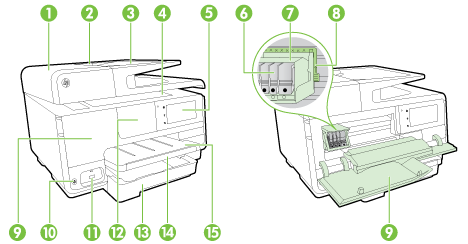
Here is an image from the HP Officejet Pro e-All-in-One Printer Series that may help you locate the document feeder parts:

Explore the key features of the HP Officejet Pro e-All-in-One Printer Series from both front and rear views.

If the issue persists after following these troubleshooting steps, there may be a hardware issue.


Keep me posted for further assistance


Please mark this post as Accepted Solution” if the issue is resolved and if you feel this reply was helpful click “Yes”.

Nal_NR-
HP Community Moderator


† The opinions expressed above are the personal opinions of the authors, not of HP. By using this site, you accept the <a href="https://www8.hp.com/us/en/terms-of-use.html" class="udrlinesmall">Terms of Use</a> and <a href="/t5/custom/page/page-id/hp.rulespage" class="udrlinesmall"> Rules of Participation</a>.