• ×
    Information
    Need Windows 11 help?
    Check documents on compatibility, FAQs, upgrade information and available fixes.
    Windows 11 Support Center.
  • post a message
  • ×
    Information
    Need Windows 11 help?
    Check documents on compatibility, FAQs, upgrade information and available fixes.
    Windows 11 Support Center.
  • post a message
Guidelines
Join the HP Community Solve‑a‑thon | Help Others & Share Your Solutions | Live on Zoom | 2:30 PM to 2:30 AM IST | Every Wednesday Click here to know more
Common problems HP Solution Center not working : Adobe Flash Player Error and Unable to scan
We would like to share some of the most frequently asked questions about HP Solution Center not working : Adobe Flash Player Error and Unable to Scan.

HP Recommended
HP ENVY 6055 All-In-One Printer
macOS 26.0 Tahoe

Recently the scanner has started to shift colors horizontally. The initial (correct) scan is repeated 1/2" to the right in red and the an additional 1/2" further to the right in blue and then a further 1/2" to the right in green. At first it was only happening to the bottom half of an 8-1/2" x 11" scan, but now it affects the entire scan from top to bottom. When I run the diagnostic procedure in the HP Smart application it does not find any problem..

1 REPLY 1
HP Recommended

Hi  @FritzMills 
 
Welcome to the HP Support Community!

Thank you for reaching out, and I appreciate the detailed description of the scanning behaviour. I understand that the scanned image is showing repeated color shifts (red, blue, and green) across the page, and that the issue has gradually expanded from part of the scan to the entire document. I'll be glad to help you check on this further.

To better understand the situation, could you kindly sahre the below details :

  • Whether the issue occurs when scanning from: 
    • HP App
    • Apple Image Capture
    • Another scanning application
  • If possible, could you kindly share a sample scan showing the color separation effect?

In the meantime, I recommend trying the below steps and confirm : 

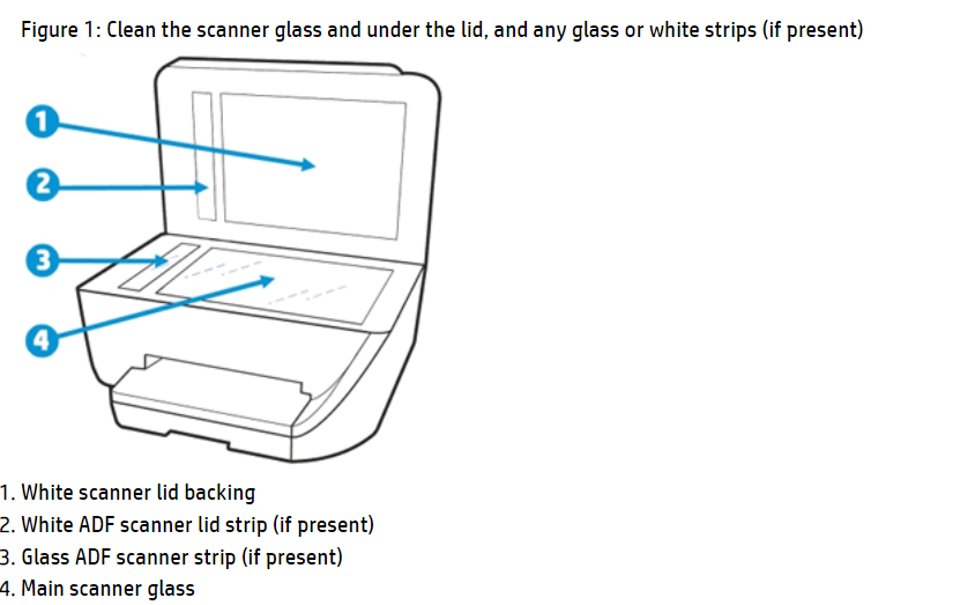
  1. Clean the scanner glass and backing
    • Turn the printer off.
    • Clean the scanner glass using a soft, lint-free cloth slightly dampened with glass cleaner or distilled water.
    • Also clean the white backing underneath the scanner lid, as debris or residue can impact scan quality.
  2. Perform a standalone scan test
    • Scan the same document using both: 
      • HP App
      • Apple Image Capture (built into macOS)
    • This can help determine whether the issue is related to the scanner hardware or the scanning software.
  3. Reset the printing system and re-add the printer
    • On your Mac, go to System Settings -Printers & Scanners.
    • Remove the printer.
    • Restart the Mac.
    • Add the printer again and test scanning.
  4. Test different scan settings (Link for further information - Click here )
    • Try scanning in: 
      • Color
      • Grayscale
      • Black & White
    • If the issue only appears in Color mode, that information will help narrow down the cause.
  5. Run HP Smart diagnostics
    • Since the diagnostics completed successfully, kindly note whether any warnings or informational messages were displayed during the test.

      You can also find this link here for resolving scan quality problems on HP printers - click here 

I hope this helps. 

I'm an HP Employee.


If this reply helped resolve your issue, please select the Accept as Solution as it helps others in the community quickly find the answer they’re looking for.


And if you found this reply helpful, clicking Yes below is a great way to let us know we’re providing the support you need, as it encourages us to keep improving and sharing helpful guidance.

† The opinions expressed above are the personal opinions of the authors, not of HP. By using this site, you accept the <a href="https://www8.hp.com/us/en/terms-of-use.html" class="udrlinesmall">Terms of Use</a> and <a href="/t5/custom/page/page-id/hp.rulespage" class="udrlinesmall"> Rules of Participation</a>.
-->