
-
×InformationNeed Windows 11 help?Check documents on compatibility, FAQs, upgrade information and available fixes.
Windows 11 Support Center. -
-
×InformationNeed Windows 11 help?Check documents on compatibility, FAQs, upgrade information and available fixes.
Windows 11 Support Center. -
- HP Community
- Printers
- Scanning, Faxing, and Copying
- Re: Scanner issue on iMac Catalina 10.15

Create an account on the HP Community to personalize your profile and ask a question
Your account also allows you to connect with HP support faster, access a personal dashboard to manage all of your devices in one place, view warranty information, case status and more.
Common problems HP Solution Center not working : Adobe Flash Player Error and Unable to scan
We would like to share some of the most frequently asked questions about HP Solution Center not working : Adobe Flash Player Error and Unable to Scan.

It has been a while since anyone has replied. Simply ask a new question if you would like to start the discussion again.

10-19-2019 08:54 AM
 HP Recommended
Product: Officejet model 4652
Operating System: Other
When I try to scan I see the following message "Automatic Document Feeder is Empty", no documents detected. I do not use an automatic document feeder. I place the document on the scanner bed and initiate scan on my iMac.
I have done many scans previous to install of Catalina 10.15. without issues. I have installed latest print drivers for my MAC from HP support site without resolution for this issue.
Solved! Go to Solution.
1 ACCEPTED SOLUTION
Accepted Solutions


10-21-2019 02:43 PM
HP Recommended
@jonbjon, Welcome to the HP Support Community!
Are you using HP Easy Scan to scan from your MAC?
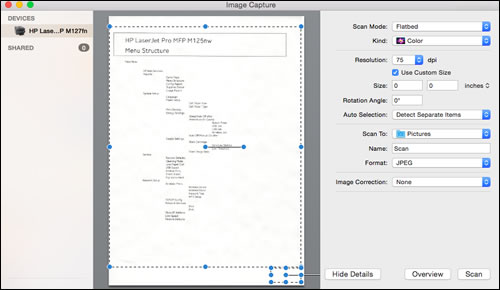
HP Easy Scan is not yet supported by 10.15 Catalina. Instead, you may use Apple Image Capture. A compatible version of HP Easy Scan should be released soon.
Apple Image Capture comes with macOS and OS X and provides a quick and simple way to scan.
-
Place the document or photo print side down on the scanner glass, and then close the scanner lid.
If your printer has an automatic document feeder (ADF), use it to scan multiple page documents at one time.
CAUTION: Do not load photos in the ADF.
-
Open Finder
 , and then click Go in the top menu bar.
 -
Click Applications, and then double-click Image Capture.
-
Click your printer name in the Devices or Shared list.
NOTE: If a Software for this device is not installed message displays after you select your printer, click Install, and then follow the instructions to complete the installation.
-
Click Show Details at the bottom of the screen.
A preview of the scan displays, and then change any of the following settings:
-
Scan Mode: Select the scanning bed or automatic document feeder.
-
Kind: Set scan as color, black and white, or optimized for text only documents.
-
Resolution: Higher resolution produces better quality images by using more dots (pixels) per inch. Higher resolution increases the file size of the scan. Use a higher resolution for scans with graphics or items that require the best detail. If you are scanning black and white text, higher resolution is not necessary.
-
Size: Use a standard paper size or select the Use Custom Size option.
-
Scan to: Select the folder you want scans to save to or use the Mail option to attach the scan to an Apple Mail email message.
-
Name: Type a name for the saved scan file.
-
Format: Select the file type for the scan.
NOTE: To save multiple page documents or multiple images into a single file, select the PDF or TIFF format, and then select the box next to Combine into single document. This feature is only available with these formats.
-
Image Correction: Click the pop-up menu, and then select Manual to display color change options such as brightness and saturation.
-
-
Click Scan.
Let me know how this goes.
If you feel my post solved your issue, please click “Accept as Solution”, it will help others find the solution. Click the “Kudos/Thumbs Up" on the bottom right to say “Thanks” for helping!
KUMAR0307
I am an HP Employee
6 REPLIES 6
10-21-2019 02:43 PM
HP Recommended
@jonbjon, Welcome to the HP Support Community!
Are you using HP Easy Scan to scan from your MAC?
HP Easy Scan is not yet supported by 10.15 Catalina. Instead, you may use Apple Image Capture. A compatible version of HP Easy Scan should be released soon.
Apple Image Capture comes with macOS and OS X and provides a quick and simple way to scan.
-
Place the document or photo print side down on the scanner glass, and then close the scanner lid.
If your printer has an automatic document feeder (ADF), use it to scan multiple page documents at one time.
CAUTION: Do not load photos in the ADF.
-
Open Finder
, and then click Go in the top menu bar. -
Click Applications, and then double-click Image Capture.
-
Click your printer name in the Devices or Shared list.
NOTE: If a Software for this device is not installed message displays after you select your printer, click Install, and then follow the instructions to complete the installation.
-
Click Show Details at the bottom of the screen.
A preview of the scan displays, and then change any of the following settings:
-
Scan Mode: Select the scanning bed or automatic document feeder.
-
Kind: Set scan as color, black and white, or optimized for text only documents.
-
Resolution: Higher resolution produces better quality images by using more dots (pixels) per inch. Higher resolution increases the file size of the scan. Use a higher resolution for scans with graphics or items that require the best detail. If you are scanning black and white text, higher resolution is not necessary.
-
Size: Use a standard paper size or select the Use Custom Size option.
-
Scan to: Select the folder you want scans to save to or use the Mail option to attach the scan to an Apple Mail email message.
-
Name: Type a name for the saved scan file.
-
Format: Select the file type for the scan.
NOTE: To save multiple page documents or multiple images into a single file, select the PDF or TIFF format, and then select the box next to Combine into single document. This feature is only available with these formats.
-
Image Correction: Click the pop-up menu, and then select Manual to display color change options such as brightness and saturation.
-
-
Click Scan.
Let me know how this goes.
If you feel my post solved your issue, please click “Accept as Solution”, it will help others find the solution. Click the “Kudos/Thumbs Up" on the bottom right to say “Thanks” for helping!
KUMAR0307
I am an HP Employee

11-27-2019 08:38 PM
HP Recommended
I tried removing the printer from settings and adding it again and removing and adding HP Easy Scan again (twice) and to no avail. It still gives the message "Automatic Document Feeder is Empty". Is there any other options or solutions to get the 8610 All in One to scan without that message on the Flatbed rather than automatic feed? I tried resetting the scanner options to flatbed from automatic to no avail.


Be alert for scammers posting fake support phone numbers and/or email addresses on the community.
If you think you have received a fake HP Support message, please report it to us by clicking on "Flag Post".
† The opinions expressed above are the personal opinions of the authors, not of HP. By using this site, you accept the Terms of Use and Rules of Participation.


Didn't find what you were looking for?
Ask the community
† The opinions expressed above are the personal opinions of the authors, not of HP. By using this site, you accept the <a href="https://www8.hp.com/us/en/terms-of-use.html" class="udrlinesmall">Terms of Use</a> and <a href="/t5/custom/page/page-id/hp.rulespage" class="udrlinesmall"> Rules of Participation</a>.