
-
×InformationNeed Windows 11 help?Check documents on compatibility, FAQs, upgrade information and available fixes.
Windows 11 Support Center. -
-
×InformationNeed Windows 11 help?Check documents on compatibility, FAQs, upgrade information and available fixes.
Windows 11 Support Center. -
- HP Community
- Printers
- Scanning, Faxing, and Copying
- Re: Scanner issue

Create an account on the HP Community to personalize your profile and ask a question
Your account also allows you to connect with HP support faster, access a personal dashboard to manage all of your devices in one place, view warranty information, case status and more.
Common problems HP Solution Center not working : Adobe Flash Player Error and Unable to scan
We would like to share some of the most frequently asked questions about HP Solution Center not working : Adobe Flash Player Error and Unable to Scan.

It has been a while since anyone has replied. Simply ask a new question if you would like to start the discussion again.

12-13-2021 02:46 AM
 HP Recommended
Product: HP ENVY Photo 7830
Operating System: Microsoft Windows 10 (64-bit)
Hello,
first of all, sorry for my very bad English 🙂
I kindly need your help cause I can't use my ENVY 7830' scanner.
Every time that I try to scan, from the app on my mobile, from the PC, or directly from the printer, I got this result:

I already tried a Factory Reset, the Firmware is up to date and also the Driver on my PC is up to date.
(HP Print and Scan program didn't help)
Any suggestion?
Regards 🙂
9 REPLIES 9


12-13-2021 11:14 AM - edited 12-13-2021 11:14 AM
HP Recommended
Hello @Bi0Parc0 ,
Welcome to the HP Support Community!
- shut down printer via on/off switch
- switch off the router
- shut down the computer
- wait about 60 sec.
- Connect the printer's power cord directly to a power outlet.
- switch on the router, wait until the router has completely initialized itself again
- Switch on the printer, wait until the printer has finished its initialization
- switch on computer, log in (with admin rights) and wait about 10 sec.
Test scan ... and now everything's working again?
I'm not an employee of HP, I'm as volunteer here.


12-15-2021 07:48 AM
HP Recommended
Thanks for your answer, but this issue isn't depending on the computer or the router.
The problem appears also if I'm copying directly from the printer or using a direct connection between my smartphone and the printer.
12-16-2021 02:42 PM
HP Recommended
@Bi0Parc0 wrote:... but this issue isn't depending on the computer or the router.
You're right, it's a power problem!
Connect the printer's power cord directly to a power outlet.
Did you connect the printer power supply directly to a wall outlet?
Regards
Andr-1611
I'm not an employee of HP, I'm as volunteer here.

12-16-2021 04:12 PM
HP Recommended
Good question -
Yes, there are additional ways to plug in and provide electric power to your printer or other devices.
Sometimes people (at least in the USA) use surge protectors - these are power strips that include the ability to reduce the power coming through to the devices plugged into the protector.
Surge protectors come in all sizes and many different protection ranges. Cheap (less expensive) surge protection units are usually best avoided except where the need is greater than the perceived risk, that is all that is available, AND when the consumer understands the limitations of the device and the surge protector he / she / they choose to use.
In theory, the surge protector lets the device run but does not allow "surges" or power spikes (as might be seen in a storm or other power emergency). This is great until the printer just needs a "bit more power" to scan (for example) and the surge protector won't provide the extra power. The smaller, less expensive units are more likely to have issues and more troublesome limitations. Most surge protectors are "not ideal" for a printer's needs.
Not quite in the same category but capable of doing the same things are battery backup units. The good ones have over and under power protection and maybe an adaptable range that is allowed / supported. Many of these units also have a separate panel on the back - some devices get the whole "battery backup" protection while other devices can be plugged into "just" the surge / power drop protection outlets.
Thank you for participating in the HP Community.
The Community is a separate wing of the HP website - We are not an HP business group.
Our Community is comprised of volunteers - people who own and use HP devices.
Dragon-Fur
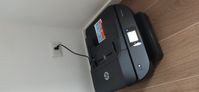

12-17-2021 02:06 PM - edited 12-17-2021 02:09 PM
HP Recommended
This is how I got the scanner to work on my printer again (OfficeJet Pro 7740, scanning issue, output full of color stripes)
- Power off for 5 minutes (problem remains)
- Factory reset and downgraded firmware to original version.
- Power off for 5 minutes.
- Working!
- Upgraded firmware to latest version + reboot (toggle power)
- Still working!
12-18-2021 09:08 AM - edited 12-18-2021 09:09 AM
HP Recommended
Sorry, but I don't know anything about the printer you are using (ie the ENVY Photo 7830). Perhaps @Dragon-Fur can assist you regarding this?

Be alert for scammers posting fake support phone numbers and/or email addresses on the community.
If you think you have received a fake HP Support message, please report it to us by clicking on "Flag Post".
† The opinions expressed above are the personal opinions of the authors, not of HP. By using this site, you accept the Terms of Use and Rules of Participation.


Didn't find what you were looking for?
Ask the community
† The opinions expressed above are the personal opinions of the authors, not of HP. By using this site, you accept the <a href="https://www8.hp.com/us/en/terms-of-use.html" class="udrlinesmall">Terms of Use</a> and <a href="/t5/custom/page/page-id/hp.rulespage" class="udrlinesmall"> Rules of Participation</a>.