
-
×InformationNeed Windows 11 help?Check documents on compatibility, FAQs, upgrade information and available fixes.
Windows 11 Support Center. -
-
×InformationNeed Windows 11 help?Check documents on compatibility, FAQs, upgrade information and available fixes.
Windows 11 Support Center. -
- HP Community
- Printers
- Scanning, Faxing, and Copying
- Scanner looses connection

Create an account on the HP Community to personalize your profile and ask a question
Your account also allows you to connect with HP support faster, access a personal dashboard to manage all of your devices in one place, view warranty information, case status and more.
Common problems HP Solution Center not working : Adobe Flash Player Error and Unable to scan
We would like to share some of the most frequently asked questions about HP Solution Center not working : Adobe Flash Player Error and Unable to Scan.

It has been a while since anyone has replied. Simply ask a new question if you would like to start the discussion again.

05-24-2019 02:17 PM
 HP Recommended
Product: Mac Power Book
Operating System: macOS 10.14 Mojave
When I try to scan, the compter looses the connection to the scanner mid scan. If I scan more than 2-3 pages, I loose the connection. I tried loading uodated software and the problem continues. What can I do?
12 REPLIES 12


05-25-2019 09:56 PM
HP Recommended
Hi @Scott76,
A warm welcome to HP Community! I'd like to help.
Does it only happen if you scan multiple pages?
How is the scanner connected to Mac, USB or Wireless?
Any error when you loose the connectivity?
What's the printer/scanner model?
Let me know!
Senan6806
I am an HP Employee
05-27-2019 09:43 AM
HP Recommended
Hi - thanks for the reply! I'll answer your questions below.
Does it only happen if you scan multiple pages?
Yes and no. It generally happens all the time. It can happen while trying to scan 1 page, or it can happen on page 5 of an 11 page document to scan. And then sometimes I can scan all pages. If I have a multiple page document to scan, I soemtimes have to try and scan 20-30 times beofre it accepts all of the pages. Or soetimes it does not accpet all of them and I give up.
How is the scanner connected to Mac, USB or Wireless?
I am connected wireless.
Any error when you loose the connectivity?
Yes. Scanning stops and a screen pops up telling me I lost conenction witht he HP device. No error "code".
What's the printer/scanner model?
HP Color Laser Jet Pro MFP M277c6
05-29-2019 10:41 AM
HP Recommended
Thanks! Could you perform a ping test using the Mac Network Utility and let me know the results. Use the printer IP address to perform a ping test, the printer IP can be located by selecting the wireless icon on the printer display.
The wireless status menu on your Mac should also give us quite a lot of information that would help us identify the issue. You can access the menu clicking the  Wireless icon.
Senan6806
I am an HP Employee
06-08-2019 09:55 AM
HP Recommended
Hi! Sorry for the late reply - I was out of town.
I ran the "ping test". Results are below:
Ping has started…
PING 192.168.1.96 (192.168.1.96): 56 data bytes
64 bytes from 192.168.1.96: icmp_seq=0 ttl=255 time=6.825 ms
64 bytes from 192.168.1.96: icmp_seq=1 ttl=255 time=6.221 ms
Request timeout for icmp_seq 2
64 bytes from 192.168.1.96: icmp_seq=3 ttl=255 time=6.897 ms
64 bytes from 192.168.1.96: icmp_seq=4 ttl=255 time=6.900 ms
64 bytes from 192.168.1.96: icmp_seq=5 ttl=255 time=6.658 ms
64 bytes from 192.168.1.96: icmp_seq=6 ttl=255 time=6.760 ms
64 bytes from 192.168.1.96: icmp_seq=7 ttl=255 time=7.215 ms
64 bytes from 192.168.1.96: icmp_seq=8 ttl=255 time=6.748 ms
64 bytes from 192.168.1.96: icmp_seq=9 ttl=255 time=6.466 ms
--- 192.168.1.96 ping statistics ---
10 packets transmitted, 9 packets received, 10.0% packet loss
round-trip min/avg/max/stddev = 6.221/6.743/7.215/0.266 ms
06-08-2019 04:08 PM - edited 06-08-2019 04:09 PM
HP Recommended
We might be able to resolve connectivity issue by resetting the printer network settings and re-connecting it back to your home WiFi and then adding AirPrint. Here is how to do it:
Please ensure that the printer is up to date with its firmware and Mac is up to date with it's software. If you are unsure you may use the links below to update the printer firmware and Mac software:
1.) Unplug your modem/router and leave it powered off.
2.) Restart your printer, from the printer control panel, touch "Setup". Touch 'Network Setup", touch "Restore Defaults" and then touch OK.
3.) Power off your printer
4.) Reconnect your modem/router and wait for it to re-establish its internet connection.
5.) Power on your printer.
6.) Run Wireless setup wizard on the printer to connect it back to your network.
Once the printer is connected, use the following steps to setup the printer with Apple AirPrint:
1.) Click the Apple menu, click System Preferences, and then click Print & Scan or Printers & Scanners.
2.) Check if your printer name displays in the Printers list, If your printer is listed, click the printer name, click the minus sign  to delete the printer.
3.) If you see multiple printer queues for the same printer, remove all extra printers by selecting them one at a time, and then clicking the minus button at the bottom of the list.
4.) Click the plus sign  , click Add Printer or Scanner, click the printer name.
5.) Click the Use or Print Using menu, select AirPrint or Secure AirPrint in the pop-up menu. Then click Add.
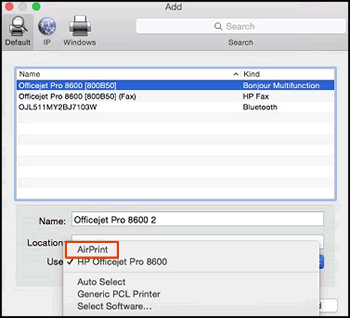
6.) Try to print and scan.
Let me know how it goes!
If the information I've provided was helpful, give us some reinforcement by clicking the Accepted Solution and Kudos buttons, that'll help us and others see that we've got the answers!
Have a great day!
Senan6806
I am an HP Employee

06-09-2019 02:08 PM
HP Recommended
This seems like an intermittent connectivity issue.
Check with your internet service provider if the channel number on the router can be changed for better wireless range and connectivity and if the router is able to forward Bonjour packets.
Alternatively, Use a USB cable and check if you still have the same issue.
Keep me posted for further assistance.
If you feel my post solved your issue, please click “Accept as Solution”, it will help others find the solution. Click the “Kudos/Thumbs Up" on the bottom right to say “Thanks” for helping!
KUMAR0307
I am an HP Employee

Be alert for scammers posting fake support phone numbers and/or email addresses on the community.
If you think you have received a fake HP Support message, please report it to us by clicking on "Flag Post".
† The opinions expressed above are the personal opinions of the authors, not of HP. By using this site, you accept the Terms of Use and Rules of Participation.


Didn't find what you were looking for?
Ask the community
† The opinions expressed above are the personal opinions of the authors, not of HP. By using this site, you accept the <a href="https://www8.hp.com/us/en/terms-of-use.html" class="udrlinesmall">Terms of Use</a> and <a href="/t5/custom/page/page-id/hp.rulespage" class="udrlinesmall"> Rules of Participation</a>.