• ×
    Information
    Need Windows 11 help?
    Check documents on compatibility, FAQs, upgrade information and available fixes.
    Windows 11 Support Center.
  • post a message
  • ×
    Information
    Need Windows 11 help?
    Check documents on compatibility, FAQs, upgrade information and available fixes.
    Windows 11 Support Center.
  • post a message
Guidelines
Join the HP Community Solve‑a‑thon | Help Others & Share Your Solutions | Live on Zoom | 2:30 PM to 2:30 AM IST | Every Wednesday Click here to know more
Common problems HP Solution Center not working : Adobe Flash Player Error and Unable to scan
We would like to share some of the most frequently asked questions about HP Solution Center not working : Adobe Flash Player Error and Unable to Scan.
HP Recommended
Officejet 6978
Microsoft Windows 10 (64-bit)

My OfficeJet 6978 suddenly stopped saving scans to the desktop, or any other folder on my laptop. I get this error message:hp_save_error.jpg

Tried to save the file as a jpeg and got the same error message. Tried saving both into my Documants folder - no go.

I used the HP Print & Scan Doctor, downloaded and installed all the software. Still the same.

My laptop recently downlaoded the Windows 10 Fall 19 Creator's Update 1809, which I think is the problem. I did discover that I can save files to OneDrive, which I guess is OK, but why the heck can't I save to my actual hard drive?

Any ideas? Thanks in advance


3 REPLIES 3
HP Recommended

Hi! @Bill_Ohio,


Try the steps recommended below.


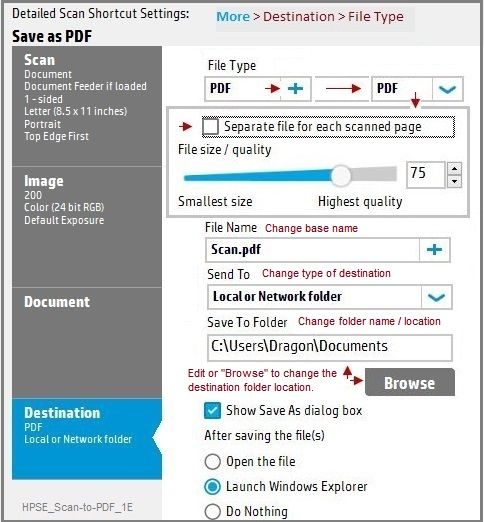
Use the Destination setting in HP Scan to set the Save To Folder location on your computer.

  1. Search Windows for HP, and then select your printer.

    HP Printer Assistant opens.

  2. Click Scan, and then click Scan a Document or Photo.

    HP Scan opens.

  3. Select a shortcut, and then click Advanced Settings or More.

  4. Click Destination, and then click Browse.

  5. Select the folder in the Browse for Folder window, and then click OK.

  6. Click OK or the Save icon  in the shortcut.

  7. Repeat these steps for each scan shortcut.

Local folder basics:

  • Local folders are part of the computer's hierarchy -- the destination disk can be "C" or any other drive letter that designates an internal (or USB connected) drive.  Unlike "network" folders, local disks do not have to be "mapped" since they are already recognised by the File System.
  • Change the "Scan to Folder" destination to match the drive letter and folder to be used to store the scanned data.

HPSE_Scan-to-PDF_1E.jpg


Also, if you still have issues after trying out the steps, try uninstalling the printer software from the root level on the PC and install the full feature printer software.


In Windows, search for and open Programs and Features. 
Select your HP printer. 
Select Uninstall. 
In Windows, search for and open Devices and Printers. 
In the Devices and Printers window look for your HP Printer. If you see it listed, right-click on it and choose "Delete" or "Remove Device.” 
Open up the run command with the "Windows Key + R" key combo. 
Type printui.exe /s and click OK. 
Click on Drivers tab. 
Look for HP Printer driver. If you see it click on it and click remove at the bottom. 
Select OK. 
Select Apply and OK on the Print Server Properties windows. 
Close Devices and Printers. 
 

Update the full feature printer software using this link. Click Here


Refer this article to know more information about scanning to PC. Click Here


Lastly, try scanning using HP smart app on the PC.


Refer this article to know more information about using HP Smart app. Click Here


Hope this helps!

Have a wonderful day ahead! 🙂


Please click “Accept as Solution” if you feel my post solved your issue, it will help others find the solution.

Click the “Kudos, Thumbs Up" on the bottom right to say “Thanks” for helping!


A4Apollo
I am an HP Employee

HP Recommended

With all due respect, if you read my post you would see that I have already done all that you suggested. I tried changing the destination folder several times. I cannot save to any physical folder on my laptop.

HP Recommended

@Bill_Ohio,


Thanks for the update.


Can you try changing the scanned file name and try saving the file again.


Also, try scanning using the HP smart app or HP scan and capture app and check if it the.issue persists.


Refer this article to know more information about using HP smart app. Click Here


Also, refer this article to know more information about using HP scan and capture app. Click Here


Hope this helps!

Take Care! 🙂


Please click “Accept as Solution” if you feel my post solved your issue, it will help others find the solution.

Click the “Kudos, Thumbs Up" on the bottom right to say “Thanks” for helping!

A4Apollo
I am an HP Employee

† The opinions expressed above are the personal opinions of the authors, not of HP. By using this site, you accept the <a href="https://www8.hp.com/us/en/terms-of-use.html" class="udrlinesmall">Terms of Use</a> and <a href="/t5/custom/page/page-id/hp.rulespage" class="udrlinesmall"> Rules of Participation</a>.
-->