
-
×InformationNeed Windows 11 help?Check documents on compatibility, FAQs, upgrade information and available fixes.
Windows 11 Support Center. -
-
×InformationNeed Windows 11 help?Check documents on compatibility, FAQs, upgrade information and available fixes.
Windows 11 Support Center. -
- HP Community
- Printers
- Scanning, Faxing, and Copying
- Scanning Double Sided Document from HP OfficeJet Pro 8740

Create an account on the HP Community to personalize your profile and ask a question
Your account also allows you to connect with HP support faster, access a personal dashboard to manage all of your devices in one place, view warranty information, case status and more.
Common problems HP Solution Center not working : Adobe Flash Player Error and Unable to scan
We would like to share some of the most frequently asked questions about HP Solution Center not working : Adobe Flash Player Error and Unable to Scan.

It has been a while since anyone has replied. Simply ask a new question if you would like to start the discussion again.

05-10-2020 01:22 PM
 HP Recommended
Product: HP Officejet Pro 8740
Operating System: Microsoft Windows 10 (64-bit)
When I initially installed the printer and software, I could scan from the Printer. There is a button "Original 2-sided" that I was able to turn on when I fed the originals into the ADF. It allowed me to scan two-sided originals without having to use the HP Smart software. I have added the printer and the software to a new Windows 10 PC and that button is now grayed out. It looks like this question has been asked before. I know it used to work. Has anyone figured out how to activate that button?
Solved! Go to Solution.
1 ACCEPTED SOLUTION
Accepted Solutions


05-10-2020 01:45 PM
HP Recommended
Some places to look / check
Duplex feature installed? (Model Dependent)
Control Panel > icon view > Devices and Printers >
Right-Click Printer > Printer Properties > tab Device Settings >
Under Installable Options > Automatic Duplexing Unit > Select / Verify Installed > OK
Continued loss of duplex setting? Try Different Doctor version:
Information / version file
Paper Setting on Printer Control Panel
Check / Adjust / Retain the Paper at the Printer Panel
Open Printer Tray,
If you have not yet done so, add desired paper type
Close Tray
IF applicable for your printer:
On the printer control panel, Click Modify (wording varies), set the paper size and type, Click OK
NOTE: If the size of the Paper Size is not in the Drop-down list, Select Custom
Duplex / Simplex option in Printing Preferences (Model Dependent)
Control Panel > icon view > Devices and Printers >
Right-Click Printer > Select Printing Preferences
For Duplex: Select a shortcut that provides the two-sided option and leave that shortcut highlighted (selected)
For Simplex (one sided): Select a shortcut that does NOT the two-sided option and leave that shortcut highlighted (selected)
And / Or (if your printer software supported “custom shortcuts”)
Select a shortcut > Make changes that includes what you need / want (two-sided or one-sided)
NOTES
- Remember to check the settings under each Tab
- Pay attention – not all Media types (kind of paper) and / or paper sizes support Duplex
If the printer supports the option,
Save the changed shortcut settings with “Save As” (wording varies) to create a Custom shortcut
Leave the (new / custom) shortcut you want highlighted as the “default”
Click Apply / OK to save the shortcut
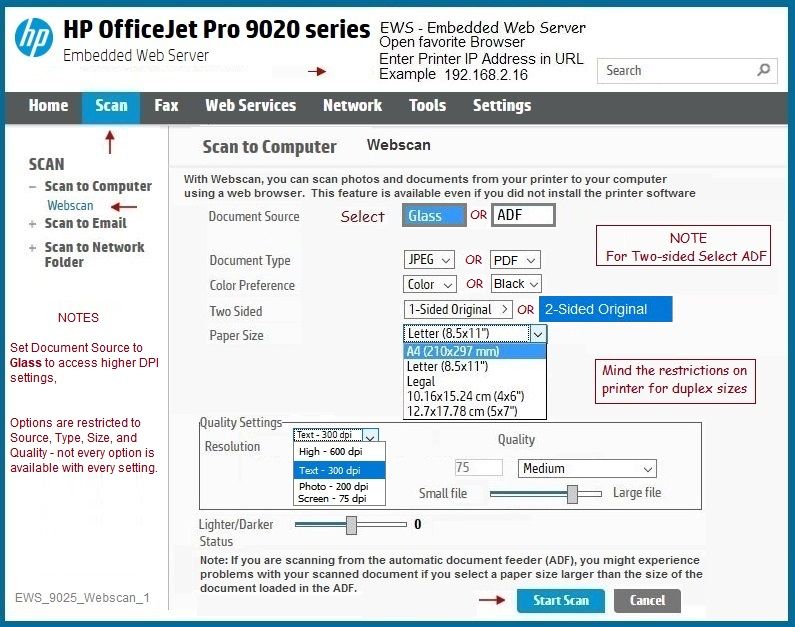
Embedded Web Server (EWS) -
Webscan
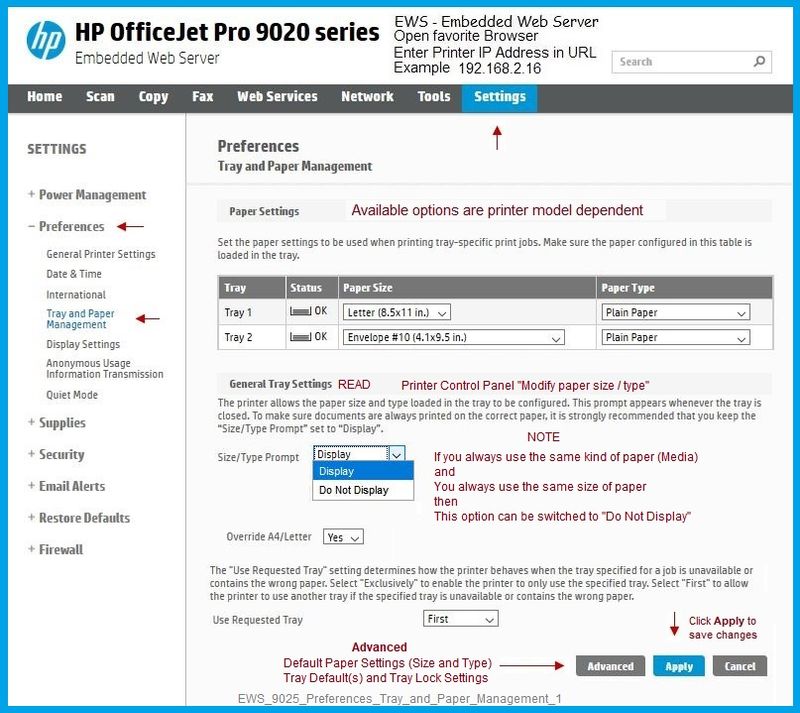
Tray and Paper Management
Example
Semi-related
Not all paper sizes / types support Duplex
Check / Verify Preferences for Tray and Paper Management
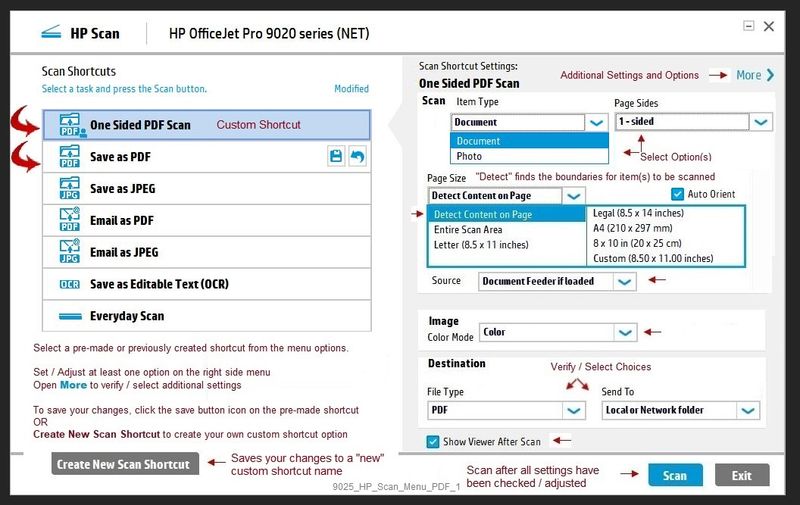
HP Scan - Menu
HP Smart - Main Menu - Set / Adjust > Select More Settings

HP Scan and Capture (from the Windows Store)
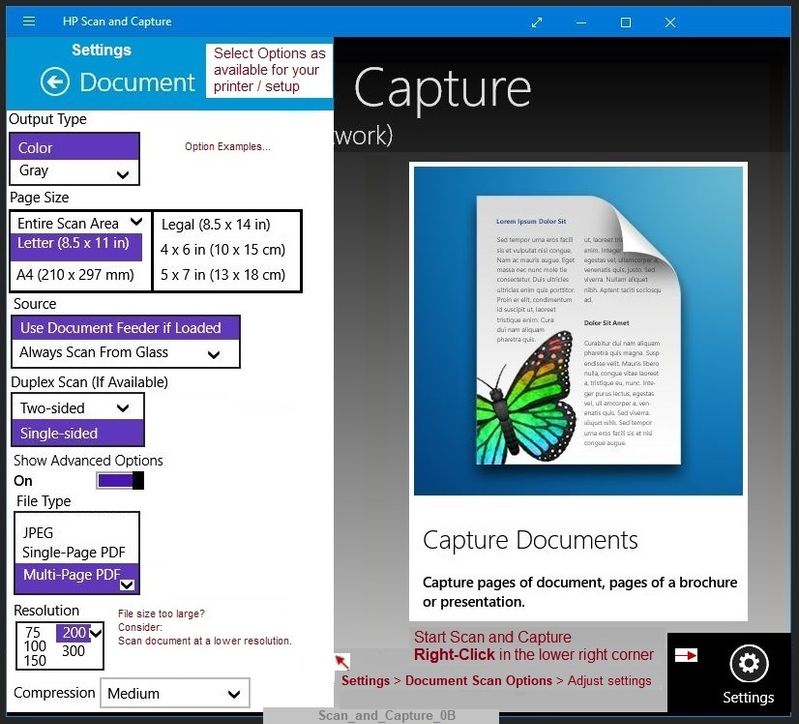
References
HP Printers - How to Scan (Windows)
HP Scan and Capture - Windows Store - Requires Windows 8 or higher
- Download-Save-Install HP Scan and Capture
HP Smart for Windows - Print and scan software
- Download-Save-Install > HP Printers - Using the HP Smart App (Windows 10)
Webscan – located in the Embedded Web Server (EWS) – No additional software
If the printer is on the network,
- Open your favorite browser > type / enter Printer IP address into URL / Address bar
- Tab Settings > Security > Administrator Settings > make sure Webscan is checked / enabled
- Tab Scan > Webscan
Reference and Resources – (More) Places to find help, solve problems, and learn how to use your Printer
Printer Homepage – “Things that are your printer”
NOTE: Content depends on device type and Operating System
Categories: Alerts, Access to the Print and Scan Doctor (Windows), Warranty Check, HP Drivers / Software / Firmware Updates, How-to Videos, Bulletins/Notices, Lots of How-to Documents, Troubleshooting, User Guides / Manuals, Product Information (Specifications), more
When the website support page opens, Select (as available) a Category > Topic > Subtopic
HP OfficeJet Pro 8740 All-in-One Printer series
Thank you for participating in the HP Community Forum.
We are a world community of volunteers dedicated to supporting HP technology
Dragon-Fur

3 REPLIES 3
05-10-2020 01:45 PM
HP Recommended
Some places to look / check
Duplex feature installed? (Model Dependent)
Control Panel > icon view > Devices and Printers >
Right-Click Printer > Printer Properties > tab Device Settings >
Under Installable Options > Automatic Duplexing Unit > Select / Verify Installed > OK
Continued loss of duplex setting? Try Different Doctor version:
Information / version file
Paper Setting on Printer Control Panel
Check / Adjust / Retain the Paper at the Printer Panel
Open Printer Tray,
If you have not yet done so, add desired paper type
Close Tray
IF applicable for your printer:
On the printer control panel, Click Modify (wording varies), set the paper size and type, Click OK
NOTE: If the size of the Paper Size is not in the Drop-down list, Select Custom
Duplex / Simplex option in Printing Preferences (Model Dependent)
Control Panel > icon view > Devices and Printers >
Right-Click Printer > Select Printing Preferences
For Duplex: Select a shortcut that provides the two-sided option and leave that shortcut highlighted (selected)
For Simplex (one sided): Select a shortcut that does NOT the two-sided option and leave that shortcut highlighted (selected)
And / Or (if your printer software supported “custom shortcuts”)
Select a shortcut > Make changes that includes what you need / want (two-sided or one-sided)
NOTES
- Remember to check the settings under each Tab
- Pay attention – not all Media types (kind of paper) and / or paper sizes support Duplex
If the printer supports the option,
Save the changed shortcut settings with “Save As” (wording varies) to create a Custom shortcut
Leave the (new / custom) shortcut you want highlighted as the “default”
Click Apply / OK to save the shortcut
Embedded Web Server (EWS) -
Webscan
Tray and Paper Management
Example
Semi-related
Not all paper sizes / types support Duplex
Check / Verify Preferences for Tray and Paper Management
HP Scan - Menu
HP Smart - Main Menu - Set / Adjust > Select More Settings
HP Scan and Capture (from the Windows Store)
References
HP Printers - How to Scan (Windows)
HP Scan and Capture - Windows Store - Requires Windows 8 or higher
- Download-Save-Install HP Scan and Capture
HP Smart for Windows - Print and scan software
- Download-Save-Install > HP Printers - Using the HP Smart App (Windows 10)
Webscan – located in the Embedded Web Server (EWS) – No additional software
If the printer is on the network,
- Open your favorite browser > type / enter Printer IP address into URL / Address bar
- Tab Settings > Security > Administrator Settings > make sure Webscan is checked / enabled
- Tab Scan > Webscan
Reference and Resources – (More) Places to find help, solve problems, and learn how to use your Printer
Printer Homepage – “Things that are your printer”
NOTE: Content depends on device type and Operating System
Categories: Alerts, Access to the Print and Scan Doctor (Windows), Warranty Check, HP Drivers / Software / Firmware Updates, How-to Videos, Bulletins/Notices, Lots of How-to Documents, Troubleshooting, User Guides / Manuals, Product Information (Specifications), more
When the website support page opens, Select (as available) a Category > Topic > Subtopic
HP OfficeJet Pro 8740 All-in-One Printer series
Thank you for participating in the HP Community Forum.
We are a world community of volunteers dedicated to supporting HP technology
Dragon-Fur
05-13-2020 11:58 AM
HP Recommended
Hi Dragon-Fur -
Thank you so much. There were 2 issues. The duplex setting and then, somehow I had hit the lever that blocked the ADF. Once I reset the Automatic Document Feed bar and the screen on the Printer indicated a document was loaded, the scan 2-sided original reactivated.
It works with the new PC! Thank you so much!

Be alert for scammers posting fake support phone numbers and/or email addresses on the community.
If you think you have received a fake HP Support message, please report it to us by clicking on "Flag Post".
† The opinions expressed above are the personal opinions of the authors, not of HP. By using this site, you accept the Terms of Use and Rules of Participation.


Didn't find what you were looking for?
Ask the community
† The opinions expressed above are the personal opinions of the authors, not of HP. By using this site, you accept the <a href="https://www8.hp.com/us/en/terms-of-use.html" class="udrlinesmall">Terms of Use</a> and <a href="/t5/custom/page/page-id/hp.rulespage" class="udrlinesmall"> Rules of Participation</a>.