• ×
    Information
    Need Windows 11 help?
    Check documents on compatibility, FAQs, upgrade information and available fixes.
    Windows 11 Support Center.
  • post a message
  • ×
    Information
    Need Windows 11 help?
    Check documents on compatibility, FAQs, upgrade information and available fixes.
    Windows 11 Support Center.
  • post a message
Guidelines
Join the HP Community Solve‑a‑thon | Help Others & Share Your Solutions | Live on Zoom | 2:30 PM to 2:30 AM IST | Every Wednesday Click here to know more
Common problems HP Solution Center not working : Adobe Flash Player Error and Unable to scan
We would like to share some of the most frequently asked questions about HP Solution Center not working : Adobe Flash Player Error and Unable to Scan.
HP Recommended
Lenovo 510A-15ARR Desktop
Microsoft Windows 10 (64-bit)

Hello Everybody,

I have an HP Deskjet 3630 "All in One" printer, connected wirelessly, to a PC running Windows 10.

This printer will successfully print documents, so the printer is connected wirelessly but the issue I have is in trying to scan older photographs or printed documentation.

It appears that the ONLY way I can do this is through the HP Smart app which requires a Sign-In. When I attempt to do that I will always get a NETWORK CONNECTION ISSUE. I can not get beyond that.

I know that the printer will talk back and forth with the HP Smart App so the LAN connection is active ....  I know that my internet connection is active because I can wander all over the HP Support site.


So ...  How can I resolve this issue, and why would I need to Sign-In to HP to scan a local document?


Many thanks,

Paul

1 REPLY 1
HP Recommended

@jPaulB1 


HP Smart applications - Windows / Mobile / MacOS - have required a sign-in since the end of 2020 .

"Why" has to do with the Mobile print features, including "Sharing" to email and saving to Cloud.

The sign-in is required whether or not you choose to use a particular feature in the application.


Use of HP Smart is voluntary.


If you have not done so,

Install the Full Feature Software / full driver printer software.

The full driver includes HP Scan.

HP Scan can scan one or more photos on the printer glass and save as separate JPEG files.


Your printer software installation package:

HP DeskJet 3630 All-in-One Print and Scan Driver and Accessories 


===========================================================

>>> Check / Install the Full Feature Software / full driver printer software


The full driver provides the foundation on which other programs and printing software depend.


Preparation - Install Full Driver Printer Software


If you have not done so,

In addition to the HP Smart application,

Install the Full Feature Software / full driver printer software for the printer.

HP Smart and other print software / applications benefit from having the full driver installed.

Make sure your VPN is switched Off when installing software.


Printer Software Check - Is the printer software installed?


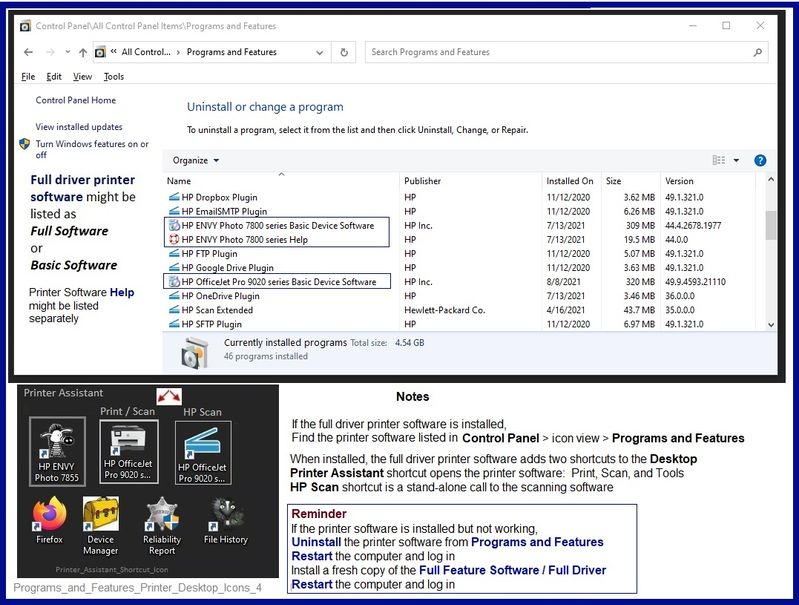
Notes

When the full driver printer software is installed,

Find the printer software listed in Control Panel > icon view > Programs and Features.


The installation of the full printer software adds two shortcut icons to the Desktop.

The Printer Assistant is named for the printer and provides access to Print , Scan , and Tools

HP Scan is named for itself and provides a direct call to the HP Scan software.

Programs_and_Features_Printer_Desktop_Icons_4Programs_and_Features_Printer_Desktop_Icons_4


Next...

Printer software installed but not working?


NOTE:  If the printer software shows installed but is not working as expected,

Uninstall the printer software from Control Panel > icon view > Programs and Features

Restart the computer and log in


What if?

If software will not uninstall, appears to be removed and is “still hanging around” after you uninstall / Restart...

Microsoft:  Fix problems that block programs from being installed or removed

OR

Revo Uninstaller (Free version)

then

Restart the computer and log in


Reminder:  If using USB, disconnect the USB printer cable between the printer and the computer before installing software.  (Re)Connect the USB cable when instructed to do so near the end of the installation procedure.


Install a fresh copy of the Full Feature Software / Full Driver printer software

Restart the computer and log in


===============================================================


Basic Instructions - Install the Full Feature Software / Full Driver printer software


  • If using VPN, shut it off to install software
  • Download and Save the Full Feature Software installation package or the Easy Start Software
  • Open File Explorer
  • Navigate to the folder in which you saved the installation file  (likely Downloads)
  • Reminder:  If using USB cable between printer and computer, disconnect the cable before installing software.
  • Right-Click on the installation package and “Run as Administrator
  • If using Easy Start > When asked, opt for "Full Driver" (exact wording might vary).
  • If using Easy Start > Skip any extra software / offers you do not want (wording varies).
  • After the software is installed, Restart the computer and log in


NOTES

- - - - - - - - - - - - - - - - - - - - - - - - - - - - - - - - - - - - - - - - - - - - - - - - - - - - - - - - - -

Preparation > Check / enable the printer as the “Default Printer”


Settings > Devices > Printers and scanners

UNCHECK (clear box) Let Windows manage my default printer

Select (Left-Click) your printer from the list of printers > Manage > Set as Default


- - - - - - - - - - - - - - - - - - - - - - - - - - - - - - - - - - - - - - - - - - - - - - - - - - - - - - - - - -


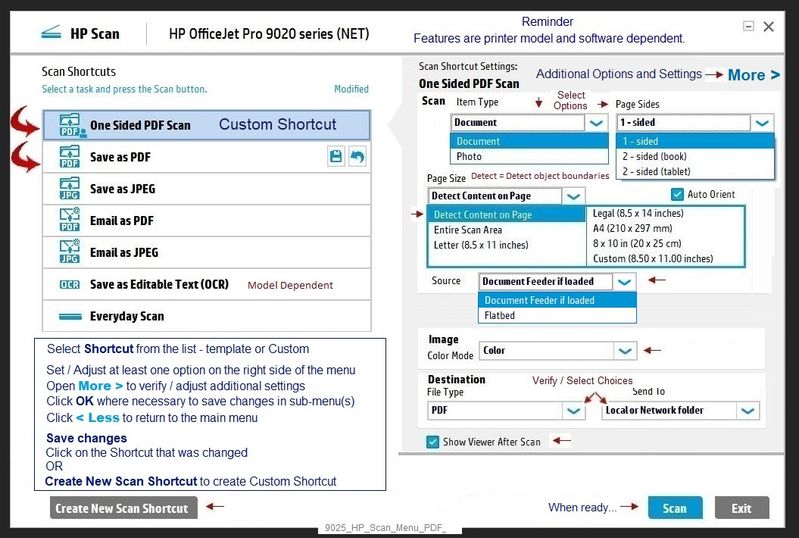
Examples - HP Scan - Windows - Main Menu

9025_HP_Scan_Menu_PDF_69025_HP_Scan_Menu_PDF_6


Example - HP Scan - Save as JPEG

Reminders

  • Use Detect Photos to scan more than one photo on the glass at a time.
  • Separate the photos by about an inch to let the scanner "see" the separation / space.

9025_HP_Scan_menu_JPEG_More_Image_All_39025_HP_Scan_menu_JPEG_More_Image_All_3


HP Printer Support Home Page - References and Resources – Learn about your Printer  - Solve Problems

 “Things that are your printer”

NOTE:  Content depends on device type and Operating System

Categories:  Alerts, Access to the Print and Scan Doctor (Windows), Warranty Check, HP Drivers / Software / Firmware Updates, How-to Videos, Bulletins/Notices, Lots of How-to Documents, Troubleshooting, Manuals > User Guides, Product Information (Specifications), more

When the website support page opens, Select (as available) a Category > Topic > Subtopic

HP DeskJet 3630 All-in-One Printer series 


Thank you for participating in the HP Community.

The Community is a separate wing of the HP website - We are not an HP business group.

Our Community is comprised of volunteers - people who own and use HP devices.

Click Helpful = Yes to say Thank You.

Question / Concern Answered, Click "Accept as Solution"

Dragon-Fur

† The opinions expressed above are the personal opinions of the authors, not of HP. By using this site, you accept the <a href="https://www8.hp.com/us/en/terms-of-use.html" class="udrlinesmall">Terms of Use</a> and <a href="/t5/custom/page/page-id/hp.rulespage" class="udrlinesmall"> Rules of Participation</a>.