• ×
    Information
    Need Windows 11 help?
    Check documents on compatibility, FAQs, upgrade information and available fixes.
    Windows 11 Support Center.
  • post a message
  • ×
    Information
    Need Windows 11 help?
    Check documents on compatibility, FAQs, upgrade information and available fixes.
    Windows 11 Support Center.
  • post a message
Guidelines
Is your HP DeskJet 3830 series scanner not working? Here is the solution Click here to view the instructions!
Common problems HP Solution Center not working : Adobe Flash Player Error and Unable to scan
We would like to share some of the most frequently asked questions about HP Solution Center not working : Adobe Flash Player Error and Unable to Scan.
HP Recommended
HP OfficeJet Pro 8725 All-in-One Printer
Microsoft Windows 10 (64-bit)

My printer was working really well.  Suddenly when I attempted to use the scan feature it failed.  When I select HP Smart to scan it will not let me sign in.

I have spent hours and hours researching online but to no avail.  

I have uninstalled all the software and re-installed.  I deleted the existing printer in the device and printers in the control panel and reinstalled.  I attempted to use HP Scan doctor and that what useless.  I went online to HP for updated drivers, etc.  that did no good.  Shut off VPN and checked the computer clock, totally no help.

What is next?   My printer does print, and I can send a fax if necessary.  Do not know what else I can tell you.  Please help  Thanks in advance for any positive input

2 REPLIES 2
HP Recommended

@CrankyHanky


Welcome to the HP support community.


I understand that you are unable to scan, I am glad to assist you.

Check Windows Image Acquisition settings

  • Windows Image Acquisition (WIA) is a Windows service that helps communication between the computer and scanners. If WIA is not activated, scan jobs can fail.
  • In Windows, search for and open View local services.
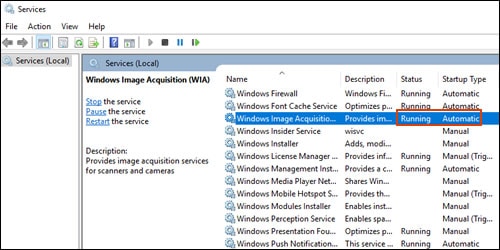
  • In the Services window, scroll down the list and find Windows Image Acquisition (WIA).
  • Look at the Status and Startup Type values.
  • If the status is Started or Running and the Startup Type is Automatic, WIA is running correctly. Skip to the next step.
  • Making sure WIA Status is Running, and Startup Type is Automatic
  • If the status is Disabled or no status displays, right-click Windows Image Acquisition (WIA), click Properties, click the General tab, select Automatic from the Startup type dropdown menu, and then click Start.
  • If the Start button is grayed out, go back to the Services menu, make sure Remote Procedure Call, Shell Hardware Detection, RPC Endpoint Mapper, and DCOM Server Process Launcher are running and set as Automatic, and then start WIA.
  • Try to scan.

Refer to the HP support document for further assistance:- Click here


Keep me posted.

If this helps, please mark the public post as an accepted solution so that it benefits several others.

Cheers.

Sandytechy20
I am an HP Employee

HP Recommended

Thank you for your quick reply and outlined possible solution to my issue.  I followed all of your instructions

However, when I attempted to put  WIA into running I get an error message Error 1067 the process terminated unexpectedlly.

At the present time it is running in Automatic Trigger Start.

Cranky Hanky

† The opinions expressed above are the personal opinions of the authors, not of HP. By using this site, you accept the <a href="https://www8.hp.com/us/en/terms-of-use.html" class="udrlinesmall">Terms of Use</a> and <a href="/t5/custom/page/page-id/hp.rulespage" class="udrlinesmall"> Rules of Participation</a>.