• ×
    Information
    Need Windows 11 help?
    Check documents on compatibility, FAQs, upgrade information and available fixes.
    Windows 11 Support Center.
  • post a message
  • ×
    Information
    Need Windows 11 help?
    Check documents on compatibility, FAQs, upgrade information and available fixes.
    Windows 11 Support Center.
  • post a message
Guidelines
Join the HP Community Solve‑a‑thon | Help Others & Share Your Solutions | Live on Zoom | 2:30 PM to 2:30 AM IST | Every Wednesday Click here to know more
Common problems HP Solution Center not working : Adobe Flash Player Error and Unable to scan
We would like to share some of the most frequently asked questions about HP Solution Center not working : Adobe Flash Player Error and Unable to Scan.
HP Recommended
Deskjet 2650
Microsoft Windows 10 (64-bit)

Help! I need to scan hundreds of documents. Manual scanning of each document is inefficient and takes a huge amount of time. My previous printers had a button on the control panel for one button scanning.  From my reading some users seem to do this wirelessly via a smartphone. Is there a way to do this type of scanning bypassing the HP software.  I can't see any benefit to tying up my phone resources draining the battery. My printer is connect to my PC  via a USB cable. Similarly, I wonder if HP included a one keyboard keystroke on the PC.

3 REPLIES 3
HP Recommended

Hi @c1sanford,


I'd like to help!


You can scan multiple pages on HP Software or by using HP Smart 


Install or update HP Scan

Make sure you have the latest version of the printer software, and then make sure your printer is connected to your computer with a USB cable or on a local network.

  1. Go to HP Customer Support - Software and Driver Downloads.

  2. Type your printer model, and then click Download next to the full feature driver under Driver-Product Installation Software.

    Click Download next to the full feature driver

  3. Follow the guided setup instructions to connect the printer.

  4. After the software installs, search Windows for HP, and then select your printer to open HP Printer Assistant.

    note:

    If HP Printer Assistant does not download with your printer software, go to What other scanning methods or apps are available in Frequently asked questions (FAQs).

  5. On the Scan tab, click Scan a Document or Photo to open HP Scan, and then continue to the next step.


Set scan preferences

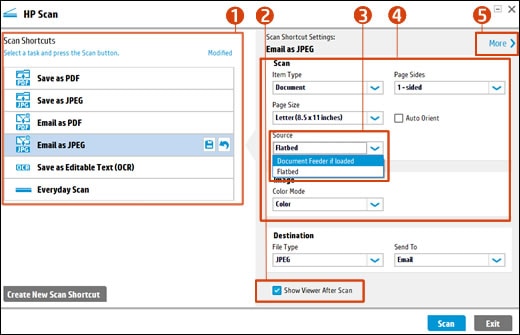
Change settings in HP Scan before you complete a scan job.


Selecting a shortcut and making sure settings are correct for the scan job

  1. Scan Shortcuts

  2. Show Viewer After Scan check box

  3. Source options

  4. Scan settings

  5. More

  1. Select a Scan Shortcut, such as Save as PDF or Email as JPEG.

    note:

    To save or email a multi-page scan as a single file, select a PDF option. Multi-page JPEG scans save as separate files.

  2. Select the Show Viewer After Scan check box.

  3. If your printer has both a document feeder and scanner glass, select Flatbed under Source.

  4. Make sure the other settings such as Page Size and Color Mode are correct for your scan job.

  5. Click More to change advanced settings, such as Resolution (ppi), Orientation, Destination, and File Name.

Scan and edit

Load your documents, complete the scan, and then edit, if necessary.

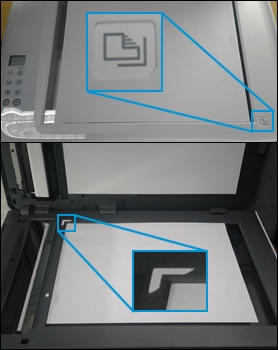
  1. Place the first item you want to scan face-down on the scanner glass, aligning it with the guide at the edge of the glass.

    Aligning a document with the guides at the edges of the scanner glass

  2. In HP Scan, click Scan.

    The printer scans your document or photo, and then HP Scan displays a preview.

  3. To add pages or scan the other side, click the Add pages icon on the bottom bar, place the next item face-down on the scanner glass, and then click Scan.

  4. Double-click individual pages to rotate, crop, or change brightness and contrast, or click More for advanced options.

  5. When you finish editing your scan, click Save or Send.


Refer to -How to Scan (Windows)

Hope this helps! Keep me posted. 


And, Welcome to the HP Support Community. 


Please click “Accept as Solution” if you feel my post solved your issue, it will help others find the solution.

Click the “Kudos, Thumbs Up" on the bottom right to say “Thanks” for helping

HP Recommended

Sorry that I did not get back to you sooner At this point nothing has come forward regarding scanning large numbers of documents. Quite by accident I discovered what appears to be new software apparently intended to replace or substitute the original HP Smart software. The HP Smart app still reporting a problem communicating with the scanner. I guess that HP we could somehow have guessed that a communication problem constitutes a message that the HP Smart has been replaced with a new app HP Scan.

Looking at the new HP scan it looks like that it is more time consuming than the HP Smart was. I have found that the he user has to go thru more menus to just end up being able to select some scanning parameters. It's more time consuming and wasteful. Yes it has this thing called a shortcut for presetting scanner scanner paraments for documents to be scanned individually.  I find nothing about scanning groups of documents on the scanner control panel.

Just to add more problems, the printing app started giving false alerts that the ink cartridges are  running out of ink, while the bar graphs show both cartridges to still be over 50 % full.

Back to the nuisance scanning problem, I'm hoping to use a external macro program to accomplish getting a one button command function.   I strongly suspect that the only real solution to both problem involve the HP printer ending up in the dumpster. Thanks for your attempted help in spite of the design engineers at HP.

HP Recommended

The printer you are usin does not have a duplexer, so you would have to scan indivual documents and save them, you use + button on the scan app to scan multiple documents.

† The opinions expressed above are the personal opinions of the authors, not of HP. By using this site, you accept the <a href="https://www8.hp.com/us/en/terms-of-use.html" class="udrlinesmall">Terms of Use</a> and <a href="/t5/custom/page/page-id/hp.rulespage" class="udrlinesmall"> Rules of Participation</a>.