
-
×InformationNeed Windows 11 help?Check documents on compatibility, FAQs, upgrade information and available fixes.
Windows 11 Support Center. -
-
×InformationNeed Windows 11 help?Check documents on compatibility, FAQs, upgrade information and available fixes.
Windows 11 Support Center. -
- HP Community
- Printers
- Scanning, Faxing, and Copying
- Scanning problems

Create an account on the HP Community to personalize your profile and ask a question
Your account also allows you to connect with HP support faster, access a personal dashboard to manage all of your devices in one place, view warranty information, case status and more.
Common problems HP Solution Center not working : Adobe Flash Player Error and Unable to scan
We would like to share some of the most frequently asked questions about HP Solution Center not working : Adobe Flash Player Error and Unable to Scan.

It has been a while since anyone has replied. Simply ask a new question if you would like to start the discussion again.


5 REPLIES 5

04-14-2022 10:16 AM
 HP Recommended
Hi @Soozziec,
Welcome to the HP Support Community
I'd like to help!
I understand you are unable to scan using HP Smart.
Try the below suggestions -
- Uninstall/update HP Smart
1. If installed from HP.com please delete from /Users/Username/Library/Application Support/HP Smart. Then delete HP Smart from the Applications folder and reinstall it from the Mac App Store.
2. If downloaded from the Mac App Store please remove /Users/Username/Library/Containers/HP Smart/containers.plist and then launch HP Smart from the Applications folder and go through the setup again.
- Install HP Smart from the APP store
- Try updating mac and printer firmware
To update the printer's firmware, refer - HP Printers - Updating or Upgrading Printer Firmware
To update Mac, try these steps - How to update the software on your Mac
If the issue persists, You may also add the AirPrint printer to the Mac printer queue
Add the Air Print printer to the Mac printer queue
Confirm you are using Air Print by adding the printer in System Preferences.
- Click the Apple menu, click System Preferences, and then click Print & Scan or Printers & Scanners.
- Check if your printer name displays in the Printers list, and then do one of the following steps.
- If your printer is listed, remove and re-add the printer to confirm it is set up for Air Print. Click the printer name, click the minus sign "-" to delete the printer, click the plus sign "+"click Add Printer or Scanner, click the printer name and then continue to the next step.
- If your printer is not listed, click the plus sign, click Add Printer or Scanner, click the name of your printer, and then continue to the next step.
- Confirm Air Print or Secure Air Print displays in the Use or Print Using menu, and then click Add.
- Open a document or photo, click File, and then click Print
Scan images in Image Capture on Mac
After connecting a scanner to your Mac, use Image Capture to scan images. If your scanner has an automatic document feeder, you can scan several pages at once. If you have a flatbed scanner, you can scan multiple images, straighten any that were placed crooked on the scan bed, and save each image to its own file.
Connect your scanner to your computer, then turn on your scanner.
In the Image Capture app  on your Mac, select your scanner in the Devices or Shared list.
If you don’t see your scanner in the list, see Set up a scanner.
Scan your images.
If you have a scanner with an automatic document feeder or flatbed scanner, see Scan images or documents.
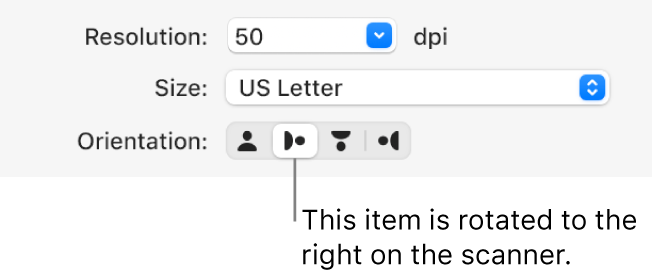
Tip: Some scanners indicate how an item is positioned on the scanner, so you can adjust it on the scanner before scanning. If you don’t see the Orientation buttons in the Scanner window, click Show Details.
Hope this helps! Keep me posted.
Please click “Accept as Solution” if you feel my post solved your issue, it will help others find the solution.
Click the “Yes" on the bottom right to say “Thanks” for helping
04-16-2022 09:30 PM
HP Recommended
@jay_G24 I have the same issue, HP Smart App quits when you open scan option. Can you please test in your internal lab environment on a macbook? If you search for Mac HP Smart in the community there are 100's of users having the same issue. Any help in prioritizing and addressing this would be appreciated.
Your uninstall and reinstall suggestion did not work for me.
04-19-2022 09:26 AM
HP Recommended
Hi @NV1879,
Welcome to the HP Support Community
I'd like to help!
I understand you are unable to scan using the HP Smart.
To assist better -
- Have you tried scanning using Image capture?
- Are you able to sign in to the HP smart app?
Keep me posted.
04-19-2022 11:03 AM
HP Recommended
When I scan it comes up it quit unexpectedly and I have to reopen and try again only for it to do same thing
- Have you tried scanning using Image capture? I'm not sure what this is.
I can sign in the app just fine

Be alert for scammers posting fake support phone numbers and/or email addresses on the community.
If you think you have received a fake HP Support message, please report it to us by clicking on "Flag Post".
† The opinions expressed above are the personal opinions of the authors, not of HP. By using this site, you accept the Terms of Use and Rules of Participation.


Didn't find what you were looking for?
Ask the community
† The opinions expressed above are the personal opinions of the authors, not of HP. By using this site, you accept the <a href="https://www8.hp.com/us/en/terms-of-use.html" class="udrlinesmall">Terms of Use</a> and <a href="/t5/custom/page/page-id/hp.rulespage" class="udrlinesmall"> Rules of Participation</a>.