• ×
    Information
    Need Windows 11 help?
    Check documents on compatibility, FAQs, upgrade information and available fixes.
    Windows 11 Support Center.
  • post a message
  • ×
    Information
    Need Windows 11 help?
    Check documents on compatibility, FAQs, upgrade information and available fixes.
    Windows 11 Support Center.
  • post a message
Guidelines
Is your HP DeskJet 3830 series scanner not working? Here is the solution Click here to view the instructions!
Common problems HP Solution Center not working : Adobe Flash Player Error and Unable to scan
We would like to share some of the most frequently asked questions about HP Solution Center not working : Adobe Flash Player Error and Unable to Scan.
HP Recommended
HP Envy Photo 1734
Other

Hi, I am using Mac OS Big Sur. I hardly scan, and now I want to scan. When I go into the HP app on my desktop I have HP3 scan installed. It does not link up to my printer. I have downloaded  HP Smart , but I am not sure what to do. Any ideas? Thank you

3 REPLIES 3
HP Recommended

@GMPOWER

Thank you for posting on HP Support Community.
 

Don't worry as I'll be glad to help, I have a few troubleshooting steps we could try to fix the issue:  

Firstly, let's uninstall the HP printer software from your printer using the HP Uninstaller is a software application that is installed during the initial printer software installation.

  1. Click Finder in the Dock.

  2. In the menu bar, click Go, click Applications, and then open the HP or Hewlett Packard folder.

    • If HP Uninstaller is in the folder, double click it, and then follow the on-screen instructions to uninstall the software.

    • If HP Uninstaller is not in the folder, continue to the next step.

  3. Click and drag the HP or Hewlett Packard folder to the Trash icon in the Dock.

  4. In the menu bar, click Go, click Go to Folder, type /Library/Printers, then click Go.

    The Printers folder opens.

  5. Click and drag the HP or Hewlett Packard folder to the Trash icon in the Dock.

  6. Restart the Mac.

  7. Right-click or Ctrl + click the Trash icon, and then select Empty Trash.

If you have any issues uninstalling with the HP Uninstaller, try uninstalling with HP Easy Start from the below setps. 

  1. Go to 123.hp.com/setup, and then click Download.

  2. After the software downloads, open HP Easy Start.

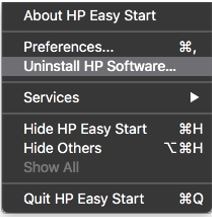
  3. Click File, and then select Uninstall HP Software... from the menu.

    Figure : Select Uninstall HP Software...

    Select Uninstall HP Software...
  4. Read any warnings that display, and then click Continue.

  5. When prompted, type your administrator user name and password.

  6. HP Uninstaller removes all HP printer software previously installed.

  7. If you are reinstalling the HP printer software, click Set Up New Device, and then follow the instructions to install the printer with HP EasyStart.

Hope this helps! Keep me posted for further assistance.
Please click “
Accept as Solution” if you feel my post solved your issue, it will help others find the solution.

ECHO_LAKE
I am an HP Employee

HP Recommended

Many thanks. Apologies as I wanted to wait until I was in the right headspace and I have been really busy. All done now. What I have installed instead is the Smart HP. Your instructions were very clear. Thank you!


HP Recommended

@GMPOWER

Thank you for posting back. 


I am glad to know that you managed to resolve the issue. Please reach out again for any further assistance.

Please click “Accept as Solution” if you feel my post solved your issue, it will help others find the solution.
Have a nice day ahead.


ECHO_LAKE
I am an HP Employee

† The opinions expressed above are the personal opinions of the authors, not of HP. By using this site, you accept the <a href="https://www8.hp.com/us/en/terms-of-use.html" class="udrlinesmall">Terms of Use</a> and <a href="/t5/custom/page/page-id/hp.rulespage" class="udrlinesmall"> Rules of Participation</a>.