• ×
    Information
    Need Windows 11 help?
    Check documents on compatibility, FAQs, upgrade information and available fixes.
    Windows 11 Support Center.
  • post a message
  • ×
    Information
    Need Windows 11 help?
    Check documents on compatibility, FAQs, upgrade information and available fixes.
    Windows 11 Support Center.
  • post a message
Guidelines
Is your HP DeskJet 3830 series scanner not working? Here is the solution Click here to view the instructions!
Common problems HP Solution Center not working : Adobe Flash Player Error and Unable to scan
We would like to share some of the most frequently asked questions about HP Solution Center not working : Adobe Flash Player Error and Unable to Scan.
HP Recommended
HP ENVY Photo 6234 All-in-One Printer

I have a cross stitch pattern that has very small print. How can I scan and print this and enlarge the text so that I can see the pattern easily

1 REPLY 1
HP Recommended

@THO1966 


Welcome to the HP Community Forum.


@THO1966 wrote:
Operating System: Microsoft Windows 11

I have a cross stitch pattern that has very small print. How can I scan and print this and enlarge the text so that I can see the pattern easily


=+=+=+=+=+=+=+=+=+=+=+=+=+=+=+=+=+=+=+=+=+=+=+=+=+=+=+=+=+=+=+=+=+=+=+=+
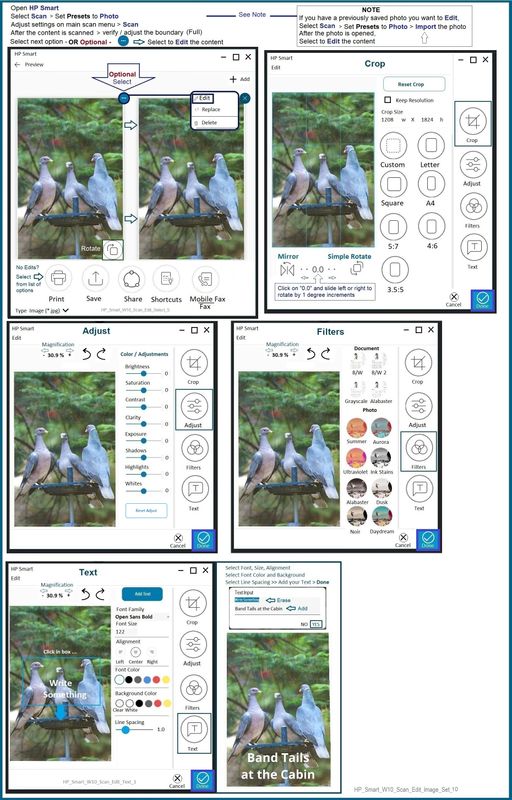
Scan - Edit  - Add Text - Save / Print
 
This method might become overly complicated.  It is included here as an example of what "can be done".
 
Open HP Scan
Select Scan > Set Presets to Photo
Adjust settings on the main menu > Scan
After the content is scanned, verify / adjust the boundary (Full)
Select to Edit the content
Select Text
Add Text / Move into position > Done
 
Example - HP Smart - Windows - Scan > Edit
HP_Smart_W10_Scan_Edit_Image_Set_10HP_Smart_W10_Scan_Edit_Image_Set_10


=+=+=+=+=+=+=+=+=+=+=+=+=+=+=+=+=+=+=+=+=+=+=+=+=+=+=+=+=+=+=+=+=+=+=+=+
Scan - Save - Edit - Enlarge only the print
 
Create a result that includes the pattern at the original size and a larger descriptive text field.
Scan the content and save as JPG (image) file
Open the file in Paint (mspaint) or any image editor of your choice.
Replace the "tiny print" areas by erasing the text areas and then adding text at the size you want it.
Save the edited file under a full name and print at 100% to maintain the sizing of the pattern data.
 
=+=+=+=+=+=+=+=+=+=+=+=+=+=+=+=+=+=+=+=+=+=+=+=+=+=+=+=+=+=+=+=+=+=+=+=+
Scan as PDF - Print Larger / Poster
 
Scan the content as PDF and save the scan / file on your computer.
If you have not done so:  Install the Full Feature Software / full driver printer software
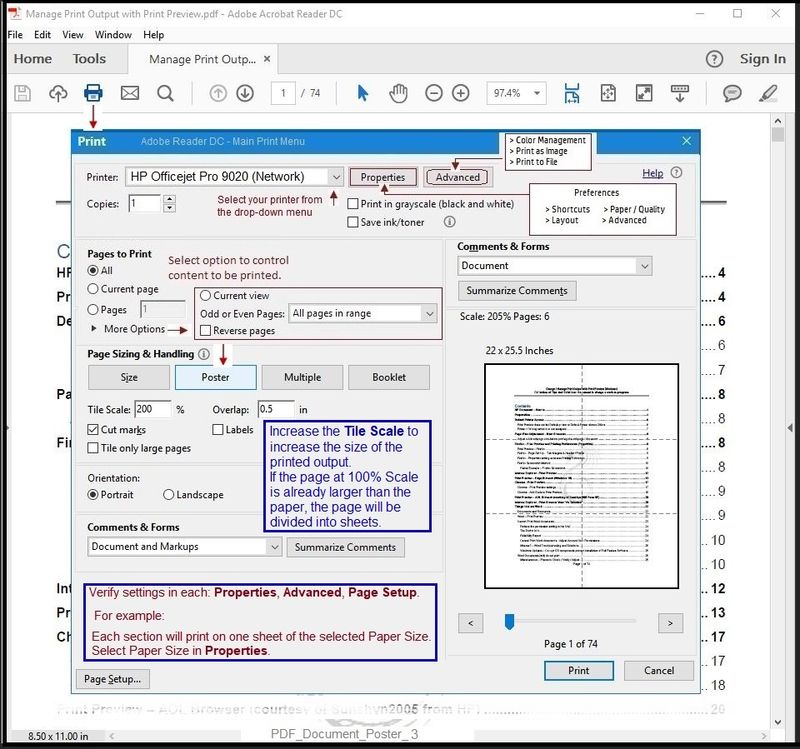
Print the PDF file using  Adobe Reader DC  at the size you want it done.
 
Notes

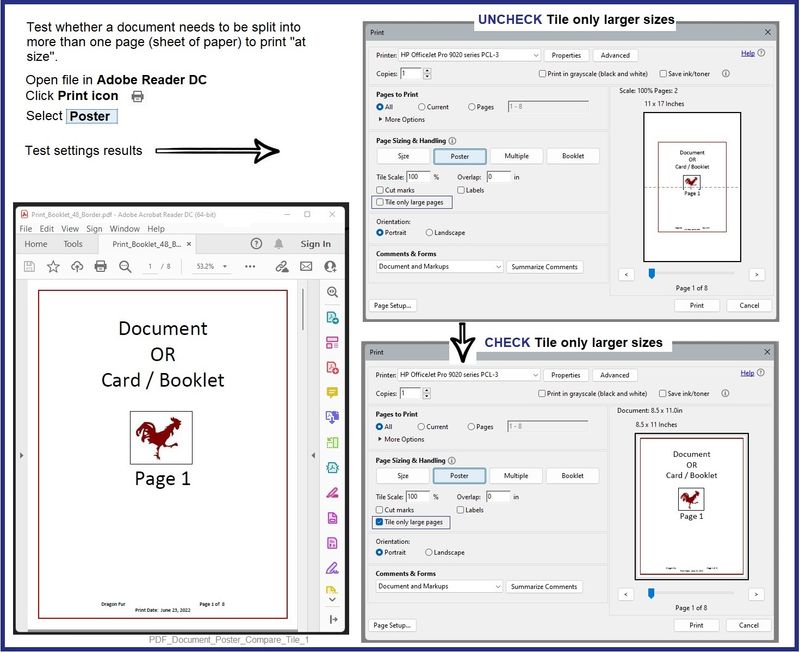
Print the document at any larger size you want using Poster (Tile) printing.


The Tile size and / or "Tile only larger sizes controls how many sheets of paper is used for each page of the document.


If you want to print at a smaller size, Select Size (as opposed to Poster) and select a percentage of 100%


=-=-=-=-=-=-=-=-=-=-=-=-=-=-=-=-=-=-=-=-=-=-=-=-=-=-=-=-=-=-=

Print PDF File

Example - Adobe Reader DC  - Main Print Menu

Open document in Reader DC

Click the print icon...

Adjust the settings on the main menu

Click Properties to select the Shortcut and add the paper size

Close the Properties menu and return to the main print menu

Click OK to save the changes and exit the Properties menu


In Page Sizing and Handling > Select the Print Size (Fit, Actual, Custom, Poster...)

Adjust other settings as appropriate.


On the main print menu, when ready, click Print


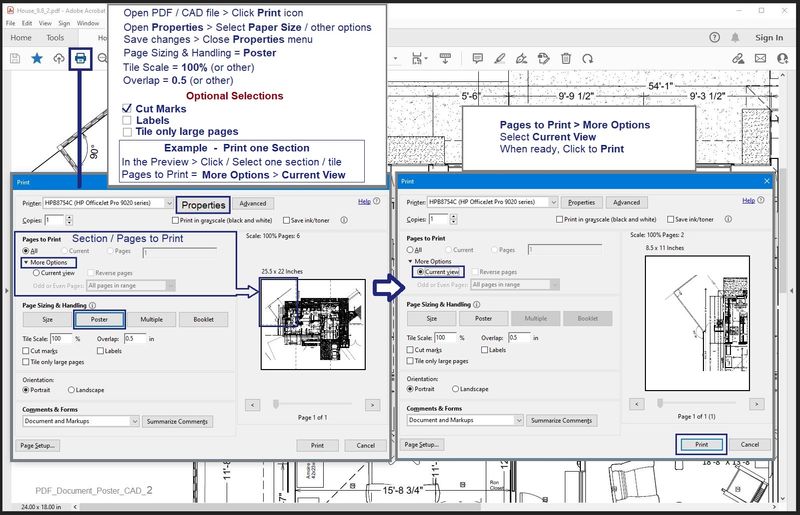
Examples - Adobe Reader DC  - Print as Poster

PDF_Document_Poster_Compare_Tile_1PDF_Document_Poster_Compare_Tile_1PDF_Document_Poster_3PDF_Document_Poster_3PDF_Document_Poster_CAD_2PDF_Document_Poster_CAD_2


References / Resources


The full driver printer software Web-Pack Installation package for your printer - Download and Save

HP ENVY Photo 6200 All-in-One Print and Scan Driver and Accessories 


=+=+=+=+=+=+=+=+=+=+=+=

Details / How-to / Examples

Read / Use / Ignore depending on your situation

=+=+=+=+=+=+=+=+=+=+=+=+=+=+=+=+=+=+=+=+=+=+=+=+=+=+=+=+=+=+=+=+=+=+=+=+

Printer Software


 There are two methods to install the printer software:


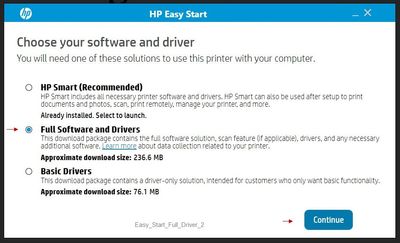
Easy Start Software is a wrapper that will find and install your printer software – If you want to install the full driver software, you do need to select the "Full Driver" when the option is presented.


The Web Pack Installation Package method uses the full driver installation package for your printer.


+-+-+-+-+-+-+-+-+-+-+-+-+-+-+-+-+-+-+-+-+-+-+-+-+-+-+-+-+-+-+-+-+-+-+-+-+-+-+-+-+-


Method - Use the Easy Start Software to Install HP Smart and / or the Full Feature / Full Driver Software


Easy Start Installation Package - Information and Download / Save


  • Open  Home Page - HP Easy Start >> Click to open Category Software and Drivers 
  • Download and Save the current version of the Easy Start Software installation package  to install your print software


Easy Start can be used to install your printer software or the HP Smart application.


If the HP Smart Application is (already) Uninstalled, Use Easy Start OR Get a new copy of the application from the Microsoft Store


If you want to install the full driver printer software, choose the "Full Software and Drivers" option during the Easy Start installation procedure.


+-+-+-+-+-+-+-+-+-+-+-+-+-+-+-+-+-+-+-+-+-+-+-+-+-+-+-+-+-+-+-+-+-+-+-+-+-+-+-+-+-


Method - Use the full Web Pack Installation package to install the Full Feature / Full Driver Software


Find, Download-Save-Install


  • Open your printer Home Page > Support Website   
  • Open Category Software and Drivers > If the Installation package is not listed on the mail level, check in sub-category Software-Utility
  • The title  of the package might include the words “Full Feature”, “Full Solution”, “Print and Scan Driver”, or similar wording.
  • After the software is installed, Restart the computer and log in


Basic Instructions - Install the Full Feature Software / Full Driver printer software


Preparation


  • If the printer software is still / already installed, Uninstall the printer software  from Control Panel > icon view > Programs and Features > Restart the computer and log in – Reference Uninstall HP printer software and drivers


  • >>> After the printer software is uninstalled, check that the printer is not still lurking in Devices and Printers.  If the printer is listed, Right-Click on the printer and "Remove" > Restart the computer and sign in.


  • If using VPN, shut it off to install software.  NOTE >> If you don’t know what this is, you are not using a VPN – ignore this part.


  • Reminder:  If using USB cable between printer and computer, disconnect the cable before installing software.  Later... Connect the cable when instructed (near the end of the installation procedure).


  • Observation:  It is possible (assuming your Wireless Network is stable) that using a Wireless connection to install the printer software might work better than using an Ethernet Connection.   Personal choice - the Wireless connection method is recommended when you face insurmountable issues installing the software.


Installation

  • Download and Save the Full Feature Software Web Pack installation package or the Easy Start Software
  • Open File Explorer
  • Navigate to the folder in which you saved the installation file  (likely Downloads)
  • Right-Click on the installation package and “Run as Administrator
  • After the software is installed, Restart the computer and log in


If using Easy Start


  • Skip any extra software / offers you do not want – Wording varies as does the number of times you have to “skip” or opt-out of various options.
  • When asked, opt for "Full Software and Drivers" (exact wording might vary).
  • Easy_Start_Full_Driver_2Easy_Start_Full_Driver_2


  • If, after the Full Software and Drivers option is selected, the installation terminates (suddenly stops and disappears – never comes back): Open your Downloads folder > Look for and Right-Click on the full Web installation package and “Run as Administrator

NOTES

- - - - - - - - - - - - - - - - - - - - - - - - - - - - - - - - - - - - - - - - - - - - - - - - - - - - - - - - - -

Preparation > Check / enable the printer as the “Default Printer”


Windows 11

Settings > Bluetooth & devices > Printers and scanners

Scroll down > Switch OFF Let Windows manage my default printer

Scroll up > Select (Left-Click) your printer from the list of printers > Set as Default


Windows 10

Settings > Devices > Printers and scanners

UNCHECK (clear box) Let Windows manage my default printer

Select (Left-Click) your printer from the list of printers > Manage > Set as Default


=+=+=+=+=+=+=+=+=+=+=+=+=+=+=+=+=+=+=+=+=+=+=+=+=+=+=+=+=+=+=+=+=+=+=+=+

HP Printer Home Page - References and Resources – Learn about your Printer  - Solve Problems

“Things that are your printer”

When the website support page opens, Select (as available) a Category > Topic Subtopic

NOTE:  Content depends on device type and Operating System

Categories:  Alerts, Access to the Print and Scan Doctor (Windows), Warranty Check, HP Drivers / Software / Firmware Updates, How-to Videos, Bulletins/Notices, Lots of How-to Documents, Troubleshooting, Manuals > User Guides, Product Information (Specifications), Supplies, and more

Open

HP ENVY Photo 6234 All-in-One Printer


Thank you for participating in the HP Community.

Our Community is comprised of volunteers - people who own and use HP devices.

Click Yes to say Thank You

Question / Concern Answered, Click "Accept as Solution"


Dragon-Fur

† The opinions expressed above are the personal opinions of the authors, not of HP. By using this site, you accept the <a href="https://www8.hp.com/us/en/terms-of-use.html" class="udrlinesmall">Terms of Use</a> and <a href="/t5/custom/page/page-id/hp.rulespage" class="udrlinesmall"> Rules of Participation</a>.