-
×InformationNeed Windows 11 help?Check documents on compatibility, FAQs, upgrade information and available fixes.
Windows 11 Support Center. -

-
×InformationNeed Windows 11 help?Check documents on compatibility, FAQs, upgrade information and available fixes.
Windows 11 Support Center. -
- HP Community
- Printers
- Scanning, Faxing, and Copying
- Send multiple pages through FAX

Create an account on the HP Community to personalize your profile and ask a question
02-25-2020 12:19 PM
Welcome to the HP Support Community!
I reviewed your post and I understand that you want to know how to send multiple page fax.
Don’t worry, I assure you I will try my best to get this sorted.
I recommend you follow the below steps to send multiple page fax.
-
If you know the recipient is in a home or home office and shares the phone line with their fax machine, call them to let them know you are sending a fax.
-
Load the document you are faxing.
-
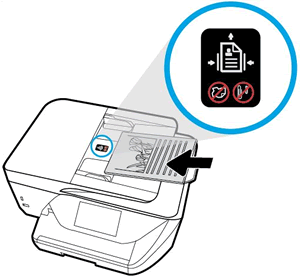
Use the Automatic Document Feeder (ADF): Load single or multi-page document into the ADF tray according to the engraved guide or sticker.

-
Use the scanner glass: Load the document face down on the scanner glass according to the guide on the edges.

-
-
Make sure blank paper is loaded in the input tray for any fax reports that might print.
-
Make sure the phone line is currently not in use. Pick up any phone connected to the same phone line as the fax and listen for a dial tone.
-
From the printer, dial the receiving fax number as if you are making a phone call, including the area code, the outside line access code (such as '9'), and the long distance country code. If dialing with speed dial, confirm the saved number has required pauses between numbers (adding a dash between 9 and the area code, for instance).
-
Press the Black, Color, or Send button to send the fax.
-
If you hear a busy signal, the receiving fax phone line is busy. Try faxing again later.
-
If you hear someone’s voice answer the phone, wait until they manually accept your fax, or cancel the fax from the front panel if you suspect the phone number is wrong.
-
If you hear high-pitched sounds, your fax is being sent.
-
-
A fax report prints. Read the report to learn if the fax completed successfully, or if an error occurred.
Please refer to the below article for more information.
Let me know how it goes and you have a great day!
If you wish to show appreciation for my efforts, mark my post as Accept as Solution. Your feedback counts!
Cheers!
The_Fossette
I am an HP Employee