• ×
    Information
    Need Windows 11 help?
    Check documents on compatibility, FAQs, upgrade information and available fixes.
    Windows 11 Support Center.
  • post a message
  • ×
    Information
    Need Windows 11 help?
    Check documents on compatibility, FAQs, upgrade information and available fixes.
    Windows 11 Support Center.
  • post a message
Guidelines
Seize the moment! nominate yourself or a tech enthusiast you admire & join the HP Community Experts!
Common problems HP Solution Center not working : Adobe Flash Player Error and Unable to scan
We would like to share some of the most frequently asked questions about HP Solution Center not working : Adobe Flash Player Error and Unable to Scan.
HP Recommended
HP OfficeJet Pro 8725
Microsoft Windows 10 (64-bit)

When I use the document feeder on my HP Office Jet Pro 8725 for either copying or scanning, it has lately been making a worsening squeaky noise, like something badly needs to be lubricated.  I'm concerned if I don't get this taken care of the feeder will just give out.  Is there way to lube the mechanism and if so, where do I lube it and with what? Thanks!

1 REPLY 1
HP Recommended

@Eric222


Welcome to the HP Support Community.


Clean the plastic and glass strips inside the document feeder with a soft, lint-free cloth sprayed with glass cleaner.

NOTE: 

Some printers ship with a document feeder cleaning cloth. If you have the cloth, load it into the document feeder and start a scan job to clean the scanner mechanism.

  1. Turn the printer off, disconnect the power cord, and remove the battery if your printer has one.

  2. Depending on your printer model, open any top cover, document feeder tray, and scan document feeder cover.

  3. Remove any debris such as bits of paper or paper clips from inside the document feeder.

  4. Spray a soft, lint-free cloth with glass cleaner, then wipe the scanner glass and the white strip on the underside of the document feeder until clean, dry, and streak-free.

       CAUTION: 

    To protect the interior printer parts, do not spray the cleaner directly on or into the printer.

  5. Completely close any covers and trays that you opened.

  6. Reconnect the power cord, reinstall the battery if necessary, then turn on the printer.

  7. Load the original document or photo. Make sure the original document or photo is in good condition and free of tears, creases, folds, staples, or tape.

  8. To avoid skewing, adjust the guides on the document feeder to remove any gaps next to the edges of the paper and the guide. The paper stack should slide easily into tray and not bind against the guides.

Let's clean the rollers and the separator pad of the ADF:


  1. Gather the following materials:

    • A clean, lint-free cloth, or any cloth that does not come apart or leave fibers

    • Distilled, filtered, or bottled water (tap water might damage the printer)

  2. Remove the original document from the ADF.

  3. Turn off the printer.

  4. Disconnect the power cord from the rear of the printer.

  5. Open the ADF cover.

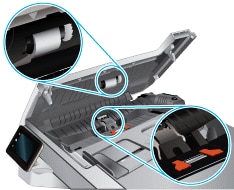
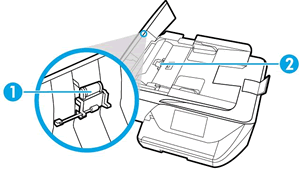
  6. Find the paper pick rollers and the separator pad inside the ADF.

    Figure : Example of the paper pick rollers and separator pad in a LaserJet printer

    The paper pick rollers and separator pad

    Figure : Example of the paper pick rollers and separator pad in a OfficeJet printer

  7. Lightly dampen a clean, lint-free cloth with filtered or distilled water, then squeeze any excess liquid from the cloth.

  8. Use the damp cloth to wipe any residue off the paper pick rollers and the separator pad.

  9. Leave the ADF cover open for two minutes to allow the paper pick rollers and separator pad to dry.

  10. Close the ADF cover.

  11. Reload the original document print side up in the document feeder tray. Gently slide the document into the printer as far as it can go.

  12. Slide in the paper width guides until they are snug against the paper.

    Do not push the paper width guides in so far that they bend the paper.

  13. Reconnect the power cord to the rear of the printer.

  14. Turn on the printer, then try to scan.

Let me know if this helps.


If the information I've provided was helpful, give us some reinforcement by clicking the "Accept as solution" button, that'll help us and others see that we've got the answers!


Thanks!

Have a great day!


I am an HP Employee

† The opinions expressed above are the personal opinions of the authors, not of HP. By using this site, you accept the <a href="https://www8.hp.com/us/en/terms-of-use.html" class="udrlinesmall">Terms of Use</a> and <a href="/t5/custom/page/page-id/hp.rulespage" class="udrlinesmall"> Rules of Participation</a>.