• ×
    Information
    Need Windows 11 help?
    Check documents on compatibility, FAQs, upgrade information and available fixes.
    Windows 11 Support Center.
  • post a message
  • ×
    Information
    Need Windows 11 help?
    Check documents on compatibility, FAQs, upgrade information and available fixes.
    Windows 11 Support Center.
  • post a message
Guidelines
Join the HP Community Solve‑a‑thon | Help Others & Share Your Solutions | Live on Zoom | 2:30 PM to 2:30 AM IST | Every Wednesday Click here to know more
Common problems HP Solution Center not working : Adobe Flash Player Error and Unable to scan
We would like to share some of the most frequently asked questions about HP Solution Center not working : Adobe Flash Player Error and Unable to Scan.
HP Recommended
hp OfficeJet peo 6830
Microsoft Windows 10 (64-bit)

My 6830 will print.  It will scan from glass.  It will not feed paper to scan

1 REPLY 1
HP Recommended

@Richard2017 Greetings from the HP Community!


I suggest you Clean the ADF rollers and the separator pad

Dust inside the automatic document feeder (ADF) can result in paper feed issues.

  1. Get a lint-free cloth and distilled water.

  2. Remove the original document from the ADF.

  3. Turn off the printer.

  4. Disconnect the power cord from the rear of the printer.

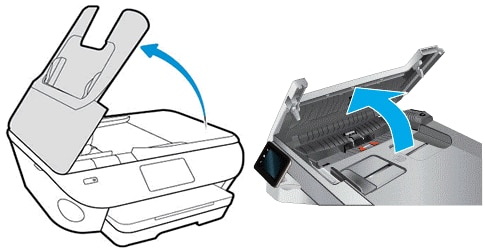
  5. Open the ADF cover.

    Lifting the ADF cover
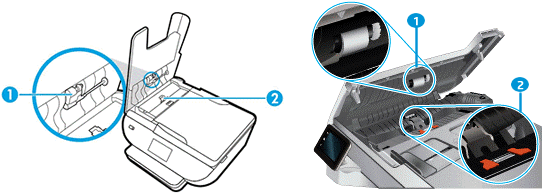
  6. Find the paper pick rollers and the separator pad inside the ADF.

    ADF paper pick rollers and separator pad

    Callout

    Description

    1.

    Paper pick roller

    2.

    Separator pad

  7. Lightly dampen a clean, lint-free cloth with filtered or distilled water, and then squeeze any excess liquid from the cloth.

  8. Use the damp cloth to clean the paper pick rollers and the separator pad.

  9. Leave the ADF cover open for two minutes to allow the rollers and pad to dry.

  10. Close the ADF cover.

  11. Reconnect the power cord to the printer, and then turn on the printer.

  12. Slide in the paper width guides until they rest against the sides of the paper.

  13. Try to scan or copy with the ADF.

Reset the printer

Reset the printer to recover from printer errors or failures.

  1. With the printer turned on, disconnect the power cord from the printer.

  2. Unplug the power cord from the power source.

  3. Wait 60 seconds.

  4. Reconnect the power cord to a wall outlet and to the printer.

    NOTE: 

    HP recommends plugging the printer directly into a wall outlet.

  5. Turn on the printer to complete the reset.

Let me know how that pans out,

If you feel I was helpful, simply click on Accept as Solution to help the community grow,

That said, I will have someone follow-up on this to ensure you've been helped,

Just in case you don't get back to us, 

have a good day, ahead.

Riddle_Decipher
I am an HP Employee


Learning is a journey, not a destination.
Let's keep asking questions and growing together.
† The opinions expressed above are the personal opinions of the authors, not of HP. By using this site, you accept the <a href="https://www8.hp.com/us/en/terms-of-use.html" class="udrlinesmall">Terms of Use</a> and <a href="/t5/custom/page/page-id/hp.rulespage" class="udrlinesmall"> Rules of Participation</a>.