• ×
    Information
    Need Windows 11 help?
    Check documents on compatibility, FAQs, upgrade information and available fixes.
    Windows 11 Support Center.
  • post a message
  • ×
    Information
    Need Windows 11 help?
    Check documents on compatibility, FAQs, upgrade information and available fixes.
    Windows 11 Support Center.
  • post a message
Guidelines
Join the HP Community Solve‑a‑thon | Help Others & Share Your Solutions | Live on Zoom | 2:30 PM to 2:30 AM IST | Every Wednesday Click here to know more
Common problems HP Solution Center not working : Adobe Flash Player Error and Unable to scan
We would like to share some of the most frequently asked questions about HP Solution Center not working : Adobe Flash Player Error and Unable to Scan.
HP Recommended
officejet 4630

hp scan application does not contain shortcut

1 REPLY 1
HP Recommended

@Testie 


Welcome to the HP Community Forum.


If the HP Scan shortcut is missing from the Desktop,

The Full Feature Software might benefit from being reinstalled.


Full Feature Software / full driver - Web Pack Installation Package - Information and Download

HP Officejet 4630 e-All-in-One Printer series Full Feature Software and Drivers 


=+=+=+=+=+=+=+=+=+=+=+=+=+=+=+=+=+=+=+=+=+=

Basic Instructions - Install the Full Feature Software / Full Driver printer software


Preparation


  • If the printer software is still / already installed, Uninstall the printer software  from Control Panel > icon view > Programs and Features > Restart the computer and log in – Reference Uninstall HP printer software and drivers


  • >>> After the printer software is uninstalled, check that the printer is not still lurking in Devices and Printers.  If the printer is listed, Right-Click on the printer and "Remove" > Restart the computer and sign in.


Continuing

  • If using VPN, shut it off to install software.  NOTE >> If you don’t know what this is, you are not using a VPN – ignore this part.


  • Reminder:  If using USB cable between printer and computer, disconnect the cable before installing software.  Later... Connect the cable when instructed (near the end of the installation procedure).


  • Observation:  It is possible (assuming your Wireless Network is stable) that using a Wireless connection to install the printer software might work better than using an Ethernet Connection.   Personal choice - the Wireless connection method is recommended when you face insurmountable issues installing the software.


Installation

  • Download and Save the Full Feature Software Web Pack installation package or the Easy Start Software
  • Open File Explorer
  • Navigate to the folder in which you saved the installation file  (likely Downloads)
  • Right-Click on the installation package and “Run as Administrator
  • After the software is installed, Restart the computer and log in


References / Resources


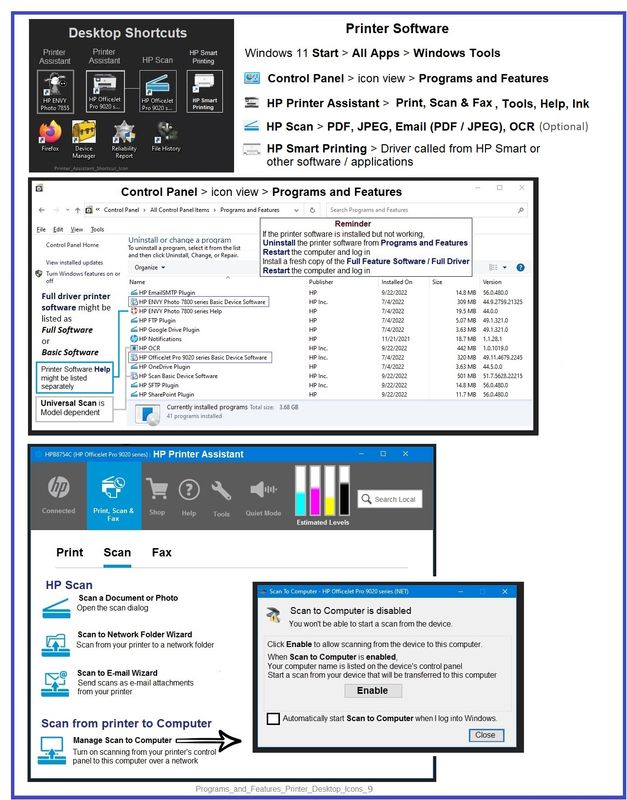
Example - Full Feature Software - Installed in Programs and Features

Programs_and_Features_Printer_Desktop_Icons_9Programs_and_Features_Printer_Desktop_Icons_9


General Example - HP Scan - Menu - PDF

9025_HP_Scan_Menu_PDF_More_All_39025_HP_Scan_Menu_PDF_More_All_3


HP Printer Home Page - References and Resources

Learn about your Printer  - Solve Problems

“Things that are your printer”

When the website support page opens, Select (as available) a Category > Topic Subtopic

NOTE:  Content depends on device type and Operating System

Categories:  Alerts, Access to the Print and Scan Doctor (Windows), Warranty Check, HP Drivers / Software / Firmware Updates, How-to Videos, Bulletins/Notices, Lots of How-to Documents, Troubleshooting, Manuals > User Guides, Product Information (Specifications), Supplies, and more

Open

HP Officejet 4630 e-All-in-One Printer series 


Thank you for participating in the HP Community:

People who own, use, and support HP devices.

Click Yes to say Thank You

Question / Concern Answered, Click "Accept as Solution"


Dragon-Fur

† The opinions expressed above are the personal opinions of the authors, not of HP. By using this site, you accept the <a href="https://www8.hp.com/us/en/terms-of-use.html" class="udrlinesmall">Terms of Use</a> and <a href="/t5/custom/page/page-id/hp.rulespage" class="udrlinesmall"> Rules of Participation</a>.