-
×InformationNeed Windows 11 help?Check documents on compatibility, FAQs, upgrade information and available fixes.
Windows 11 Support Center. -

-
×InformationNeed Windows 11 help?Check documents on compatibility, FAQs, upgrade information and available fixes.
Windows 11 Support Center. -
- HP Community
- Printers
- Scanning, Faxing, and Copying
- scan on the computer in PDF

Create an account on the HP Community to personalize your profile and ask a question
07-29-2020 03:46 PM
My printer is an HP Officejet 5252. I want to scan documents onto my computer. These are normal Documents ie; DD Form214. It will only scan it as a jgp file. The place That I am trying to send this to want them in PDF formate and their program will only accept PDF. Where am I going wrong????
First off I am not very good at using a computer, and this is to complicated for an old (and I do mean old) army man.
07-29-2020 04:33 PM
Try scanning your document using software on your computer.
Place your document into the ADF (Automatic Document Feeder) on the top of the printer, face up.
Printer Software - "Full Feature Software"
If you have not done so before, install the printer software.
The following folder contains a "wrapper" program you can use to install the Full Feature Software.
What does that mean? What is a wrapper?
Download and run the Easy Start software and it will find and help install the printer software for you.
When Easy Start asks what you want (or when you need to click / select a box), select "Full Driver" or anything that has the word Full or anything that seems to mean the word Full.
HP Easy Start Printer Setup Software
After the software installs, Restart the computer and log in.
-----------------------------------------------------------------------
This is just "extra" bits right now - but you'll need it for printer later maybe so good to know / have done...
Adobe Reader DC – Needed Whether You Use It or Not
If you have not done so,
Reinstall / Update your PDF Reader (Adobe Reader DC /Optional Foxit Reader)
HINT: Watch out for and UNCHECK unwanted extra software
Adobe Reader DC software should be installed even if you do not open / view / print PDF files directly from the Adobe Reader DC software.
-----------------------------------------------------------------------
Next - a choice
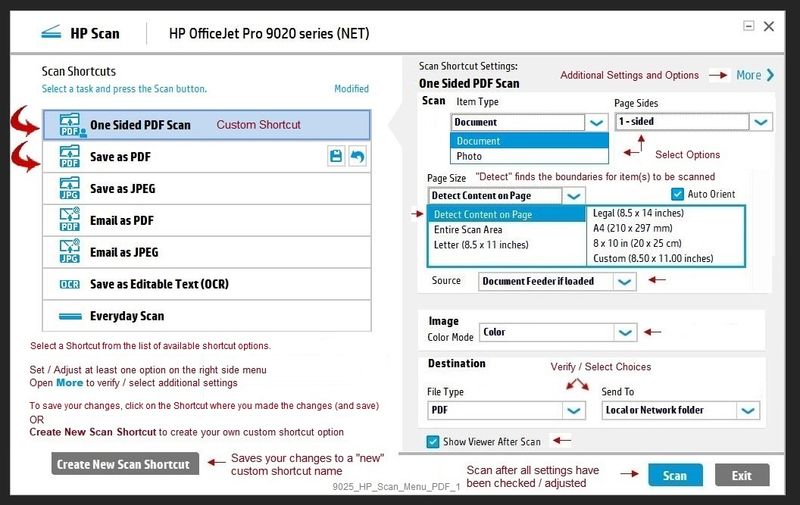
You can use the HP Scan Software that is inside the main printer software (click the little icon on the Desktop that is named for the printer)
Select to Scan
Select to Scan / Save as PDF
Check / Adjust other settings,
Save and done.
How-to document
HP Printers - How to Scan (Windows)
Example
9025_HP_Scan_Menu_PDF_1
OR
Optional:
Download, set up, and use HP Smart for Windows application.
Comment:
Frankly, the HP Smart takes a few minutes to set up.
It is possible you might like it better.
Why better?
Once installed, HP Smart for Windows is a little easier to see, for one. Some people like HP Smart because it is built on a platform similar to the setup used for mobile users. People with mobile devices (phones and iPads, for example) hate complicated pick and choose options which are difficult to see, perhaps harder to manage on tiny screens, and not easy to use with fat fingers. Simple is better.
HP Smart for Windows
HP Smart is an application available in the Microsoft Windows Store
Learn how to use HP Smart on your Windows 10 computer.
Open the Software and Drivers Support Website for your printer > Check the Box Get the App
OR
HP Printers - Using the HP Smart App (Windows 10)
NOTE: Website includes the HP Smart software for Windows and Mobile devices, plus an FAQ section to assist with questions / issues
For Printing - read later...
HP Smart Tasks for Windows and HP Smart Mobile
Where available, Smart Tasks can be configured for several print tasks.
- Print: Send a print job to your printer.
- Email: Send an email message or attachments.
- Save to: Save a file to a cloud storage account, such as Google Drive or Microsoft OneDrive.
HP Printers - HP Smart: Use Smart Tasks
-----------------------------------------------------------------------------------------------------
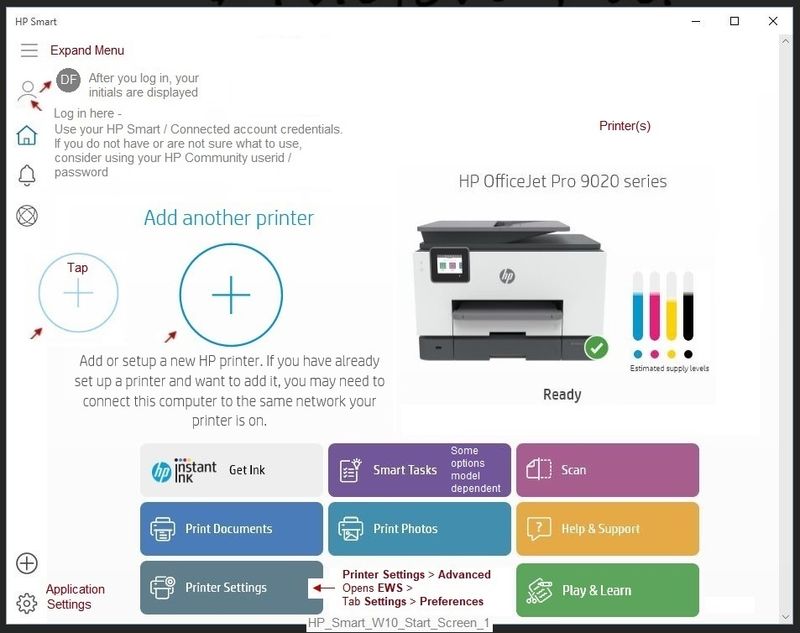
Example - HP Smart for Windows - Main print menu
HP_Smart_W10_Start_Screen_1
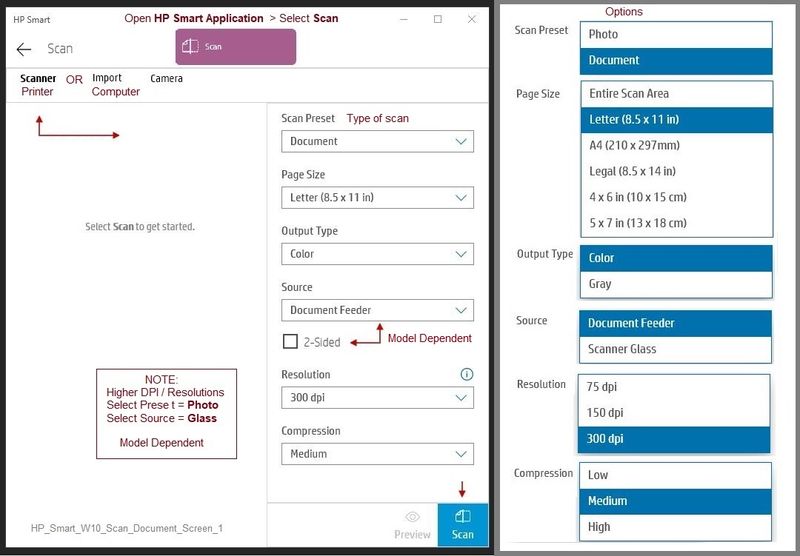
HP_Smart_W10_Scan_Document_Screen_1
The only place you might get into trouble is if your forms are two-sided. I think the DD214 is single sided (the original was likely typed on a typewriter (if your form is an older format, at least).
If the paper is in good shape, you can likely use the "ADF" (Automatic Document Feeder) on the top of the printer to feed your document in to be scanned.
If you need two-sides... You have to scan a side, flip the paper, and "Add Pages" to the Scan. Yuk. Read the how-to document and hope it makes sense.
Printer Home Page - References and Resources – Learn about your Printer - Solve Problems
“Things that are your printer”
NOTE: Content depends on device type and Operating System
Categories: Alerts, Access to the Print and Scan Doctor (Windows), Warranty Check, HP Drivers / Software / Firmware Updates, How-to Videos, Bulletins/Notices, Lots of How-to Documents, Troubleshooting, User Guides / Manuals, Product Information (Specifications), more
When the website support page opens, Select (as available) a Category > Topic > Subtopic
HP OfficeJet 5252 All-in-One Printer
Thank you for participating in our HP Community.
We are a world community of volunteers dedicated to supporting HP technology
Click Thumbs Up to say Thank You.
Answered? Click "Accept as Solution" to help others find it.