-
×InformationNeed Windows 11 help?Check documents on compatibility, FAQs, upgrade information and available fixes.
Windows 11 Support Center. -

-
×InformationNeed Windows 11 help?Check documents on compatibility, FAQs, upgrade information and available fixes.
Windows 11 Support Center. -

Create an account on the HP Community to personalize your profile and ask a question
07-10-2019 09:07 PM - edited 07-10-2019 09:20 PM
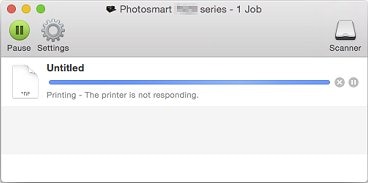
3520 all in one - wont scan - I have used the message boards and turned off, downloaded new drivers, used app online et al - it will print over the network with no problems - but when I scan - it says printer is busy - nothing in queue - how do i clear this....
btw - macbook 10.12 - printer icon shows 1 in red circle as if there is a print job - - so how do i clear this - in the utility there is nothing in queue
07-14-2019 09:46 AM - edited 07-14-2019 09:46 AM
@memine23, Welcome to the HP Support Community!
Have you tried scanning from Apple Image Capture? Refer to this document to know how.
Reset the printer
- With the printer turned on, disconnect the power cord from the rear of the printer.
- Wait at least 60 seconds.
- Reconnect the power cord to the rear of the printer.
- Turn ON the printer, if it does not automatically turn on.
- Wait until the printer is idle and silent before you proceed.
Note: HP recommends connecting the printer directly to a wall outlet rather than a surge protector or a power strip.
Update the printer firmware
Click here to download and install the latest firmware from your computer.
Click here to know different methods of updating printer firmware.
Also, update the software on your MAC
Click here to know how.
Restart your MAC and Try Scanning. proceed to the next step if the issue is not resolved.
Clear the print queue
Close any scanning apps that might prevent jobs from printing, and then clear the queue.
Close Apple Image Capture, HP Easy Scan, and HP Scan, if they are open.
Click Finder, select Applications, click Utilities, and then double-click Terminal.
Type Cancel -a, and then press Enter.
Close the Terminal window, and then restart the computer.

If the above step does not clear the print queue, proceed to the next step.
Uninstall any HP software that might have been installed
- In the menu bar, click Go, click Applications, and then open the HP or Hewlett Packard folder.
- If HP Uninstaller is in the folder, double click it to uninstall the software, and then skip to the step to prepare the printer for the driver installation.
- If HP Uninstaller is not in the folder, continue to the next step.
- Click and drag the HP or Hewlett Packard folder to the Trash icon in the Dock.
- In the menu bar, click Go, click Go to Folder, type /Library/Printers, and then click Go.
- Click and drag the HP or Hewlett Packard folder to the Trash icon in the Dock.
- Right-click or Ctrl + click the Trash icon, and then select Empty Trash.
Add the printer using AirPrint
1.) Click the Apple menu, click System Preferences, and then click Print & Scan or Printers & Scanners.
2.) Check if your printer name displays in the Printers list, If your printer is listed, click the printer name, click the minus sign to delete the printer.
3.) If you see multiple printer queues for the same printer, remove all extra printers by selecting them one at a time, and then clicking the minus button at the bottom of the list.
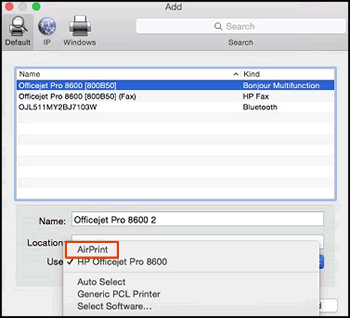
4.) Click the plus sign, click Add Printer or Scanner, click the printer name.
5.) Click the Use or Print Using menu, select AirPrint in the pop-up menu. Then click Add.

6.) Try to Print and Scan.
Let me know how this goes.
If you feel my post solved your issue, please click “Accept as Solution”, it will help others find the solution. Click the “Kudos/Thumbs Up" on the bottom right to say “Thanks” for helping!
KUMAR0307
I am an HP Employee