
-
×InformationNeed Windows 11 help?Check documents on compatibility, FAQs, upgrade information and available fixes.
Windows 11 Support Center. -
-
×InformationNeed Windows 11 help?Check documents on compatibility, FAQs, upgrade information and available fixes.
Windows 11 Support Center. -
- HP Community
- Printers
- Scanning, Faxing, and Copying
- scanning app

Create an account on the HP Community to personalize your profile and ask a question
Your account also allows you to connect with HP support faster, access a personal dashboard to manage all of your devices in one place, view warranty information, case status and more.
Common problems HP Solution Center not working : Adobe Flash Player Error and Unable to scan
We would like to share some of the most frequently asked questions about HP Solution Center not working : Adobe Flash Player Error and Unable to Scan.

It has been a while since anyone has replied. Simply ask a new question if you would like to start the discussion again.

01-24-2018 04:04 PM
 HP Recommended
Product: HP OfficeJet Pro 8710 All-in-One Printer series
Operating System: Microsoft Windows 10 (64-bit)
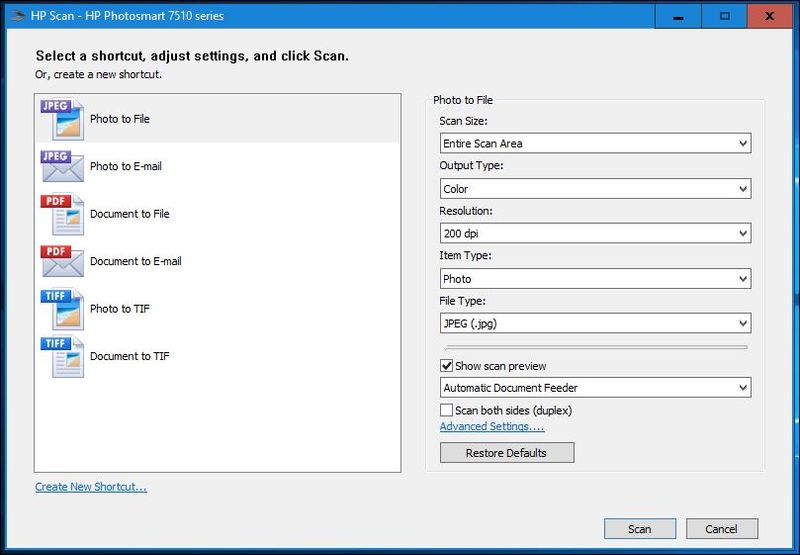
I would like to use this app for my new OfficeJetPro 8715, but I can't figure out how to get it to recognize the 8715. How do I get this app to work with my new printer?
Solved! Go to Solution.
1 ACCEPTED SOLUTION
Accepted Solutions


01-24-2018 04:20 PM
HP Recommended
This is part of the Full Feature Software for your printer.
Download and install the software.
Once installed, you will find a Printer Assistant shortcut icon on the Desktop named for your printer.
From the printer's How-to section:
From "User Guides" section:
References
Printer Homepage – “Things that are your printer”
Drivers and Software, Videos, How-to, Troubleshooting, Manuals, Product Information, and more
HP OfficeJet Pro 8710 All-in-One Printer series
Dragon Document – Collection of Help, suggestions, links to how-to videos, and examples:
Topics / Sections – various, including:
- Know and Understand Scan DPI / Scan Resolution options
- HP Scan Extended – Exceptional standalone free scan program: Single, Multiple scans, image and PDF scans, Auto-Crop!
- NAPS2-- Not another PDF Scanner – free standalone program scans PDF files and image(s) as .jpeg or PDF file(s)
- Printer Software (Full Feature Software > Printer Assistant > Print, Scan & Fax > Scan a Document or Photo)
- HP Scan and Capture from Windows Store
- And others…
Click Thumbs Up on a post to say Thank You!
Answered? Click post "Accept as Solution" to help others find it.
Dragon-Fur
9 REPLIES 9
01-24-2018 04:20 PM
HP Recommended
This is part of the Full Feature Software for your printer.
Download and install the software.
Once installed, you will find a Printer Assistant shortcut icon on the Desktop named for your printer.
From the printer's How-to section:
From "User Guides" section:
References
Printer Homepage – “Things that are your printer”
Drivers and Software, Videos, How-to, Troubleshooting, Manuals, Product Information, and more
HP OfficeJet Pro 8710 All-in-One Printer series
Dragon Document – Collection of Help, suggestions, links to how-to videos, and examples:
Topics / Sections – various, including:
- Know and Understand Scan DPI / Scan Resolution options
- HP Scan Extended – Exceptional standalone free scan program: Single, Multiple scans, image and PDF scans, Auto-Crop!
- NAPS2-- Not another PDF Scanner – free standalone program scans PDF files and image(s) as .jpeg or PDF file(s)
- Printer Software (Full Feature Software > Printer Assistant > Print, Scan & Fax > Scan a Document or Photo)
- HP Scan and Capture from Windows Store
- And others…
Click Thumbs Up on a post to say Thank You!
Answered? Click post "Accept as Solution" to help others find it.
Dragon-Fur
01-25-2018 11:30 AM
HP Recommended
You are welcome.
Do take a look at the various scan programs available -- some might be "better" than others for some purposes. Nice to have options. Smiling.
Happy Printing.
Thank you for participating in the HP Community Forum.
We are a community of HP enthusiasts dedicated to supporting HP devices and technology.
Dragon-Fur
02-09-2018 10:30 AM
HP Recommended
It isn't giving me the app I want. It gives me this one which does NOT allow previewing scan and cropping scan area before you scan. That's why I like the one I posted above. Can you help me find the one above?

02-09-2018 10:33 AM
HP Recommended
Dragon-Fur, do you have any suggestions for apps? I want to make sure I'm downloading one that is safe.
I need to scan and print...and then scan or print 2-sided. I need to preview scan before it actually scans and be able to change the scan area by click and drag
02-09-2018 12:47 PM
HP Recommended
Obviously, I am a voice in the ether -- and it is true that anything you read on the Internet is suspect.
On the other hand, our community forum is in the business of helping people -- we are not hawking any particular program, vendor, business, or device.
Those of us Experts who serve the community follow the Rules of Participation -- we never knowingly harm anyone.
Nothing that I have recommended is known to be problematic, that is, these are applications that have been used / tested on my personal system(s).
From my earlier Post:
- HP Scan Extended – Exceptional standalone free scan program: Single, Multiple scans, image and PDF scans, Auto-Crop!
Excellent program with obvious advantages (auto-detect) -- the scan preview window is a bit small...
- NAPS2-- Not another PDF Scanner – free standalone program scans PDF files and image(s) as .jpeg or PDF file(s).
Scan document / image page > Double click on the scanned image preview to open a larger image previce window / menu, stretch the window larger or fit to your screen > Click "+" to enlarge the image as large as you wish
- Printer Software (Full Feature Software > Printer Assistant > Print, Scan & Fax > Scan a Document or Photo)
Small scan preview window -- certainly adequate for work not requiring crop / edits.
- HP Scan and Capture from Windows Store
Download, install program
Open HP Scan and Capture > Right click on bottom of program window >
Settings wheel > Document Scan options
When ready > Capture Documents >
Scan the first page > Remove scanned page from glass >
Place next page on glass > Click +
When pages are scanned > click the File box (to the left of the + button) and save the document.
Also - Image handling:
Thank you for participating in the HP Community Forum.
We are a community of HP enthusiasts dedicated to supporting HP devices and technology.
Dragon-Fur

09-05-2018
10:33 PM
- last edited on
09-05-2018
10:43 PM
by
 Cheron-Z
HP Recommended
I have the same error with yours
Luckily I read this and solve that problems, thank you very much
@Dragon-Fur wrote:
This is part of the Full Feature Software for your printer.
Download and install the software.
Once installed, you will find a Printer Assistant shortcut icon on the Desktop named for your printer.
From the printer's How-to section:
From "User Guides" section:
References
Printer Homepage – “Things that are your printer”
Drivers and Software, Videos, How-to, Troubleshooting, Manuals, Product Information, and more
HP OfficeJet Pro 8710 All-in-One Printer series
Dragon Document – Collection of Help, suggestions, links to how-to videos, and examples:
Topics / Sections – various, including:
- Know and Understand Scan DPI / Scan Resolution options
- HP Scan Extended – Exceptional standalone free scan program: Single, Multiple scans, image and PDF scans, Auto-Crop!
- NAPS2-- Not another PDF Scanner – free standalone program scans PDF files and image(s) as .jpeg or PDF file(s)
- Printer Software (Full Feature Software > Printer Assistant > Print, Scan & Fax > Scan a Document or Photo)
- HP Scan and Capture from Windows Store
- And others…
Click Thumbs Up on a post to say Thank You!
Answered? Click post "Accept as Solution" to help others find it.
Clarice Nguyen
[edit]


Be alert for scammers posting fake support phone numbers and/or email addresses on the community.
If you think you have received a fake HP Support message, please report it to us by clicking on "Flag Post".
† The opinions expressed above are the personal opinions of the authors, not of HP. By using this site, you accept the Terms of Use and Rules of Participation.


Didn't find what you were looking for?
Ask the community
† The opinions expressed above are the personal opinions of the authors, not of HP. By using this site, you accept the <a href="https://www8.hp.com/us/en/terms-of-use.html" class="udrlinesmall">Terms of Use</a> and <a href="/t5/custom/page/page-id/hp.rulespage" class="udrlinesmall"> Rules of Participation</a>.