-
×InformationNeed Windows 11 help?Check documents on compatibility, FAQs, upgrade information and available fixes.
Windows 11 Support Center. -

-
×InformationNeed Windows 11 help?Check documents on compatibility, FAQs, upgrade information and available fixes.
Windows 11 Support Center. -
- HP Community
- Printers
- Scanning, Faxing, and Copying
- upside down scans

Create an account on the HP Community to personalize your profile and ask a question
12-31-2020 01:56 PM
this may be the most frustrating printer I've ever owned. While scanning a 4 page document, both sides for a total of 8 pages some of the pages end up upside down. The first time I scanned it pages 1-4 were upright, 5-8 were upside down. the second time I scanned it pages 1-5 were upright, but 6-8 were upside down. I scanned it a third time and 1-6 were upright buy 7 & 8 were upside down. Mind you the original orientation is the same each time. I can rotate the pages one at a time in the HP Smart (??) preview window, but it doesn't keep the new rotation. So now I have to save to my pdf application and fix the document there.
12-31-2020 03:27 PM
==============================================================
Welcome to the HP Community.
Reminder to those reading:
Do NOT respond to vermin who post phone numbers or email addresses.
HP does not post phone numbers or email in Community messages.
==============================================================
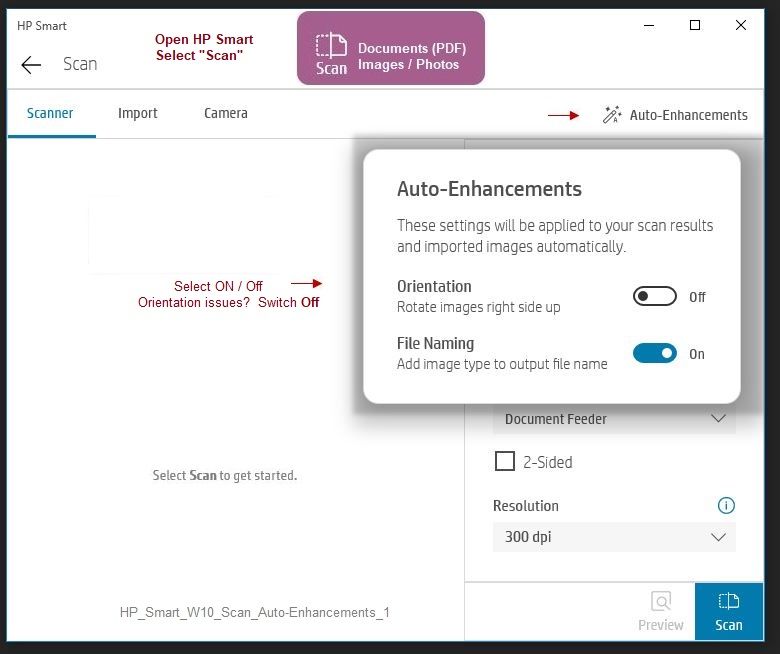
If you are using HP Smart, make sure you have switched OFF the orientation in Auto-Enhancements.
Example
HP_Smart_W10_Scan_Auto-Enhancements_1
References / Resources
HP Smart for Windows
HP Smart is an application available in the Microsoft Store
Learn how to use HP Smart on your Windows 10 computer.
Open the Software and Drivers Support Website for your printer > Check the Box Get the App
OR
HP Printers - Using the HP Smart App (Windows 10)
NOTES:
- Website includes the HP Smart software for Windows and Mobile devices, plus an FAQ section to assist with questions / issues
- Latest versions of HP Smart require that you be signed into the application
Printer Home Page - References and Resources – Learn about your Printer - Solve Problems
“Things that are your printer”
NOTE: Content depends on device type and Operating System
Categories: Alerts, Access to the Print and Scan Doctor (Windows), Warranty Check, HP Drivers / Software / Firmware Updates, How-to Videos, Bulletins/Notices, Lots of How-to Documents, Troubleshooting, User Guides / Manuals, Product Information (Specifications), more
When the website support page opens, Select (as available) a Category > Topic > Subtopic
HP OfficeJet Pro 7740 Wide Format All-in-One Printer series
Thank you for participating in the HP Community.
The Community is a separate wing of the HP website - We are not a business group of HP..
Our Community is comprised of volunteers - people who own and use HP devices.
Click Thumbs Up to say Thank You.
Question Resolved / Answered, Click "Accept as Solution" .