• ×
    Information
    Need Windows 11 help?
    Check documents on compatibility, FAQs, upgrade information and available fixes.
    Windows 11 Support Center.
  • post a message
  • ×
    Information
    Need Windows 11 help?
    Check documents on compatibility, FAQs, upgrade information and available fixes.
    Windows 11 Support Center.
  • post a message
Guidelines
Join the HP Community Solve‑a‑thon | Help Others & Share Your Solutions | Live on Zoom | 2:30 PM to 2:30 AM IST | Every Wednesday Click here to know more
Common problems HP Solution Center not working : Adobe Flash Player Error and Unable to scan
We would like to share some of the most frequently asked questions about HP Solution Center not working : Adobe Flash Player Error and Unable to Scan.
HP Recommended
LaserJet Pro MFP M130nw
macOS 10.12 Sierra

I have been struggling with the scanning function on this printer for some time.  I can scan multiple pages, and I can save them as INDIVIDUAL pages on my desktop, but I cannot figure out how to scan multiple pages into one document.  I frequently have to send a 15 page scanned document to someone as individual pages, which is annoying for us both.  

If you have a solution, please let me know!

Thanks,


1 REPLY 1
HP Recommended

Hi @Ann63


Welcome to the HP Support Community. 


Try these steps - 


1) Place the first item you want to scan face-down on the scanner glass, aligning it with the guide at the edge of the glass. 

Note - If you are scanning from the ADF, load all pages into the ADF. Look for a graphic with arrows on the document feeder to help you load your pages correctly.

2) In HP Easy Scan, click Scan.
The printer scans your document or photo, and then a thumbnail preview displays.

3) If you want to add pages or scan a two-sided document, click Add on the bottom bar, flip the item or place the next item on the scanner glass, and then click Scan.
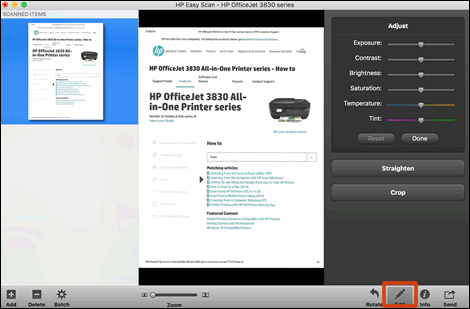
4) Click the thumbnail of a scanned item in the left panel, and then click Edit to adjust colors, straighten, or crop the scan.


HP Easy Scan editing tools


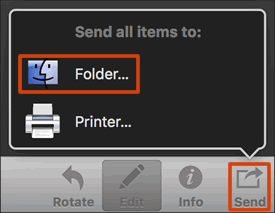
5) Click Send in the bottom right corner of the window, and then click Folder.


Clicking Send to save a scan to a folder on the Mac


6) Select a name, destination, file format, and quality for your scan.
7) If you want your scan saved as a single file, make sure you select the Save all items to a single file check box. Click Save.


You may also refer to - HP Printers - How to Scan (Mac)


Hope this helps! Keep me posted. 


Please click “Accept as Solution” if you feel my post solved your issue, it will help others find the solution.

Click the “Kudos, Thumbs Up" on the bottom right to say “Thanks” for helping!


Have a great day! 

Asmita
I am an HP Employee

† The opinions expressed above are the personal opinions of the authors, not of HP. By using this site, you accept the <a href="https://www8.hp.com/us/en/terms-of-use.html" class="udrlinesmall">Terms of Use</a> and <a href="/t5/custom/page/page-id/hp.rulespage" class="udrlinesmall"> Rules of Participation</a>.