• ×
    Information
    Need Windows 11 help?
    Check documents on compatibility, FAQs, upgrade information and available fixes.
    Windows 11 Support Center.
  • post a message
  • ×
    Information
    Need Windows 11 help?
    Check documents on compatibility, FAQs, upgrade information and available fixes.
    Windows 11 Support Center.
  • post a message
Guidelines

Featured blog article:

Check out our WINDOWS 11 Support Center info about: OPTIMIZATION, KNOWN ISSUES, FAQs, VIDEOS AND MORE.
HP Recommended

My computer is HP Pavlion 500 PC, HP 500-056, with Windows 8.1 installed.


I wanted the computer to read my HDD that is windows 7. All my data is on there. I did not know there would be a major complication. The computer ignores the drive altogether. It cannot be read.


The computer will not even read the windows 7 CD.


So, I thought I would remove the HDD and add my HDD instead, but the BIOS will only see the windows 8 HDD.


Now comes the real problem. I cannot get into the BIOS to tell it to read windows 7.


ANY help would be appreciated. Please.


Judeline

1 ACCEPTED SOLUTION

Accepted Solutions
HP Recommended

Hello @judeline


Welcome and thank you for posting in the HP Support forum.


Here's the thing: Windows 7 is considered legacy OS, Windows 8.1 is new "modern" one. If you try to insert HDDs with bootable OS, you need to adjust the BIOS settings.


What you can do:


-  If your PC has the HDD with Win 8.1, you can keep it inserted. If the Windows 7 has data on it, you can get a set from a retail store - something like this here > https://youtu.be/3dDSfee32PU?t=280

 so that you plug in the HDD and connect it to the existing PC externally via USB cable and read the data.


-  If you want to remove the Win 8.1 HDD and insert the Win 7 HDD and if this Win 7 HDD has a bootable and correctly working Windows 7, you need to


* Load BIOS

* Ensure Secure Boot is disabled.

* Ensure Legacy mode is enabled

* Save the UEFI/BIOS changes.

Details>> http://support.hp.com/us-en/document/c03653226


Insert the Win 7 HDD, restart the PC and during boot hit F9 to open Boot options. Select the HDD as a boot options


Hope this will work.

Your FEEDBACK is important. Use the interactive buttons below and let me know if the post helps ;
*** HP employee *** I express personal opinion only *** Joined the Community in 2013

View solution in original post

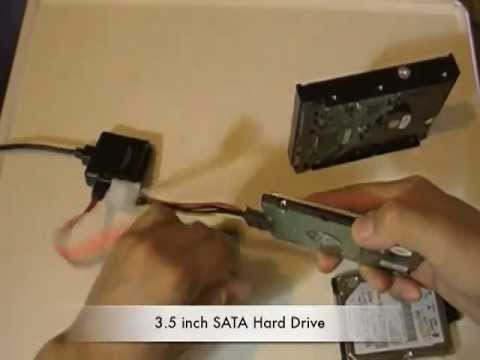
This is a simple tutorial on retrieving data from a broken Laptop. I used a USB adapter that converts your computer's hard drive in to an external hard drive. Remember to disconnect the AC charge and battery before removing the hard drive. Enjoy,
1 REPLY 1
HP Recommended

Hello @judeline


Welcome and thank you for posting in the HP Support forum.


Here's the thing: Windows 7 is considered legacy OS, Windows 8.1 is new "modern" one. If you try to insert HDDs with bootable OS, you need to adjust the BIOS settings.


What you can do:


-  If your PC has the HDD with Win 8.1, you can keep it inserted. If the Windows 7 has data on it, you can get a set from a retail store - something like this here > https://youtu.be/3dDSfee32PU?t=280

 so that you plug in the HDD and connect it to the existing PC externally via USB cable and read the data.


-  If you want to remove the Win 8.1 HDD and insert the Win 7 HDD and if this Win 7 HDD has a bootable and correctly working Windows 7, you need to


* Load BIOS

* Ensure Secure Boot is disabled.

* Ensure Legacy mode is enabled

* Save the UEFI/BIOS changes.

Details>> http://support.hp.com/us-en/document/c03653226


Insert the Win 7 HDD, restart the PC and during boot hit F9 to open Boot options. Select the HDD as a boot options


Hope this will work.

Your FEEDBACK is important. Use the interactive buttons below and let me know if the post helps ;
*** HP employee *** I express personal opinion only *** Joined the Community in 2013
This is a simple tutorial on retrieving data from a broken Laptop. I used a USB adapter that converts your computer's hard drive in to an external hard drive. Remember to disconnect the AC charge and battery before removing the hard drive. Enjoy,
† The opinions expressed above are the personal opinions of the authors, not of HP. By using this site, you accept the <a href="https://www8.hp.com/us/en/terms-of-use.html" class="udrlinesmall">Terms of Use</a> and <a href="/t5/custom/page/page-id/hp.rulespage" class="udrlinesmall"> Rules of Participation</a>.
-->