-
×InformationNeed Windows 11 help?Check documents on compatibility, FAQs, upgrade information and available fixes.
Windows 11 Support Center. -

-
×InformationNeed Windows 11 help?Check documents on compatibility, FAQs, upgrade information and available fixes.
Windows 11 Support Center. -
- HP Community
- Desktops
- Desktop Operating Systems and Recovery
- windows 8.1 does not read windows 7 cd. Please help

Create an account on the HP Community to personalize your profile and ask a question
02-15-2017 08:14 PM
My computer is HP Pavlion 500 PC, HP 500-056, with Windows 8.1 installed.
I wanted the computer to read my HDD that is windows 7. All my data is on there. I did not know there would be a major complication. The computer ignores the drive altogether. It cannot be read.
The computer will not even read the windows 7 CD.
So, I thought I would remove the HDD and add my HDD instead, but the BIOS will only see the windows 8 HDD.
Now comes the real problem. I cannot get into the BIOS to tell it to read windows 7.
ANY help would be appreciated. Please.
Judeline
Solved! Go to Solution.
Accepted Solutions
02-15-2017 09:03 PM - edited 02-15-2017 09:04 PM
Hello @judeline
Welcome and thank you for posting in the HP Support forum.
Here's the thing: Windows 7 is considered legacy OS, Windows 8.1 is new "modern" one. If you try to insert HDDs with bootable OS, you need to adjust the BIOS settings.
What you can do:
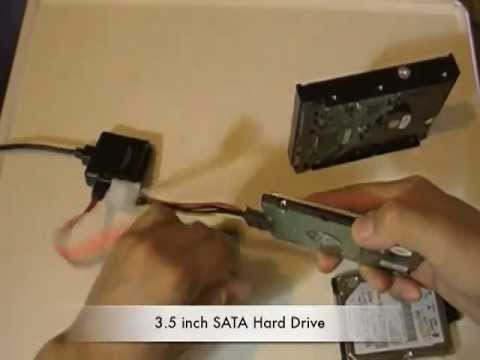
- If your PC has the HDD with Win 8.1, you can keep it inserted. If the Windows 7 has data on it, you can get a set from a retail store - something like this here > https://youtu.be/3dDSfee32PU?t=280
so that you plug in the HDD and connect it to the existing PC externally via USB cable and read the data.
- If you want to remove the Win 8.1 HDD and insert the Win 7 HDD and if this Win 7 HDD has a bootable and correctly working Windows 7, you need to
* Load BIOS
* Ensure Secure Boot is disabled.
* Ensure Legacy mode is enabled
* Save the UEFI/BIOS changes.
Details>> http://support.hp.com/us-en/document/c03653226
Insert the Win 7 HDD, restart the PC and during boot hit F9 to open Boot options. Select the HDD as a boot options
Hope this will work.
*** HP employee *** I express personal opinion only *** Joined the Community in 2013
02-15-2017 09:03 PM - edited 02-15-2017 09:04 PM
Hello @judeline
Welcome and thank you for posting in the HP Support forum.
Here's the thing: Windows 7 is considered legacy OS, Windows 8.1 is new "modern" one. If you try to insert HDDs with bootable OS, you need to adjust the BIOS settings.
What you can do:
- If your PC has the HDD with Win 8.1, you can keep it inserted. If the Windows 7 has data on it, you can get a set from a retail store - something like this here > https://youtu.be/3dDSfee32PU?t=280
so that you plug in the HDD and connect it to the existing PC externally via USB cable and read the data.
- If you want to remove the Win 8.1 HDD and insert the Win 7 HDD and if this Win 7 HDD has a bootable and correctly working Windows 7, you need to
* Load BIOS
* Ensure Secure Boot is disabled.
* Ensure Legacy mode is enabled
* Save the UEFI/BIOS changes.
Details>> http://support.hp.com/us-en/document/c03653226
Insert the Win 7 HDD, restart the PC and during boot hit F9 to open Boot options. Select the HDD as a boot options
Hope this will work.
*** HP employee *** I express personal opinion only *** Joined the Community in 2013