• ×
    Information
    Need Windows 11 help?
    Check documents on compatibility, FAQs, upgrade information and available fixes.
    Windows 11 Support Center.
  • post a message
  • ×
    Information
    Need Windows 11 help?
    Check documents on compatibility, FAQs, upgrade information and available fixes.
    Windows 11 Support Center.
  • post a message
Guidelines
Seize the moment! nominate yourself or a tech enthusiast you admire & join the HP Community Experts!
Check out our WINDOWS 11 Support Center info about: OPTIMIZATION, KNOWN ISSUES, FAQs, VIDEOS AND MORE.
HP Recommended

My computer is HP Pavlion 500 PC, HP 500-056, with Windows 8.1 installed.


I wanted the computer to read my HDD that is windows 7. All my data is on there. I did not know there would be a major complication. The computer ignores the drive altogether. It cannot be read.


The computer will not even read the windows 7 CD.


So, I thought I would remove the HDD and add my HDD instead, but the BIOS will only see the windows 8 HDD.


Now comes the real problem. I cannot get into the BIOS to tell it to read windows 7.


ANY help would be appreciated. Please.


Judeline

1 ACCEPTED SOLUTION

Accepted Solutions
HP Recommended

Hello @judeline


Welcome and thank you for posting in the HP Support forum.


Here's the thing: Windows 7 is considered legacy OS, Windows 8.1 is new "modern" one. If you try to insert HDDs with bootable OS, you need to adjust the BIOS settings.


What you can do:


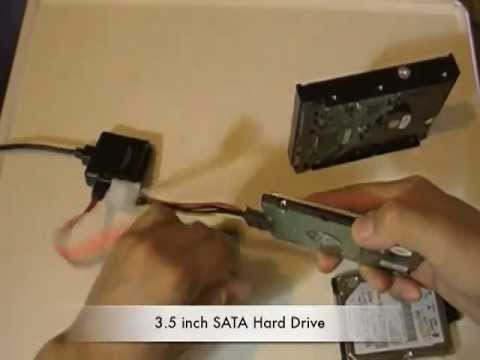
If your PC has the HDD with Win 8.1, you can keep it inserted. If the Windows 7 has data on it, you can get a set from a retail store - something like this here > https://youtu.be/3dDSfee32PU?t=280

 so that you plug in the HDD and connect it to the existing PC externally via USB cable and read the data.


If you want to remove the Win 8.1 HDD and insert the Win 7 HDD and if this Win 7 HDD has a bootable and correctly working Windows 7, you need to


* Load BIOS

* Ensure Secure Boot is disabled.

* Ensure Legacy mode is enabled

* Save the UEFI/BIOS changes.

Details>> http://support.hp.com/us-en/document/c03653226


Insert the Win 7 HDD, restart the PC and during boot hit F9 to open Boot options. Select the HDD as a boot options


Hope this will work.

Your FEEDBACK is important. Use the interactive buttons below and let me know if the post helps ;
*** HP employee *** I express personal opinion only *** Joined the Community in 2013

View solution in original post

1 REPLY 1
HP Recommended

Hello @judeline


Welcome and thank you for posting in the HP Support forum.


Here's the thing: Windows 7 is considered legacy OS, Windows 8.1 is new "modern" one. If you try to insert HDDs with bootable OS, you need to adjust the BIOS settings.


What you can do:


If your PC has the HDD with Win 8.1, you can keep it inserted. If the Windows 7 has data on it, you can get a set from a retail store - something like this here > https://youtu.be/3dDSfee32PU?t=280

 so that you plug in the HDD and connect it to the existing PC externally via USB cable and read the data.


If you want to remove the Win 8.1 HDD and insert the Win 7 HDD and if this Win 7 HDD has a bootable and correctly working Windows 7, you need to


* Load BIOS

* Ensure Secure Boot is disabled.

* Ensure Legacy mode is enabled

* Save the UEFI/BIOS changes.

Details>> http://support.hp.com/us-en/document/c03653226


Insert the Win 7 HDD, restart the PC and during boot hit F9 to open Boot options. Select the HDD as a boot options


Hope this will work.

Your FEEDBACK is important. Use the interactive buttons below and let me know if the post helps ;
*** HP employee *** I express personal opinion only *** Joined the Community in 2013
This is a simple tutorial on retrieving data from a broken Laptop. I used a USB adapter that converts your computer's hard drive in to an external hard drive. Remember to disconnect the AC charge and battery before removing the hard drive. Enjoy,
† The opinions expressed above are the personal opinions of the authors, not of HP. By using this site, you accept the <a href="https://www8.hp.com/us/en/terms-of-use.html" class="udrlinesmall">Terms of Use</a> and <a href="/t5/custom/page/page-id/hp.rulespage" class="udrlinesmall"> Rules of Participation</a>.