-
×InformationNeed Windows 11 help?Check documents on compatibility, FAQs, upgrade information and available fixes.
Windows 11 Support Center. -

-
×InformationNeed Windows 11 help?Check documents on compatibility, FAQs, upgrade information and available fixes.
Windows 11 Support Center. -
- HP Community
- Desktops
- Desktop Video, Display and Touch
- Adding monitor to All in One

Create an account on the HP Community to personalize your profile and ask a question
04-03-2020 08:07 PM
I am trying to connect an Acer monitor (Model V246HL) to my HP All in One 24-b114 as a second monitor. I want to be able to look at different things on each monitor, not mirroring the same thing. The monitor has a VGA in and a DVI-D in. I have a DVI-D single link cable. My adapter is for Displayport, which the HP All in One doesn't have. What adapter do I need to hook up the monitor to my HP? It has an HDMI but I don't know if its in or out or what?
04-03-2020 09:50 PM
I just cracked my screen (LCD) and was able to hook up my all in one to another monitor (TV) with an HDMI cable. It worked fine except the mouse seemed to be out of sync sometimes. I have been advised to get an actual computer monitor with high resolution, etc.
04-09-2020 10:14 AM
Welcome to HP Community
I have gone through your Post and would like to help
You can can use an HDMI to DVI-D cable to connect your external monitor to your HP AIO
Then you need to extend the screen. you will be able to do different things on each screen
-
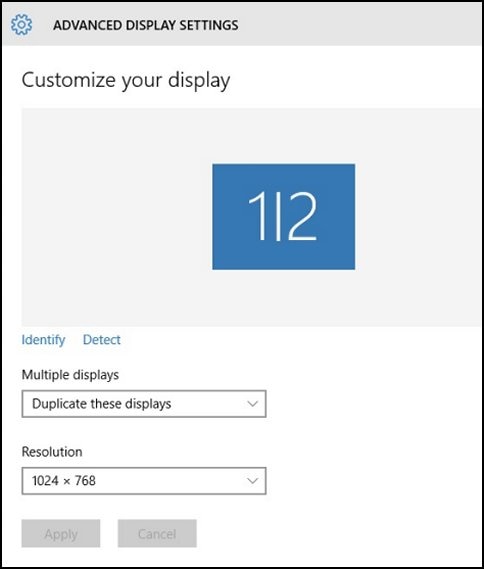
In the Windows search box, search for and open Display settings. The ADVANCED DISPLAY SETTINGS window opens.
Figure : ADVANCED DISPLAY SETTINGS

-
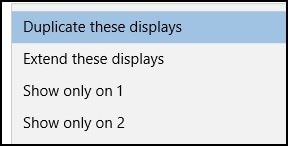
Click the drop-down menu under Multiple displays, select Extend these displays, and then click Apply.
Figure : Multiple displays options

Thank you 😊
If the information I've provided was helpful, give us some reinforcement by clicking the "Solution Accepted" on this Post and it will also help other community members with similar issue.
KrazyToad
I Am An HP Employee
04-10-2020 09:38 AM
Thanks Krazy Toad for the assistance. I was able to hook up as suggested but continued with ghost bubbles and a mouse with mind of its own. However, I found the solution for the bubbles/mouse problem from another post which advocated disabling the touch screen. I did this and get perfect performance on my 32 inch curved Samsung monitor. As mentioned on another post, I had cracked my lcd touch screen. I guess this caused the bubbles and mouse problems. I have ordered a new touch screen to replace the cracked touch screen.
04-13-2020 09:18 AM
I'm glad you got this issue sorted out
Do visit our HP Support Community and drop us a message anytime you need help
Thank you 😊
If the information I've provided was helpful, give us some reinforcement by clicking the "Solution Accepted" on this Post and it will also help other community members with similar issue.
KrazyToad
I Am An HP Employee