
-
×InformationNeed Windows 11 help?Check documents on compatibility, FAQs, upgrade information and available fixes.
Windows 11 Support Center. -
-
×InformationNeed Windows 11 help?Check documents on compatibility, FAQs, upgrade information and available fixes.
Windows 11 Support Center. -
- HP Community
- Printers
- HP Instant Ink
- Accumulated prints not counting

Create an account on the HP Community to personalize your profile and ask a question
Your account also allows you to connect with HP support faster, access a personal dashboard to manage all of your devices in one place, view warranty information, case status and more.
Common problems for INSTANT INK, HP+ PLANS: INK AND TONER
We would like to share some of the most frequently asked questions about Instant Ink. Check out this link: HP INSTANT INK, HP+ PLANS: INK AND TONER. .

It has been a while since anyone has replied. Simply ask a new question if you would like to start the discussion again.

08-20-2019 11:19 PM
 HP Recommended
Product: HP 8730
Operating System: Microsoft Windows 10 (64-bit)
Hello.
I started using the instant ink program a few months ago but only recently I saw that I was supposed to have some accumulated prints. From what I can see in the webpage I have 0 prints accumulated but I never reached the total amount of prints.
Is there any issue?
5 REPLIES 5


08-23-2019 01:06 PM
HP Recommended
Hey there! @JoaoPaul54,
Refer the details below to know how instant ink page count works.
HP Instant Ink page counts are not recorded in real time. As long as your printer is connected to the Internet and has Web Services turned on, printed pages are automatically recorded approximately once per day and display in your Print History on the date they were recorded. Any pages you print when the printer is not connected to the Internet are recorded on the date the printer is reconnected to the Internet. Sign in to your HP Instant Ink account to update your page count.
NOTE:
Only pages printed using HP Instant Ink cartridges are recorded in your printing history.
-
Go to hpinstantink.com/signin (the HP Connected website) to sign in to your HP Instant Ink account, if you are not signed in already.
Your HP Instant Ink account page opens.
-
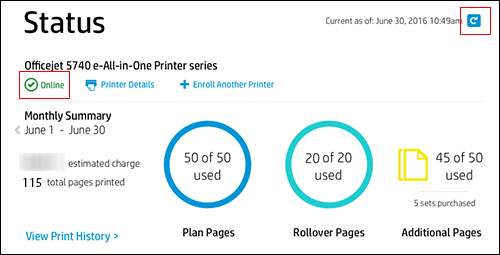
At the top of the Status area on your HP Instant Ink account page, click the refresh icon
 to obtain the most current information about your monthly fees. Look for a green checkmark and Online to make sure your printer is connected to the HP Instant Ink service.
If the printer status is not online, make sure your printer is turned on and connected to the network, then click the refresh icon again.
Figure : Clicking the refresh icon and making sure the printer is online
-
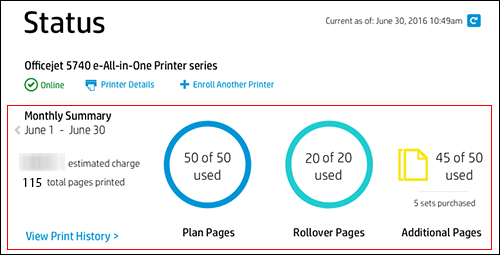
Note the Plan, Rollover, and any Additional pages printed. If no Additional pages have been printed, that icon does not appear.
Figure : Reviewing Plan, Rollover, and Additional pages
-
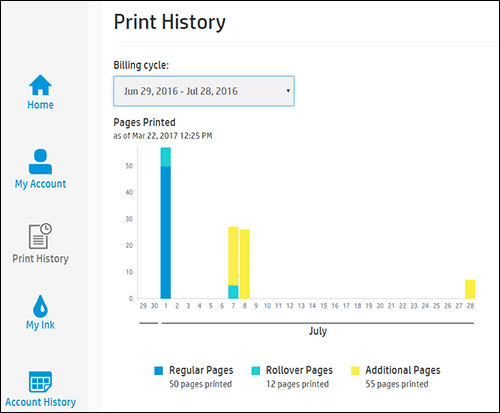
Click View Print History in the Status area for more information about each print job, such as the date and number of pages printed.
The printing history for the current billing cycle displays. To view a previous billing cycle, click the Billing Cycle drop-down menu, and then select a billing cycle.
Figure : Viewing Print History
If you want to make sure your print jobs have been recorded, you can send a print job to the printer, and then repeat the steps.
If you still have issues after trying out the steps. Please share few details through a private message about the instant ink account details. So I can check the account and help you in crediting the pages.
Instant ink account number-
Instant ink email address-
Refer this article to know more information about instant ink page count issues. Click Here
Hope this answers your query!
I hope you have a great day! 🙂
Please click “Accept as Solution” if you feel my post solved your issue, it will help others find the solution.
Click the “Kudos, Thumbs Up" on the bottom right to say “Thanks” for helping!
A4Apollo
I am an HP Employee
08-28-2019 03:43 PM
HP Recommended
Hi! @JoaoPaul54,
Thanks for writing back to us.
Please share us few details through a private message, so I can check the account details and help you with the issue.
Instant ink account number-
Instant ink email address-
Hope to hear from you soon!
Take Care!
A4Apollo
I am an HP Employee

09-03-2019 06:50 AM
HP Recommended
We have not received any message from you with the required details. Kindly re-send the message/details for better assistance.
Make sure you send us a private message with Your Instant ink Account number and Email address. Do not post in public.
Keep me posted.
KUMAR0307
I am an HP Employee

Be alert for scammers posting fake support phone numbers and/or email addresses on the community.
If you think you have received a fake HP Support message, please report it to us by clicking on "Flag Post".
† The opinions expressed above are the personal opinions of the authors, not of HP. By using this site, you accept the Terms of Use and Rules of Participation.


† The opinions expressed above are the personal opinions of the authors, not of HP. By using this site, you accept the <a href="https://www8.hp.com/us/en/terms-of-use.html" class="udrlinesmall">Terms of Use</a> and <a href="/t5/custom/page/page-id/hp.rulespage" class="udrlinesmall"> Rules of Participation</a>.