
-
×InformationNeed Windows 11 help?Check documents on compatibility, FAQs, upgrade information and available fixes.
Windows 11 Support Center. -
-
×InformationNeed Windows 11 help?Check documents on compatibility, FAQs, upgrade information and available fixes.
Windows 11 Support Center. -
- HP Community
- Printers
- HP Instant Ink
- Re: Black ink will not print

Create an account on the HP Community to personalize your profile and ask a question
Your account also allows you to connect with HP support faster, access a personal dashboard to manage all of your devices in one place, view warranty information, case status and more.
Common problems for INSTANT INK, HP+ PLANS: INK AND TONER
We would like to share some of the most frequently asked questions about Instant Ink. Check out this link: HP INSTANT INK, HP+ PLANS: INK AND TONER. .

It has been a while since anyone has replied. Simply ask a new question if you would like to start the discussion again.

07-04-2020 11:16 AM
 HP Recommended
I have an HP Office Jet Pro 6978. I replaced the black ink cartridge with a new 902xl which is indicated and it is not printing black. The color ink works. I tried cleaning the heads, aligning etc. Any solutions.
07-06-2020 12:37 PM
HP Recommended
I have a HP 7520 and am having the same problem with the black ink. New cartridge shows "full" on all displays, but will not print. I can't find the solution on this community site, although it shows that you solved the problem.


07-06-2020 01:09 PM
HP Recommended
@Cleve48, Welcome to HP Support Community!
This could be an issue with the ink cartridge or the printer ink system.
If you have already performed the steps from the document Black or Color Ink Not Printing, Other Print Quality Issues and the issue persists, it could be a hardware failure.
Please reach out to the HP Support in your region regarding the service options for your printer.
Hope this helps!
Please click “Accepted Solution” if you feel my post solved your issue, it will help others find the solution. Click the “Kudos/Thumbs Up" on the bottom right to say “Thanks” for helping!
TEJ1602
I am an HP Employee
07-20-2020 02:49 PM
HP Recommended
Hi, I have a HP DeskJet 2652. Today is my first day using this printer, however the only ink that is coming out is yellow. I’ve tried taking out the black in cartridge and replacing but it is still not working.
08-05-2020 12:50 PM
HP Recommended
I have a 5520 series printer. All of a sudden the black ink did not print. Purchased two new HP cartridges. Black ink still did not print. I have color ink. Did all the cleaning and realigning, etc. To no avail. Black cartridge does not show on screen that shows ink remaining. Please tell me what to do

08-05-2020 05:17 PM
HP Recommended
Welcome to the HP support community.
Make sure the ink cartridges are properly vented and correctly seated
-
Press the Power button to turn on the printer, if it is not already turned on.
-
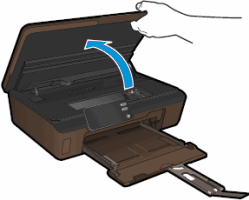
Open the ink cartridge access door. The carriage moves to the access area.
-
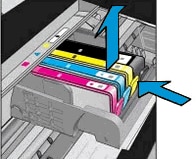
Press the tab on the front of the ink cartridge inward to release it, and then pull up on the ink cartridge to remove it from the slot.
-
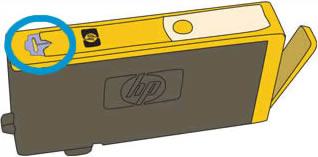
Examine the vent area on each ink cartridge, above the HP logo on the top of the ink cartridge.
-
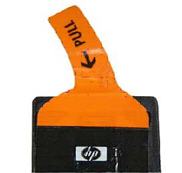
If the ink cartridge still has the orange pull-tab attached, pull to remove it.
-
If the vent is clogged, use a straight pin to gently remove excess adhesive from the vent.
-
-
Clogged vent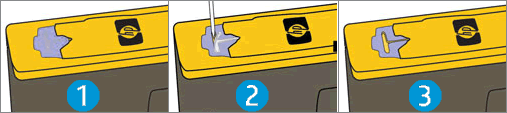
-
With a straight pin, gently remove excess adhesive from the vent
-
Unclogged vent
-
-
Slide the ink cartridge into its slot, and then press down on the ink cartridge until it snaps into place.
NOTE:
Make sure that each ink cartridge is installed in the correct slot. Match the shape of the icon and the color of the ink cartridge with the slot that has the same shaped icon and color.

-
Repeat these steps to inspect the vents on each of the ink cartridges.
-
Make sure that each ink cartridge is firmly in place in its slot. Run your finger along the top of the ink cartridges to feel for any that are protruding, and if any are, press down firmly until each ink cartridge snaps into place.
-
Close the ink cartridge access door.
-
Try the print job again.
You can refer this HP document for more assistance:- Click here
I hope that helps.
To thank me for my efforts to help you, please mark my post as an accepted solution so that it benefits several others.
Cheers.
Sandytechy20
I am an HP Employee

Be alert for scammers posting fake support phone numbers and/or email addresses on the community.
If you think you have received a fake HP Support message, please report it to us by clicking on "Flag Post".
† The opinions expressed above are the personal opinions of the authors, not of HP. By using this site, you accept the Terms of Use and Rules of Participation.


† The opinions expressed above are the personal opinions of the authors, not of HP. By using this site, you accept the <a href="https://www8.hp.com/us/en/terms-of-use.html" class="udrlinesmall">Terms of Use</a> and <a href="/t5/custom/page/page-id/hp.rulespage" class="udrlinesmall"> Rules of Participation</a>.