-
×InformationNeed Windows 11 help?Check documents on compatibility, FAQs, upgrade information and available fixes.
Windows 11 Support Center. -

-
×InformationNeed Windows 11 help?Check documents on compatibility, FAQs, upgrade information and available fixes.
Windows 11 Support Center. -
- HP Community
- Printers
- HP Instant Ink
- Re: HP Instant Ink - Cannot connect to server

Create an account on the HP Community to personalize your profile and ask a question
01-21-2020
02:50 PM
- last edited on
02-05-2020
09:50 AM
by
kevin-t
Hi,
For a few weeks I've been experiencing some trouble with my Envy6200. Whenever I wanted to print something I needed to accept a error-message on the display of my printer. The message said it was not able to connect to the instant ink server. After pressing "OK" the print-task was executed normally.
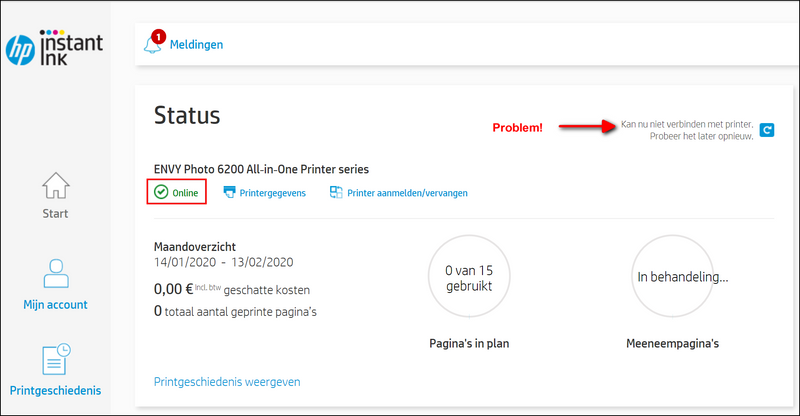
BUT as of today, my printer won't print anything, not even after accepting the message on the display. I'm completely stuck because of a connection failure to the HP Webservices.
My printer is connected on the same WiFi-network as my computer and states to be "online".
I've already tried following things:
- Rebooting printer several times (no succes)
- Network drain (no success)
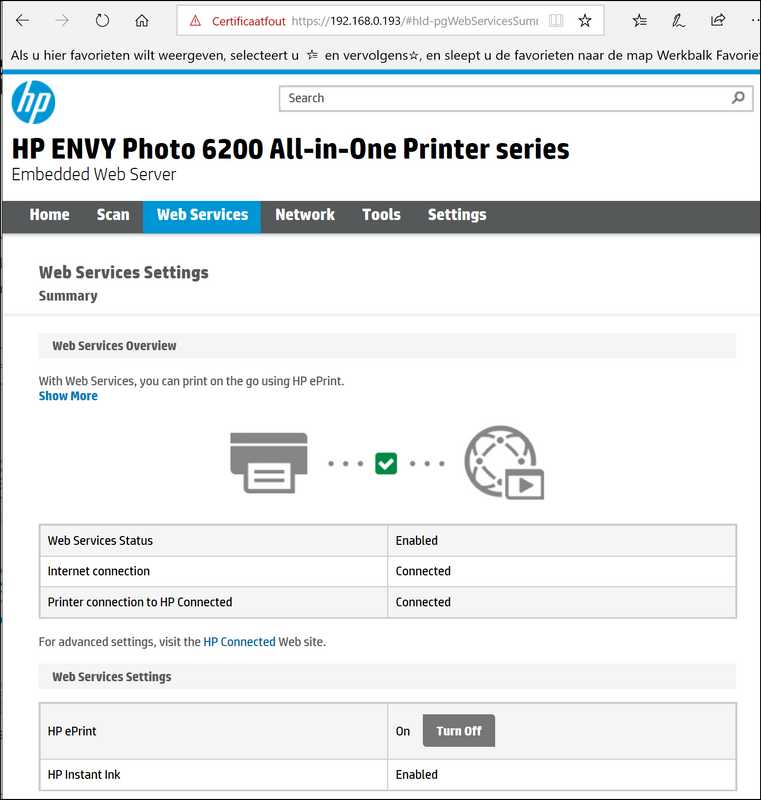
- Logging in on the web interface of the printer to install firmware or check connection. Funny thing is that the internal webpage of the printer displays a "Connected" status on "Printer connection to HP Connected".
- Remove and re-install Web Services (no succes)
Some print-screens to prove above and give additional info:
My Accountnumber = [edited]
Could you please have a look? Thanks.
Thomas Van Geel
01-24-2020 02:46 AM
@ThomasVGeel, Welcome to HP Support Community!
I understand you have issues connecting to web services, this issue further requires remote assistance. I would recommend you contact the HP Instant Ink Support Team for further help.
I shall share the contact via private message. In order to access your private messages, click the private message icon on the upper right corner of your HP Forums profile, next to your profile Name or simply click on this link.
Hope this helps!
Please click “Accept as Solution” if you feel my post solved your issue, it will help others find the solution. Click the “Kudos/Thumbs Up" on the bottom right to say “Thanks” for helping!
TEJ1602
I am an HP Employee
01-24-2020 08:23 AM
Reach out to the HP Support in your region for further assistance.
Hope this helps!
Please click “Accept as Solution” if you feel my post solved your issue, it will help others find the solution. Click the “Kudos/Thumbs Up" on the bottom right to say “Thanks” for helping!
TEJ1602
I am an HP Employee