• ×
    Information
    Need Windows 11 help?
    Check documents on compatibility, FAQs, upgrade information and available fixes.
    Windows 11 Support Center.
  • post a message
  • ×
    Information
    Need Windows 11 help?
    Check documents on compatibility, FAQs, upgrade information and available fixes.
    Windows 11 Support Center.
  • post a message
Guidelines
Join the HP Community Solve‑a‑thon | Help Others & Share Your Solutions | Live on Zoom | 2:30 PM to 2:30 AM IST | Every Wednesday Click here to know more
Check some of the most frequent questions about Instant Ink: HP INSTANT INK, HP+ PLANS: INK AND TONER.


Check out our Black or Color Ink Not Printing, Other Print Quality Issues info about: Print quality and Cartridge Issues.
HP Recommended
HP OFFICEJET 6500 E709A PRINTER
Microsoft Windows 10 (64-bit)

INK CARTRIDGE CAGE STUCK ON FAR RIGHT SIDE. WILL NOT PRINT.

1 REPLY 1
HP Recommended

@SPARKY8330, Welcome to the HP Support Community!


Let us try these steps to resolve this issue: 


Check for obstructions in the carriage path. Make sure the carriage path is not blocked.

  1. With the printer on, disconnect the power cord from the rear of the printer.

  2. If your printer has a battery, remove the battery.

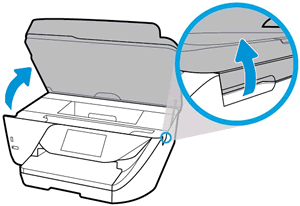
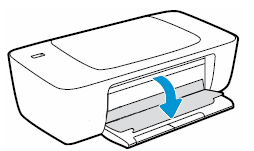
  3. Open the door to access the carriage inside of the printer.

    Examples of carriage access doors

    Opening an access door on top of the printerOpening an access door on the front of the printer

  4. Look in the carriage path for debris such as crumpled paper or dislodged labels, and then remove any that you find.

    Example of a printer with debris in the carriage path

    View inside a printer showing crumpled paper in the carriage path causing a carriage jam

  5. If the carriage on your printer has a latch, make sure it is closed.

      caution:

    Ink tank printers: If the latch is closed, do not press down on it.

    If the printhead latch is closed, do not press down on it

  6. Use your hand to move the carriage to each side, making sure it moves freely. If the carriage is stalled or docked to one side of the printer and you cannot move it, continue with these steps.

  7. Close the carriage access door.

  8. Reconnect the power cord to the rear of the printer, and then turn the printer on.

Reset the printer

  1. With the printer turned on, disconnect the power cord from the rear of the printer.
  2. Wait at least 60 seconds.
  3. Reconnect the power cord to the rear of the printer.
  4. Turn ON the printer, if it does not automatically turn on.
  5. Wait until the printer is idle and silent before you proceed.

Note: HP recommends connecting the printer directly to a wall outlet rather than a surge protector or a power strip.


Make sure there are no papers jammed inside the printer. Perform the steps mentioned in this document - Paper Jam Error


If the issue persists, please reach out to the HP Support in your region regarding the service options for your printer. 


If the printer is out of warranty, I suggest you upgrade the printer. You may visit Hp Store to check the available printers.


Keep me posted for any other assistance.


Please click “Accept as Solution” if you feel my post solved your issue, it will help others find the solution.

Click the “Kudos, Thumbs Up" on the bottom right to say “Thanks” for helping!

Have a great day! 

KUMAR0307
I am an HP Employee

† The opinions expressed above are the personal opinions of the authors, not of HP. By using this site, you accept the <a href="https://www8.hp.com/us/en/terms-of-use.html" class="udrlinesmall">Terms of Use</a> and <a href="/t5/custom/page/page-id/hp.rulespage" class="udrlinesmall"> Rules of Participation</a>.