• ×
    Information
    Need Windows 11 help?
    Check documents on compatibility, FAQs, upgrade information and available fixes.
    Windows 11 Support Center.
  • post a message
  • ×
    Information
    Need Windows 11 help?
    Check documents on compatibility, FAQs, upgrade information and available fixes.
    Windows 11 Support Center.
  • post a message
Guidelines
Join the HP Community Solve‑a‑thon | Help Others & Share Your Solutions | Live on Zoom | 2:30 PM to 2:30 AM IST | Every Wednesday Click here to know more
HP Recommended
HP GT 5820
Microsoft Windows 10 (64-bit)

Hi,


My printer is unable to print in black properly. The words come out streaked or missing in some places. The color printing seems fine but it's only showing issue with black. I have printed several diagnostic pages after cleaning the printhead with the software. Please see attached and let me know if something wrong with my black printhead and if needs replacement. hp print.jpeg

1 ACCEPTED SOLUTION

Accepted Solutions
HP Recommended

@fara123


Yes, this could be the issue with the printhead.

I request you to talk to HP support.

They might have multiple options to help you with this.

1) Click on this link - www.hp.com/contacthp/

2) Click on "Continue as guest".

3) Enter the serial of your device.

4) Select the country from the drop-down.

5) Click on "Show Options".

Fill the web-form. A case number and phone number will now populate for you.


Cheers.

Sandytechy20
I am an HP Employee

View solution in original post

3 REPLIES 3
HP Recommended

@fara123


Welcome to HP forums, I see that the black ink is not printing.


Did you check the black ink levels?


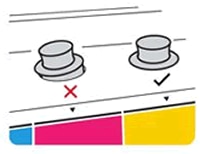
If the ink levels are fine, make sure the ink tank plugs are pressed firmly into place.

Ink tank plugs secure


Check the ink delivery system

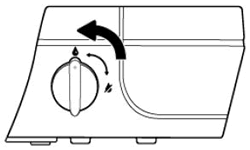
  1. Make sure the transportation ink valve is in the unlocked position.

       CAUTION: 

    Printing with a locked transportation ink valve can damage the printheads.

    Unlocking the transportation ink valve

  2. Make sure the printer is turned on.

  3. Inspect the position of the blue printhead latch.

    1. Open the exterior door.

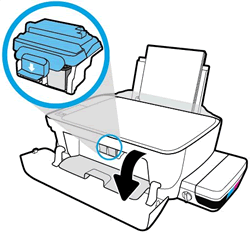
    2. Open the printhead access door.

      Opening the printhead access door

    3. Wait until the carriage is idle and silent before you continue.

    4. Visually inspect the printhead latch position.

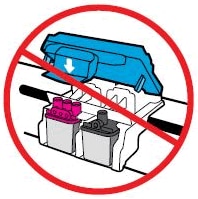
      • Do not touch the blue printhead latch! Touching the latch might open the carriage and cause damage to the ink system.

      •  


        Don't touch the blue latch

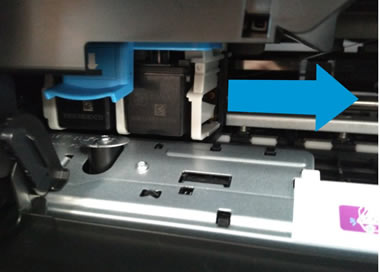
  4. Reach inside the printer through the printhead access door, and then manually move the carriage to the right.

    Moving the carriage to the right

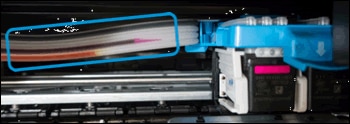
  5. Visually inspect the ink delivery tubes.

  6. Example of a printer not properly primed

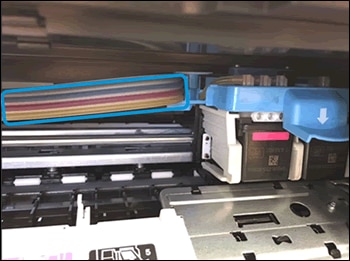
  7. Example of a printer out of ink with ink stained tubes
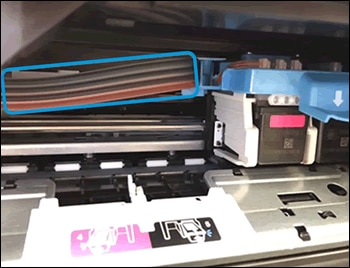
  8. If the tubes are completely filled with dark ink, the printer is properly primed and filled with ink, 
  9. Example of a printer properly primed with dark ink

You can refer this HP documents for more assistance:- Click here


Let me know how it goes.

To thank me for my efforts to help you, please mark my post as an accepted solution so that it benefits several others.

Cheers.

Sandytechy20
I am an HP Employee

HP Recommended

Thanks Sandy.

The ink levels are fine and the ink plugs are also intact. I have also checked the ink delivery tubes which also seem fine.  It prints perfectly when I print in color but does not print well in black. I have also attached a printer status page. You can see the print quality but that's on a good day. Is my black printhead defective? If so, can I only replace the black printhead.Scan_20190131.jpg

HP Recommended

@fara123


Yes, this could be the issue with the printhead.

I request you to talk to HP support.

They might have multiple options to help you with this.

1) Click on this link - www.hp.com/contacthp/

2) Click on "Continue as guest".

3) Enter the serial of your device.

4) Select the country from the drop-down.

5) Click on "Show Options".

Fill the web-form. A case number and phone number will now populate for you.


Cheers.

Sandytechy20
I am an HP Employee

† The opinions expressed above are the personal opinions of the authors, not of HP. By using this site, you accept the <a href="https://www8.hp.com/us/en/terms-of-use.html" class="udrlinesmall">Terms of Use</a> and <a href="/t5/custom/page/page-id/hp.rulespage" class="udrlinesmall"> Rules of Participation</a>.