
-
×InformationNeed Windows 11 help?Check documents on compatibility, FAQs, upgrade information and available fixes.
Windows 11 Support Center. -
-
×InformationNeed Windows 11 help?Check documents on compatibility, FAQs, upgrade information and available fixes.
Windows 11 Support Center. -
- HP Community
- Notebooks
- Notebook Boot and Lockup
- Re: Laptop does not shut down

Create an account on the HP Community to personalize your profile and ask a question
Your account also allows you to connect with HP support faster, access a personal dashboard to manage all of your devices in one place, view warranty information, case status and more.

It has been a while since anyone has replied. Simply ask a new question if you would like to start the discussion again.

09-13-2019 02:38 PM
 HP Recommended
Product: HP Spectre x360 - 13-4108na
Operating System: Microsoft Windows 10 (64-bit)
I have the HP Spectre x360 - 13-4108na and my laptop does not shut down.
When I click on 'shut down', it starts back up after a few seconds.
My drivers and the BIOS are fully up to date using HP Support Assistant. My Windows 10 is fully updated to v1903.
I have tried disabling fast start up, hibernate, etc. I have even reset Windows (keep files option), and still nothing.
I have spent days googling what might be the issue, but nothing worked.
Any help would be appreciated.
Thanks!
7 REPLIES 7


09-16-2019 05:01 PM
HP Recommended
@beanonil Welcome to HP Community!
Here are a few steps that should help resolve this issue, since you've selected to keep the files the reset could be incomplete as certain settings aren't changed in this particular option, that said, the below steps should help your cause:
- Open Control Panel and go to Power Options.
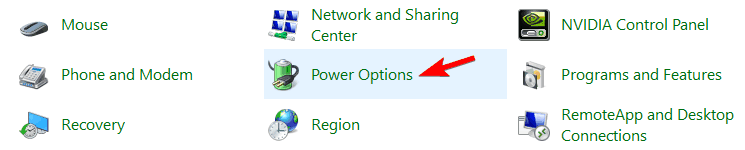
- Locate your current power plan and click Change plan settings next to it.
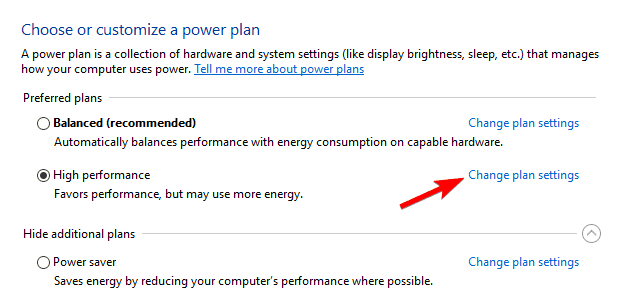
- Click on Change advanced power settings.
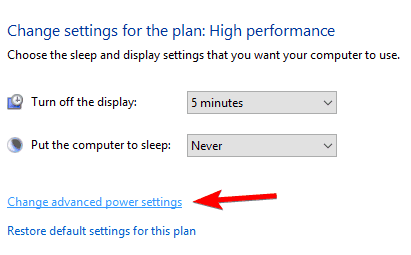
- Now click on Restore plan defaults button. Click Apply and OK to save changes.
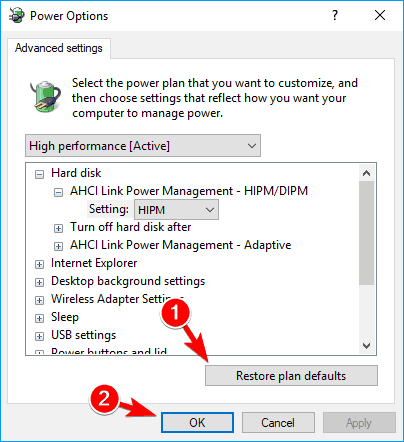
After resetting your power plan to default, the issue should be resolved.
If the issue persists, please follow the below steps:
- Press Windows Key + I to open the Settings app.
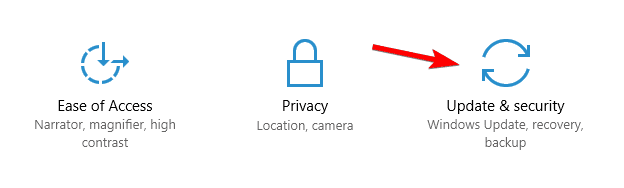
- When Settings app opens, go to Update & security section.
- Now click on Check for updates button.
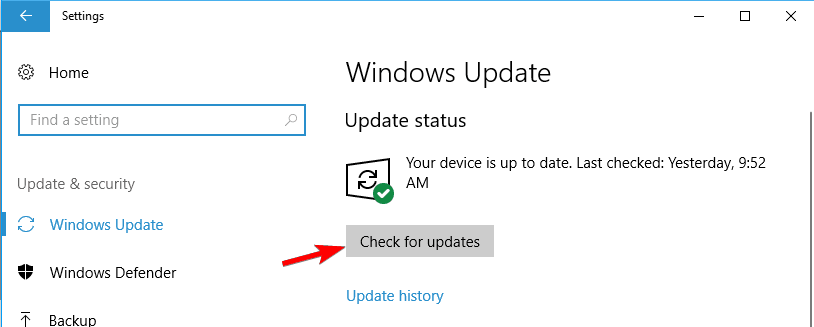
Windows will now check for the missing updates. If any updates are available, Windows will download them automatically in the background. Once the missing updates are installed,
Let me know how that pans out,
If you feel I was helpful, simply click on Accept as Solution to help the community grow,
That said, I will have someone follow-up on this to ensure you've been helped,
Just in case you don't get back to us within 24 - 48hrs, and have a good day, ahead.
Riddle_Decipher
I am an HP Employee
Learning is a journey, not a destination.
Let's keep asking questions and growing together.
09-17-2019 11:32 AM
HP Recommended
@beanonil Sometimes the cause for this problem can be Intel Rapid Technology, and to fix this problem you need to disable its service. To do that, just follow these steps:
- Press Windows Key + R, enter services.msc and press Enter or click OK.
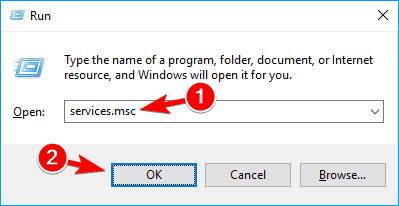
- When Services window starts, locate Intel Rapid Technology service and double click it.
- Now set the Startup type to Disabled and click the Stop button to stop the service. Click Apply and OK to save changes.
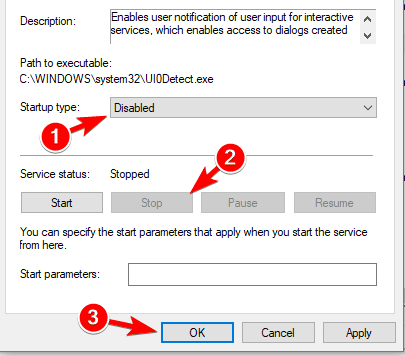
After disabling this service, restart your PC and check if the issue reappears. If the issue still persists, uninstall Intel Rapid Technology and check if that solves the problem.
If the above doesn't help, you might be able to fix the problem by removing the laptop battery. Few users reported that their battery was the problem, but after removing it and inserting it back again, the issue was resolved.
If you wish to thank me for my efforts, you could click on "Accept as solution" on my post as the solution should help others too.
Riddle_Decipher
I am an HP Employee
Learning is a journey, not a destination.
Let's keep asking questions and growing together.
09-18-2019 01:03 PM
HP Recommended
Hello,
I followed all the steps and uninstalled the Intel Rapid Technology as well but still no resolution.
I have ordered a Torx screwdriver to try taking the battery out, so I'll let you know when it arrives. (Should be in a few days).
Thanks
09-18-2019 02:44 PM
HP Recommended
@beanonil Alright, please take your time and get back to us with the results,
Good luck and good day, ahead.
Riddle_Decipher
I am an HP Employee
Learning is a journey, not a destination.
Let's keep asking questions and growing together.


Be alert for scammers posting fake support phone numbers and/or email addresses on the community.
If you think you have received a fake HP Support message, please report it to us by clicking on "Flag Post".
† The opinions expressed above are the personal opinions of the authors, not of HP. By using this site, you accept the Terms of Use and Rules of Participation.


Didn't find what you were looking for?
Ask the community
† The opinions expressed above are the personal opinions of the authors, not of HP. By using this site, you accept the <a href="https://www8.hp.com/us/en/terms-of-use.html" class="udrlinesmall">Terms of Use</a> and <a href="/t5/custom/page/page-id/hp.rulespage" class="udrlinesmall"> Rules of Participation</a>.