-
×InformationNeed Windows 11 help?Check documents on compatibility, FAQs, upgrade information and available fixes.
Windows 11 Support Center. -

-
×InformationNeed Windows 11 help?Check documents on compatibility, FAQs, upgrade information and available fixes.
Windows 11 Support Center. -
- HP Community
- Notebooks
- Notebook Hardware and Upgrade Questions
- Re: Battery is not functioning properly

Create an account on the HP Community to personalize your profile and ask a question
06-15-2017 04:03 AM
Hello,
I have one issue started few days ago
My battery comes to 0% from 31% and it says that battery is totally low and notebook suddenly shut off then i plugged in AC connector for charge then it surprisingly shows 0% to directly 44%(plugged in,charging) i tested battery with hp support assistant and in BIOS menu also it passed the test and says battery is OK so please help me to diagnose my battery is it fault or battery is started degrading
Thank you waiting for your response
Solved! Go to Solution.
Accepted Solutions
06-17-2017 12:31 PM
It looks like you were interacting with @A4Apollo, but he is out for the day & I'll be glad to help you out,
I'm the Riddle_Decipher & I'm at your service.
To confirm, did you update the BIOS? If not, Click here to find and download.
-
Unplug the power cord and turn off the computer.
-
Turn on the computer and immediately press the F2 key repeatedly, once every second until the HP PC Hardware Diagnostics UEFI menu is displayed.
-
Click Component Tests in the main menu.
-
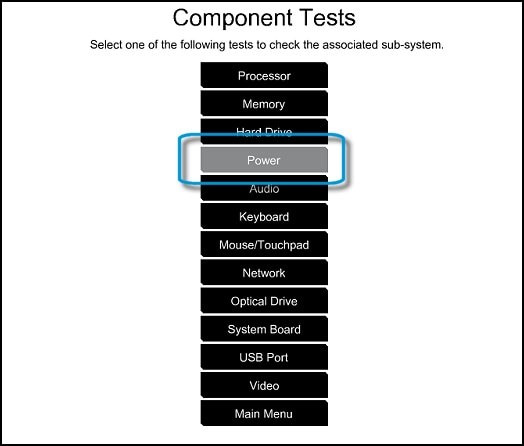
In the list of Component Tests, click Power.

-
In the list of Power Tests, click Battery.

-
On the Battery Test, click Run once. The Battery Test begins.
The Battery Test takes about two minutes. The Battery Calibration, if needed, requires 2 to 4 hours.
You can cancel at any time by pressing the Escape key (Esc).
If the tests pass and yet the issue persists, reinstall the printer drivers:
- Unplug the charge and use the laptop until the battery drains to 15%.
- Turn off the laptop and turn it back on after 30mins.
- Reinstalled Microsoft ACPI-Compliant Control Method Battery under device manager,
- Restart the computer and the issue should be fixed.
If I have helped you resolve the issue,
feel free to give me a virtual high-five by clicking the 'Thumbs Up' icon
followed by clicking on 'Accepted as Solution'
And Have a great day Ahead!
Riddle_Decipher
I am an HP Employee
Learning is a journey, not a destination.
Let's keep asking questions and growing together.
06-16-2017 08:33 AM
Hey there! @hannanshaikh, Thanks for stopping by HP forums!
I understand you have battery issues with your laptop.
Don't worry I'll try to help you out.
Did you make any software or hardware changes on your laptop?
Have you tried charging your laptop using a different adapter or wall outlet? Does the issue persist?
As you mentioned the battery percentage reduces from 31% to 0% in within few minutes.
Try calibrating the battery and check if it helps.
Manually calibrating the battery requires four steps: fully charge the battery, discharge or drain the battery, recharge the battery, then run the battery test. Calibrating the battery improves the accuracy of the battery gauge software so that it more accurately displays the current level of charge.
NOTE:
When possible, use HP PC Diagnostics UEFI (described above) to test the battery and get calibration instructions. The following instructions are for a manual method and work with most battery types.
Step 1: Charge the battery
Plug in the power cord.
Charge the battery to a full charge.
When the battery is fully charged, proceed to the next step.
Step 2: Discharge the battery
Unplug the power cord.
Press and hold the power button for at least five seconds to turn off the computer.
Turn on the computer and immediately press the F2 key repeatedly, about once every second until the HP PC Hardware Diagnostics UEFI menu is displayed.
Click Component Tests in the main menu.
In the list of Component Tests, click Hard Drive.
NOTE:
You are doing the Hard Drive Test only to drain or discharge the battery, not to get the results of the test. The battery discharges and the computer turn off before the test results display.
Click Extensive Test.
Click Run to start the test. Let the test continue until the battery is completely discharged and the computer shuts down.
Refer this article to further troubleshoot battery issues with your laptop.
Also, try updating the BIOS on your PC and check if it helps.
Link to update the BIOS.
Let me know how it goes!
Have a great weekend ahead! 🙂
A4Apollo
I am an HP Employee
06-17-2017 12:31 PM
It looks like you were interacting with @A4Apollo, but he is out for the day & I'll be glad to help you out,
I'm the Riddle_Decipher & I'm at your service.
To confirm, did you update the BIOS? If not, Click here to find and download.
-
Unplug the power cord and turn off the computer.
-
Turn on the computer and immediately press the F2 key repeatedly, once every second until the HP PC Hardware Diagnostics UEFI menu is displayed.
-
Click Component Tests in the main menu.
-
In the list of Component Tests, click Power.

-
In the list of Power Tests, click Battery.

-
On the Battery Test, click Run once. The Battery Test begins.
The Battery Test takes about two minutes. The Battery Calibration, if needed, requires 2 to 4 hours.
You can cancel at any time by pressing the Escape key (Esc).
If the tests pass and yet the issue persists, reinstall the printer drivers:
- Unplug the charge and use the laptop until the battery drains to 15%.
- Turn off the laptop and turn it back on after 30mins.
- Reinstalled Microsoft ACPI-Compliant Control Method Battery under device manager,
- Restart the computer and the issue should be fixed.
If I have helped you resolve the issue,
feel free to give me a virtual high-five by clicking the 'Thumbs Up' icon
followed by clicking on 'Accepted as Solution'
And Have a great day Ahead!
Riddle_Decipher
I am an HP Employee
Learning is a journey, not a destination.
Let's keep asking questions and growing together.