
-
×InformationNeed Windows 11 help?Check documents on compatibility, FAQs, upgrade information and available fixes.
Windows 11 Support Center. -
-
×InformationNeed Windows 11 help?Check documents on compatibility, FAQs, upgrade information and available fixes.
Windows 11 Support Center. -
- HP Community
- Notebooks
- Notebook Hardware and Upgrade Questions
- Re: Battery won't charge beyond 85%

Create an account on the HP Community to personalize your profile and ask a question
Your account also allows you to connect with HP support faster, access a personal dashboard to manage all of your devices in one place, view warranty information, case status and more.
Common problems for Battery
We would like to share some of the most frequently asked questions about: Battery Reports, Hold a charge, Test and Calibrating Battery . Check out this link: Is your notebook plugged in and not charging?

It has been a while since anyone has replied. Simply ask a new question if you would like to start the discussion again.

10-23-2020 10:15 AM
 HP Recommended
Product: HP Pavilion 15-au104np
Operating System: Microsoft Windows 10 (64-bit)
Hello,
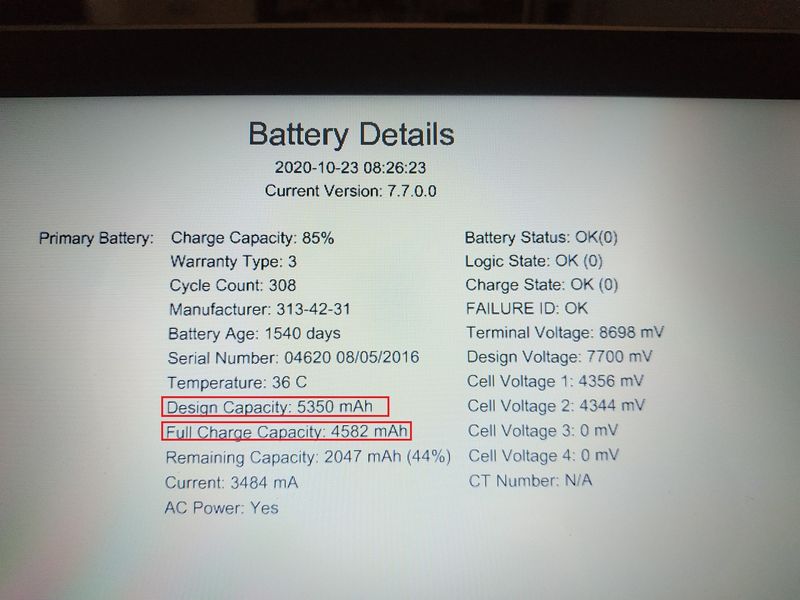
My laptop won't charge beyond 85%.
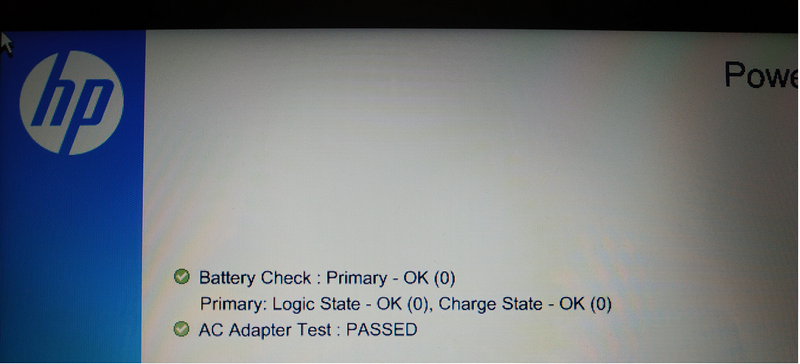
I've run the "Hardware Diagnostics 4 in 1 USB"
The following results showed up. The "full charge capacity" doesn't match the "design capacity".
Can please someone give me an opinion on this problem?
Thank you.
Rui_S
11 REPLIES 11


10-26-2020 04:18 AM
HP Recommended
I reviewed your post and I understand that the battery is not getting charged more than 85%.
Don’t worry, I assure you I will try my best to get this sorted.
I recommend you update the BIOS from the below link and check whether the issue is resolved.
https://ftp.hp.com/pub/softpaq/sp106001-106500/sp106009.exe
If you continue facing the issue, then reinstalled Microsoft ACPI-Compliant Control Method Battery under device manager.
Here is how you do it.
Step 1: Click the Windows “Start” button and right-click “Computer.”
Step 2: Click “Manage,” then “Device Manager.”
Step 3: Click the “Batteries” section. A list of devices will appear.
Step 4: Right-click the “Microsoft ACPI-Compliant Control Method Battery” device and click “Uninstall.”
Step 5: Click the “Action” menu item and “Scan for Hardware Changes” to reinstall the driver.
Let me know how it goes and you have a great day!
P.S: Welcome to the HP Support Community 😊
If you wish to show appreciation for my efforts, mark my post as Accept as Solution. Your feedback counts!
Cheers!
Stay Home – Stay Safe
The_Fossette
I am an HP Employee
10-29-2020 03:25 AM
HP Recommended
@ The_Fossette
Hello,
Thank you for the quick reply and sorry for the late reply but been working.
Regarding the bios update, I've already did that last week with no positive results, just tried out the uninstall/reinstall of the "Microsoft ACPI-Compliant Control Method Battery".
Right now I'm at 86% and draining out, will post on results.
Last week managed to charge up to 100% after reading a post, in that post an HP Employee stated that running the HP memory test in a loop until the laptop shut down and then charging and it worked, it did a full charge.
I have the low battery warning at 30%, usually I start to charge between 30% and 40%.
Thank you.
Rui_S
10-29-2020 12:53 PM
HP Recommended
Hello again,
I'm sorry @The_Fossette but the solution that you've suggested didn't work.
After the uninstall/reinstall of the driver today I let the battery drain to about 20% and started to charge, after 5 hours of charging it only gone up to 87%.
So any other ideas?
Regards
Rui_S
11-01-2020 10:03 AM
HP Recommended
@The_Fossette
Hello again,
I've discharged completely using the HP Diagnostics usb disk, running a memory test in a loop, under Windows 10 doesn't let me go down to 0%.
After 0% it did charge up to 100%, after that I used the laptop like everyday.
Started charging again around 11% and after 2h reached 82% and didn't go any further. I've disconnected and powered off.
After a while I've putted to charge again (on "off" state) for about 2 to 3h, when power on it was on 83% charge.
I've already did that experience and what I've taken from that is that when there's some power left on the battery it won't charge to 100% even in "off state" so doesn't seems to be a Windows problem.
When reach 0% and charging begins it will reach 100% either turned on or off.
Any ideas?
Thank you.
Regards
Rui_S
11-02-2020 02:02 AM
HP Recommended
Thank you for the update.
I recommend you boot to BIOS and check whether there is a battery care feature in the BIOS. If yes, then turn if off and then check whether the battery charges to 100%.
Here is how you can boot to BIOS.
- Turn off the computer and wait five seconds.
- Turn on the computer, and then immediately press the Esc key repeatedly until the Startup Menu opens.
- Press F10 to open the BIOS Setup Utility.
Let me know how it goes and you have a great day!
If you wish to show appreciation for my efforts, mark my post as Accept as Solution. Your feedback counts!
Cheers!
Stay Home – Stay Safe
The_Fossette
I am an HP Employee
11-08-2020 08:01 AM
HP Recommended
I recommend you contact support to further diagnose the issue.
Here is how you can get in touch with support.
1)Click on this link – www.hp.com/contacthp/
2)Select the product type.
3)Enter the serial number of your device or select let HP detect your product option.
4)Select the country from the drop-down.
5)You should see the HP phone support number or Chat option listed.
Cheers!
The_Fossette
I am an HP Employee

Be alert for scammers posting fake support phone numbers and/or email addresses on the community.
If you think you have received a fake HP Support message, please report it to us by clicking on "Flag Post".
† The opinions expressed above are the personal opinions of the authors, not of HP. By using this site, you accept the Terms of Use and Rules of Participation.


Didn't find what you were looking for?
Ask the community
† The opinions expressed above are the personal opinions of the authors, not of HP. By using this site, you accept the <a href="https://www8.hp.com/us/en/terms-of-use.html" class="udrlinesmall">Terms of Use</a> and <a href="/t5/custom/page/page-id/hp.rulespage" class="udrlinesmall"> Rules of Participation</a>.