• ×
    Information
    Need Windows 11 help?
    Check documents on compatibility, FAQs, upgrade information and available fixes.
    Windows 11 Support Center.
  • post a message
  • ×
    Information
    Need Windows 11 help?
    Check documents on compatibility, FAQs, upgrade information and available fixes.
    Windows 11 Support Center.
  • post a message
Guidelines
Seize the moment! nominate yourself or a tech enthusiast you admire & join the HP Community Experts!
Common problems for Battery
We would like to share some of the most frequently asked questions about: Battery Reports, Hold a charge, Test and Calibrating Battery . Check out this link: Is your notebook plugged in and not charging?
HP Recommended
15-ay008tx
Microsoft Windows 10 (64-bit)

Hey  @echo_lake, 


I am not able to get output from keyboard. Keys such as C, V, Shift, Numerics are not  working. Please let me know what could be issue. If there is Hardware related issue then please let me know what would be Cost of it. Need to fix this as soon as possible. what would be warrenty of new keyboard?

Name: Pooja Thakor

Product: HP laptop 15-ay008TX


Looking forward to your reply

Thanks

1 ACCEPTED SOLUTION

Accepted Solutions
HP Recommended

@poojathakor
I appreciate your efforts to try and resolve the issue. This computer needs to ship out for physical diagnosis, Hence, I would request you to contact our Support and our Support Engineers should be able to check the available service options for your laptop. HP Support can be reached by clicking on the following link: www.hp.com/contacthp/ Please feel free to contact us here anytime you need any further assistance. Please click “Accept as Solution” if you feel my post solved your issue, it will help others find the solution.

ECHO_LAKE
I am an HP Employee

View solution in original post

5 REPLIES 5
HP Recommended

@poojathakor
Thank you for posting on the HP Support Community.

  • Have you made any hardware/software changes?
  • Have you tried any troubleshooting steps?
  • Did this happen after a recent window or software update?
  • Have you tried with an external keyboard?

While you respond to that, let's try these steps: 

Hard Reset: Follow steps from the link: https://hp.care/2GnkMa8.

BIOS default: 

  1. Turn off the computer and wait five seconds.
  2. Press the Power button to start the computer and repeatedly press the F10 key to enter the BIOS setup menu.
  3. On the BIOS Setup screen, press F9 to select and load the BIOS Setup Default settings.
  4. Press F10 to Save and Exit.
  5. Use the arrow keys to select Yes, then press Enter when asked Exit Saving Changes?
  6. Follow the prompts to restart your computer.

Hope this helps! Keep me posted for further assistance.
Please click “
Accept as Solution” if you feel my post solved your issue, it will help others find the solution.

ECHO_LAKE
I am an HP Employee

HP Recommended

Hey,

Have you made any hardware/software changes?
- NO, I haven't made any software / Hardware changes

Have you tried any troubleshooting steps?
- Yes, I did. I removed all the Keyboard from device manager and restarted laptop again

Did this happen after a recent window or software update?
- No, I don't think so. Can the reason be, I was out for 4-5 days and haven't used/opened a laptop for that period of time?

Have you tried with an external keyboard?
- Yes, I'm doing work using an external keyboard


I followed the mentioned steps of "BIOS Default steps". I am not able to see any outcome or solution. Still having issues with the keyboard. One thing I noticed, If I press C, V, M, Shift and Space very hard, Then they are working. Otherwise not.


Is there can be Dust problem in Keyboard?


Thanks


HP Recommended

@poojathakor

Use HP PC Hardware Diagnostics to complete functional test of the keyboard and identify any problems with the hardware.

  1. Download the latest version of HP PC Hardware Diagnostics.

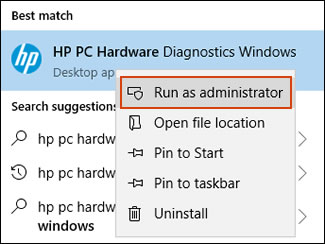
  2. In Windows, search for and right-click HP PC Hardware Diagnostics for Windows, and then select Run as administrator.

    Run HP PC Hardware Diagnostics Windows as an administrator

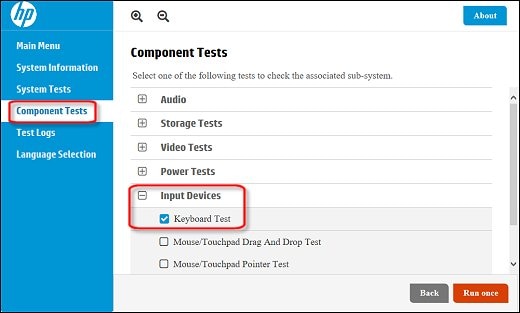
  3. Click Component Tests, click Input Devices, and then select the Keyboard Test.

    Running the Keyboard Test

  4. Click Run once to begin the test.

    The test ends when you complete the tasks or after 3 minutes.

For more information about using the HP PC Hardware Diagnostics for Windows, go to HP PCs - Testing for Hardware Failures.

Step 2: After pressing a key, there is a short delay before the character displays on the screen. The Filter Keys function might be activated. Disable Filter Keys and return to the default keyboard behaviour.

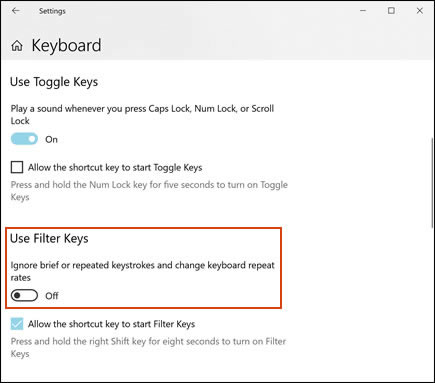
  1. In Windows, search for keyboard, and then open Ease of Access keyboard settings or Change how your keyboard works.

  2. Make sure the Filter Keys option is disabled.

    Turning off the Filter Keys

The keys should be more responsive.

Hope this helps! Keep me posted for further assistance.
Please click “
Accept as Solution” if you feel my post solved your issue, it will help others find the solution.

ECHO_LAKE
I am an HP Employee

HP Recommended

Hey @echo_lake


Done with each step as mentioned. still keyboard is not working. Please let me know what to do further

Thanks for the support.


Thanks

HP Recommended

@poojathakor
I appreciate your efforts to try and resolve the issue. This computer needs to ship out for physical diagnosis, Hence, I would request you to contact our Support and our Support Engineers should be able to check the available service options for your laptop. HP Support can be reached by clicking on the following link: www.hp.com/contacthp/ Please feel free to contact us here anytime you need any further assistance. Please click “Accept as Solution” if you feel my post solved your issue, it will help others find the solution.

ECHO_LAKE
I am an HP Employee

† The opinions expressed above are the personal opinions of the authors, not of HP. By using this site, you accept the <a href="https://www8.hp.com/us/en/terms-of-use.html" class="udrlinesmall">Terms of Use</a> and <a href="/t5/custom/page/page-id/hp.rulespage" class="udrlinesmall"> Rules of Participation</a>.