
-
×InformationNeed Windows 11 help?Check documents on compatibility, FAQs, upgrade information and available fixes.
Windows 11 Support Center. -
-
×InformationNeed Windows 11 help?Check documents on compatibility, FAQs, upgrade information and available fixes.
Windows 11 Support Center. -
- HP Community
- Notebooks
- Notebook Hardware and Upgrade Questions
- Re: HP Envy x360 m Running Hot

Create an account on the HP Community to personalize your profile and ask a question
Your account also allows you to connect with HP support faster, access a personal dashboard to manage all of your devices in one place, view warranty information, case status and more.
Common problems for Battery
We would like to share some of the most frequently asked questions about: Battery Reports, Hold a charge, Test and Calibrating Battery . Check out this link: Is your notebook plugged in and not charging?

It has been a while since anyone has replied. Simply ask a new question if you would like to start the discussion again.

06-06-2021 09:47 AM
 HP Recommended
Product: HP Envy x360 m
Operating System: Microsoft Windows 10 (64-bit)
The notebook was purchased in January 2021 (now June 2021). I have noticed it running hot (fan running very often, actual heat felt through the keyboard) since I purchased it. Within the past 30 days, I had to ship the machine to HP due to a power failure (fortunately I could recover the data).
Upon first use after the repair, the problem persists. I came up to the machine this morning, and the fan was running after having sat idle for over 12 hours. There is some idle time where it doesn't run, it is not on 100% of the time.
Now, I am wondering if the power issue that I experienced was possibly due to electrical current constantly running through the circuitry. It would be nice to know if others have experienced this, and any possible resolutions.
Final note, I generally run plugged in (from a desk), and rarely from the battery.
Solved! Go to Solution.
1 ACCEPTED SOLUTION
Accepted Solutions


06-09-2021 07:40 AM
HP Recommended
Hi @tepinj,
I'd like to help!
Try the below suggestions-
Perform updates
Step 1 Windows Updates -
1) In the search box, type and open Windows Updates.
2) Check for updates.
3) If the updates are available, click on install and restart the computer.
Step 2 HP Support Assistant Updates -
1) In the search box, type and open HP Support Assistant.
2) Check for updates.
3) If the updates are available, click on install and restart the computer.
Also, try updating the BIOS. Refer to this document for steps - HP Consumer Notebook PCs - Updating the BIOS (Basic Input Output System)
Create Power plan
- Click Start, Control Panel, and then click Hardware and Sound.
- Click Power Options.
- Click Change plan settings next to the plan that you want to change.
- On the Change settings for the plan window, choose the display and sleep settings that you want to use.
- To change more power settings, click Change advanced power settings.
- On the Advanced settings tab, expand the category that you want to customize, expand each setting that you want to change, and then choose the values that you want to use. When done, click OK, and then click Save changes.
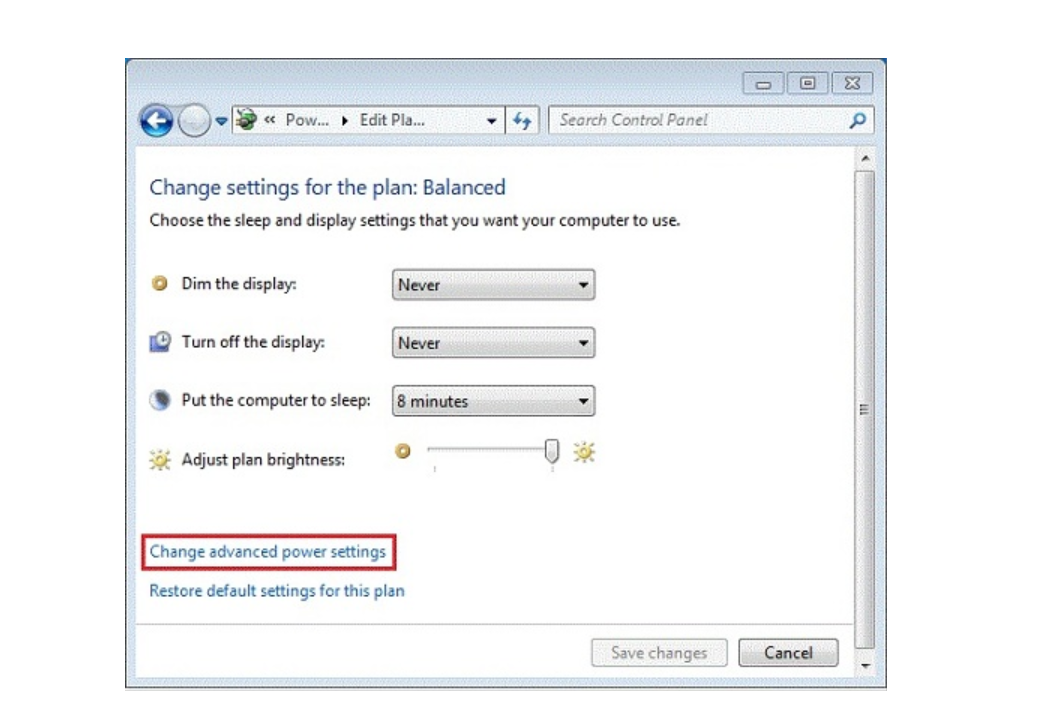
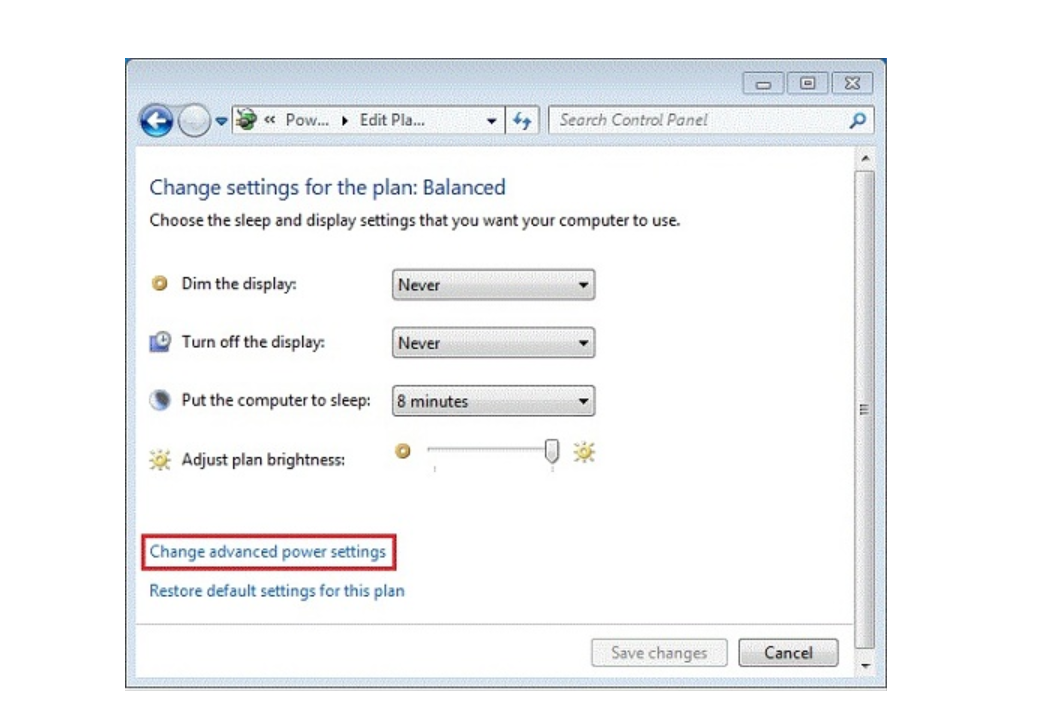
Choose never for all the settings in the above screen.
Hope this helps! Keep me posted.
And, Welcome to the HP Support Community.
Please click “Accept as Solution” if you feel my post solved your issue, it will help others find the solution.
Click the “Kudos, Thumbs Up" on the bottom right to say “Thanks” for helping
5 REPLIES 5
06-09-2021 07:40 AM
HP Recommended
Hi @tepinj,
I'd like to help!
Try the below suggestions-
Perform updates
Step 1 Windows Updates -
1) In the search box, type and open Windows Updates.
2) Check for updates.
3) If the updates are available, click on install and restart the computer.
Step 2 HP Support Assistant Updates -
1) In the search box, type and open HP Support Assistant.
2) Check for updates.
3) If the updates are available, click on install and restart the computer.
Also, try updating the BIOS. Refer to this document for steps - HP Consumer Notebook PCs - Updating the BIOS (Basic Input Output System)
Create Power plan
- Click Start, Control Panel, and then click Hardware and Sound.
- Click Power Options.
- Click Change plan settings next to the plan that you want to change.
- On the Change settings for the plan window, choose the display and sleep settings that you want to use.
- To change more power settings, click Change advanced power settings.
- On the Advanced settings tab, expand the category that you want to customize, expand each setting that you want to change, and then choose the values that you want to use. When done, click OK, and then click Save changes.
Choose never for all the settings in the above screen.
Hope this helps! Keep me posted.
And, Welcome to the HP Support Community.
Please click “Accept as Solution” if you feel my post solved your issue, it will help others find the solution.
Click the “Kudos, Thumbs Up" on the bottom right to say “Thanks” for helping
06-21-2021 07:09 PM
HP Recommended
The machine has been running pretty well as of late. I did adjust my power plan to hibernate after 4 hours while plugged in. At least that way, I shouldn't awaken to the fan buzzing first thing in the morning.
06-22-2021 05:29 AM
HP Recommended
That's great!
I am glad the issue is resolved.
If you need further assistance feel free to reach out to us.
Have a great day ahead!
Please click “Accepted Solution” on my public post if you feel my post solved your issue, it will help others find the solution. Click the “Kudos/Thumbs Up" on the bottom right to say “Thanks” for helping!

Be alert for scammers posting fake support phone numbers and/or email addresses on the community.
If you think you have received a fake HP Support message, please report it to us by clicking on "Flag Post".
† The opinions expressed above are the personal opinions of the authors, not of HP. By using this site, you accept the Terms of Use and Rules of Participation.


Didn't find what you were looking for?
Ask the community
† The opinions expressed above are the personal opinions of the authors, not of HP. By using this site, you accept the <a href="https://www8.hp.com/us/en/terms-of-use.html" class="udrlinesmall">Terms of Use</a> and <a href="/t5/custom/page/page-id/hp.rulespage" class="udrlinesmall"> Rules of Participation</a>.