• ×
    Information
    Need Windows 11 help?
    Check documents on compatibility, FAQs, upgrade information and available fixes.
    Windows 11 Support Center.
  • post a message
  • ×
    Information
    Need Windows 11 help?
    Check documents on compatibility, FAQs, upgrade information and available fixes.
    Windows 11 Support Center.
  • post a message
Guidelines
Webcam Not Working? Advanced Fixes for HP Notebooks! Click here to view the instructions!
Common problems for Battery
We would like to share some of the most frequently asked questions about: Battery Reports, Hold a charge, Test and Calibrating Battery . Check out this link: Is your notebook plugged in and not charging?
HP Recommended
HP Notebook - 17-by1062st
Microsoft Windows 10 (64-bit)

The keyboard is not working but an external USB keyboard is fine. None of the keys work but no spills of any sort. Suggestions to resolve?  If needed is replacement of the keyboard easy?

1 REPLY 1
HP Recommended

@spacino, Welcome to the HP Support Community!


  1. Shut down the computer.

  2. Press the Power button, and then immediately press the Esc key repeatedly to open the Startup Menu.

    NOTE: 

    If the Startup Menu screen does not open, the integrated keyboard hardware is not working. Service or replace the integrated keyboard in the notebook. To continue using the notebook, connect a USB wired keyboard to a USB port, and then restart the computer.

  3. Press F10 to open the BIOS settings.

  4. Press F5 to load the default settings, and then press F10 to accept the changes.

  5. Restart the computer.

  6. In Windows, search for and open Device Manager.

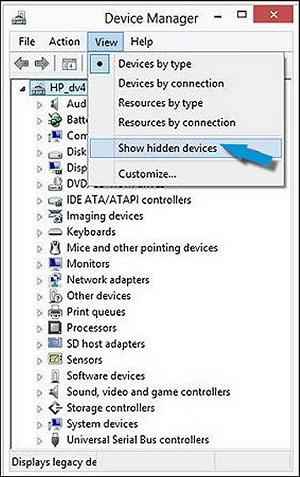
  7. Click View, and then select Show hidden devices.

    Show hidden devices in Device Manager

  8. Click the arrow next to Keyboards, right-click the keyboard name, and then click Uninstall to remove the device from Windows.

  9. Remove all devices in the Keyboards category, and then restart the computer.

If the issue persists, let us run a test on the keyboard

  1. Hold the power button for at least five seconds to turn off the computer.
  2. Turn on the computer and immediately press Esc repeatedly, about once every second. When the menu appears, press the F2 key.
  3. Perform Component Test > Keyboard. Share the result on your next post.

Hope this helps! Keep me posted. 


Please click “Accept as Solution” if you feel my post solved your issue, it will help others find the solution.

Click the “Kudos, Thumbs Up" on the bottom right to say “Thanks” for helping!

Have a great day! 

KUMAR0307
I am an HP Employee

† The opinions expressed above are the personal opinions of the authors, not of HP. By using this site, you accept the <a href="https://www8.hp.com/us/en/terms-of-use.html" class="udrlinesmall">Terms of Use</a> and <a href="/t5/custom/page/page-id/hp.rulespage" class="udrlinesmall"> Rules of Participation</a>.