• ×
    Information
    Need Windows 11 help?
    Check documents on compatibility, FAQs, upgrade information and available fixes.
    Windows 11 Support Center.
  • post a message
  • ×
    Information
    Need Windows 11 help?
    Check documents on compatibility, FAQs, upgrade information and available fixes.
    Windows 11 Support Center.
  • post a message
Guidelines
Seize the moment! nominate yourself or a tech enthusiast you admire & join the HP Community Experts!
Common problems for Battery
We would like to share some of the most frequently asked questions about: Battery Reports, Hold a charge, Test and Calibrating Battery . Check out this link: Is your notebook plugged in and not charging?
HP Recommended
Hp notebook 15-ay039wm (Energy Star)
Microsoft Windows 10 (32-bit)

My HP 4652 printer DOES print in color, EXCEPT from my hp 15 energy star notebook.  That’s why I think this is a NOTEBOOK issue, not a printer issue. Two things happened since it last printed  in color from my notebook about a week ago: 1. Windows 10 (I have no idea whether it’s 32 or 64 bit) did an automatic update.  2) I “monkeyed around” trying to find how to print a word doc in grayscale.  (Yes, I know 😞 ).  
I used the 4652 printer today to print in color successfully from my iPad, so I know the printer still prints in color. To be sure i didn’t just change the document I was trying to print in grayscale, I tried printing older Office docs in both Word and Excel, and I also tried printing an old picture (all from the notebook) and none of those will print in color.  With all that in mind, the issue has to be with the notebook, not the Office Suite and not the printer.  Could I have changed the notebook to where it will only print b/w?  If so, how do I change it back?  Or could the Windows 10 update have caused this?  Any help appreciated.  

1 REPLY 1
HP Recommended

@Simsjl 


If the difference is a result of Windows Updates, a lost or corrupted bit of software or the connection, the Doctor can help.

Run the version of the doctor on the hp15 where the "trouble" is occurring.


TKB article contributed by HP Expert  ShlomiL 

Symptoms:  No color options are shown under Printing Preferences when printing to a network-connected printer from a Windows 10 PC

Solution:  Download and Install Doctor version 5.0.6 > HPPSdr_5.0.6.exe

Details: Windows10 - No Color option available when printing to a network connected printer


==============================================================================

What about Preferences / Preferred Shortcuts?


The doctor cannot fix whether or not you have changed the Printing Preferences and left a "black / white" shortcut as the "preferred" setting.  This can be fixed, of course - you do need to go into your Printing Preferences and check / adjust the shortcuts and make sure what you want as "default" is highlighted.


Set the Preferences - Windows


  1. Check / enable the printer as the “Default Printer”


Control Panel > icon view > Devices and Printers > Right-Click on your printer > Set as Default


  1. Select and adjust settings in each category for the Media (kind of paper), source (tray), and paper size.


Control Panel > icon view > Devices and Printers > Right-Click on your printer > Printing Preferences

OR

Windows key + S (search for) Printers and Scanners

Left-Click on (your) Printer > Manage > Printing Preferences


Next

Tab Printing Shortcuts > Click / Highlight your preferred shortcut > Click Apply > Click OK to exit


NOTE - Make changes to a Shortcut

  • Select a shortcut and adjust the settings for paper, source (tray), other settings
  • If supported, save the edited shortcut or use “Save As” or “Create Custom Shortcut” to save under a new name
  • Click OK to save the setup


Once "set", the shortcut will show up as the "default" selection.

You can change the setting during the the setup for the current job, that is, if you don't like the selected shortcut, highlight / use a different shortcut to help set the current job parameters.


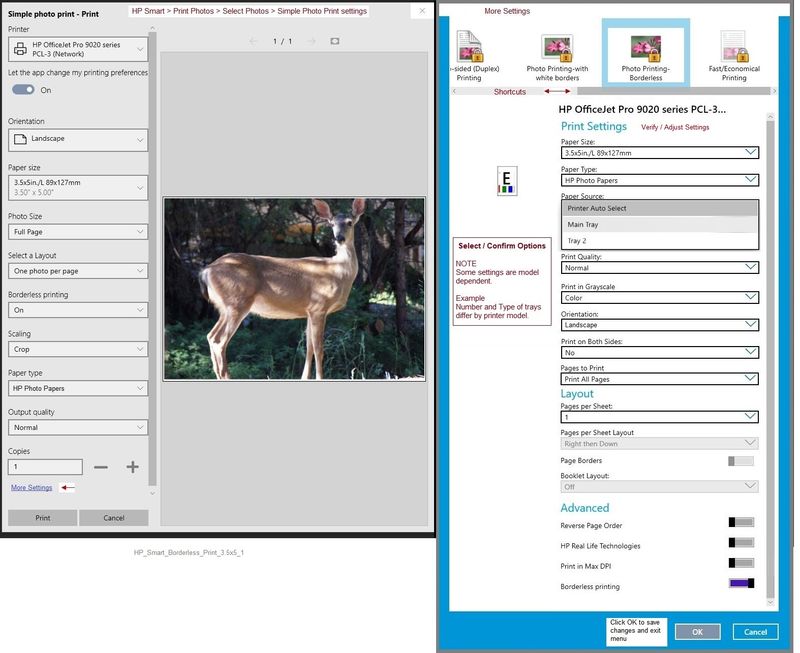
Example > HP Smart > Print photo > More Settings


HP_Smart_Borderless_Print_3.5x5_1HP_Smart_Borderless_Print_3.5x5_1


References and Places to Find Help


Full Feature Software for printer

HP OfficeJet 4650 series Print and Scan Driver and Accessories


HP Smart for Windows

HP Smart is an application available from the Windows Store.

Learn how to use HP Smart on your Windows 10 computer.

Open the Software and Drivers Support Website for your printer > Check the Box Get the App

OR

HP Printers - Using the HP Smart App (Windows 10)

NOTE:  Website includes the HP Smart software for Windows and Mobile devices, plus an FAQ section to assist with questions / issues


➡️HP Smart Tasks for Windows and HP Smart Mobile

 HP Printers - HP Smart: Use Smart Tasks


Reference and Resources – (More) Places to find help, solve problems, and learn how to use your Printer

Printer Homepage – “Things that are your printer”

NOTE:  Content depends on device type and Operating System

Categories:  Alerts, Access to the Print and Scan Doctor (Windows), Warranty Check, HP Drivers / Software / Firmware Updates, How-to Videos, Bulletins/Notices, Lots of How-to Documents, Troubleshooting, User Guides / Manuals, Product Information (Specifications), more

When the website support page opens, Select (as available) a Category > Topic > Subtopic

HP OfficeJet 4652 All-in-One Printer


Thank you for participating in our HP Community.

We are a world community of volunteers dedicated to supporting HP technology

Click Thumbs Up to say Thank You for the help.


Answered? Click "Accept as Solution" to help others find it.


Dragon-Fur

† The opinions expressed above are the personal opinions of the authors, not of HP. By using this site, you accept the <a href="https://www8.hp.com/us/en/terms-of-use.html" class="udrlinesmall">Terms of Use</a> and <a href="/t5/custom/page/page-id/hp.rulespage" class="udrlinesmall"> Rules of Participation</a>.