• ×
    Information
    Need Windows 11 help?
    Check documents on compatibility, FAQs, upgrade information and available fixes.
    Windows 11 Support Center.
  • post a message
  • ×
    Information
    Need Windows 11 help?
    Check documents on compatibility, FAQs, upgrade information and available fixes.
    Windows 11 Support Center.
  • post a message
Guidelines
Seize the moment! nominate yourself or a tech enthusiast you admire & join the HP Community Experts!
Common problems for Battery
We would like to share some of the most frequently asked questions about: Battery Reports, Hold a charge, Test and Calibrating Battery . Check out this link: Is your notebook plugged in and not charging?
HP Recommended
HP Pavilion Gaming - 15-dk0500nz
Microsoft Windows 11

Hi, I have a problem with my notebook's battery.

Due to Christmas holiday, my PC was not used, so I charged the battery at 60% before to leave.

Now when I in the morning turn on the notebook, the battery is always 0%, even if I fully charged my laptop the evening before.

The recovery of the battery is about 20 minutes, and then it works with the correct duration, 3-4 hours.

What happened? Thank you.

3 REPLIES 3
HP Recommended

@ferrarista10

Thank you for posting on the HP Support Community.
 

Don't worry as I'll be glad to help, to provide an accurate resolution, I need a few more details:

  • Did you make any changes to the settings of your PC prior to the issue?
  • Have you made any hardware/software changes?

While you respond to that, let's try these steps: 

Hard Reset: Follow steps from the link: https://hp.care/2GnkMa8. (Refer to the removable and sealed battery)
BIOS default:(do not skip any troubleshooting steps even if you feel steps are repeating)

  1. Turn off the computer and wait five seconds.
  2. Press the Power button to start the computer and repeatedly press the F10 key to enter the BIOS setup menu.
  3. On the BIOS Setup screen, press F9 to select and load the BIOS Setup Default settings.
  4. Press F10 to Save and    Exit.
  5. Use the arrow keys to select Yes, then press Enter when asked Exit Saving Changes?
  6. Follow the prompts to restart your computer. 

And, also refer to the article: Battery does not power notebook or hold a charge
 

Hope this helps! Keep me posted for further assistance.
Please click “Accept as Solution” if you feel my post solved your issue, it will help others find the solution. Click the “Kudos, Thumbs Up" on the bottom right to say “Thanks” for helping!

ECHO_LAKE
I am an HP Employee

HP Recommended

Hello,

the only software change is the upgrade from Windows 10 to Windows 11, followed by a hard reset.

UEFI default settings already restored.

Power reset already done.

I did also a battery calibration.

HP Recommended

@ferrarista10
 

I appreciate your efforts to try and resolve the issue. Use HP Support Assistant to check and calibrate the battery, follow the instructions in this section.

  1. In Windows, search for and open HP Support Assistant.

    If the app is not installed on your computer, go to the HP Support Assistant website to download the latest version.

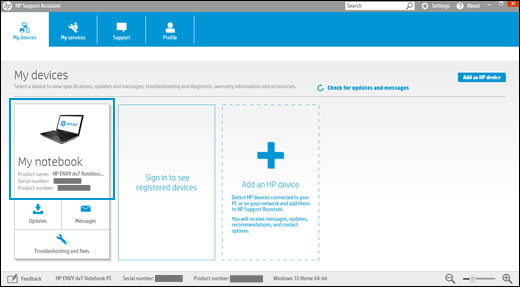
  2. Select the My devices tab, and then select your PC from the device list.

     Selecting My Notebook from the HP Support Assistant home screen

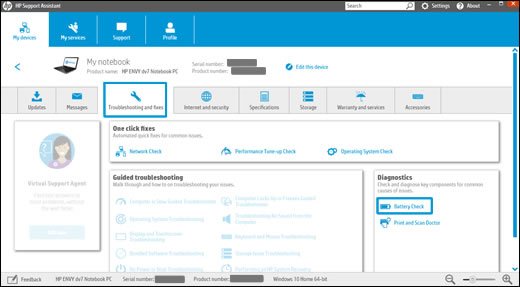
  3. Click the Troubleshooting and fixes tab, and then select Battery Check.

    Selecting Troubleshooting and fixes and then Battery Check

  4. Wait while the battery check completes.

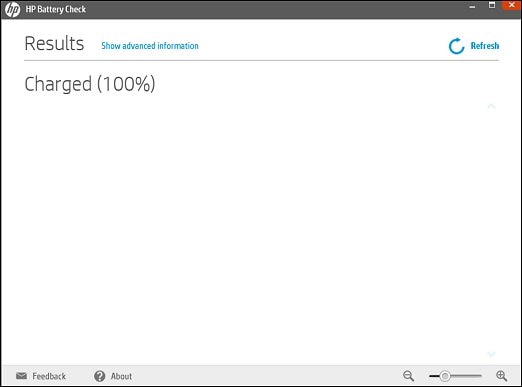
    HP Battery Check displays the results.

    Battery test results

Hope this helps! Keep me posted for further assistance.
Please click “Accept as Solution” if you feel my post solved your issue, it will help others find the solution. Click the “Kudos, Thumbs Up" on the bottom right to say “Thanks” for helping!

ECHO_LAKE
I am an HP Employee

† The opinions expressed above are the personal opinions of the authors, not of HP. By using this site, you accept the <a href="https://www8.hp.com/us/en/terms-of-use.html" class="udrlinesmall">Terms of Use</a> and <a href="/t5/custom/page/page-id/hp.rulespage" class="udrlinesmall"> Rules of Participation</a>.