• ×
    Information
    Need Windows 11 help?
    Check documents on compatibility, FAQs, upgrade information and available fixes.
    Windows 11 Support Center.
  • post a message
  • ×
    Information
    Need Windows 11 help?
    Check documents on compatibility, FAQs, upgrade information and available fixes.
    Windows 11 Support Center.
  • post a message
Guidelines
Webcam Not Working? Advanced Fixes for HP Notebooks! Click here to view the instructions!
Common problems for Battery
We would like to share some of the most frequently asked questions about: Battery Reports, Hold a charge, Test and Calibrating Battery . Check out this link: Is your notebook plugged in and not charging?
HP Recommended
HP - 15-ba028ur (ENERGY STAR)
Microsoft Windows 10 (64-bit)

Installed 128 GB SSD in this laptop. Instead of the DVD drive, I set the HDD to 500 GB. Everything works. But when you install the drive at 1 TB, the laptop does not detect the drive at all. (What can I do? I don’t understand why the larger drive is not detected. The drive is working. Checked on another laptop. How to remove this restriction?

1 REPLY 1
HP Recommended

@Michael17171
Thank you for posting on the HP Support Community.


A drive is a physical storage device such as a hard disk drive (HDD), solid-state drive (SSD), or removable USB flash drive. A partition is an area of the drive that can be formatted and assigned a drive letter. A volume refers to a storage area on a partition of a drive. The terms partition and volume are often used interchangeably.


To create a new partition, the hard disk drive (HDD) or solid-state drive (SSD) must contain unallocated space that is not part of an existing partition. Shrink the volume on an existing drive to create unallocated space, and then create and format a new partition.

  1. In Windows, search for and open Create and format hard disk partitions.

  2. Right-click the Windows (C:) drive on the computer.

    CAUTION: Do not partition volumes named System Reserved, Recovery, Factory_Image or HP_Tools. Do not use these volumes for file storage. Doing so might prevent you from being able to troubleshoot startup issues or perform a recovery in the event your computer encounters a major problem.
  3. Click Shrink Volume from the menu to create unallocated space.

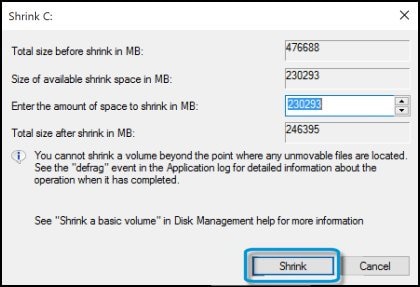
    The Shrink window opens.

    Shrinking volume to free up space

  4. Without making any changes to the settings in the Shrink window, click Shrink.

    Shrinking volume C:

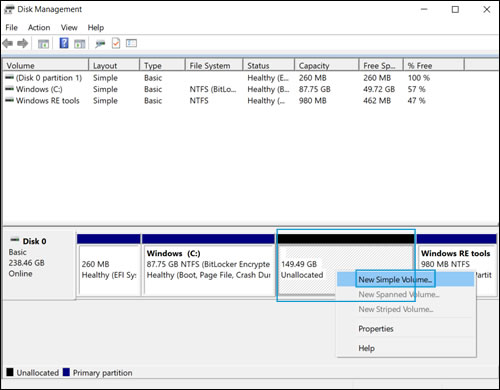
    When the shrink process completes, the new partition displays in the Disk Management utility as Unallocated space.

    Showing unallocated space

  5. Right-click the new partition, and then select New Simple Volume in the drop-down menu.

    Clicking New Simple Volume

  6. When the New Simple Volume Wizard opens, click Next.

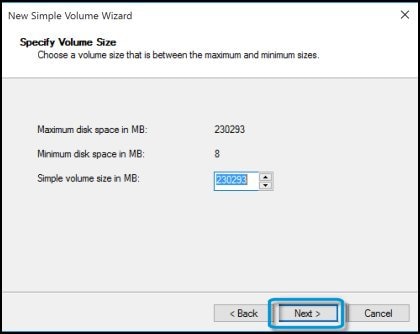
    The Specify Volume Size window displays.

  7. Click Next to accept the default setting (recommended), or change the value in the Simple volume size in MB field, and then click Next.

    The Assign Drive Letter or Path window displays.

    Clicking next to accept the volume size

  8. Select a drive letter from the menu, and then click Next.

    The Format Partition window displays.

    Assigning the drive letter

  9. To name the drive, type a name in the Volume label field.

    NOTE: Make sure Perform a quick format and Enable file and folder compression are not selected.
  10. Click Next.

    Selecting format for the volume

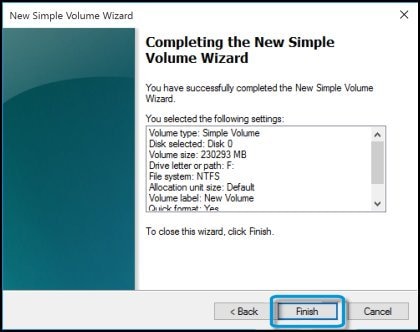
  11. When the Completing the New Simple Volume Wizard window displays, click Finish.

    NOTE: 

    If an AutoPlay window displays, click the X in the top right corner to close it.

    Selected settings in Completing the New Simple Volume Wizard

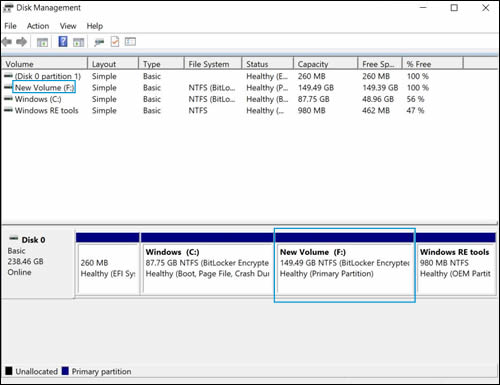
  12. Wait while the new volume formats. The Disk Management utility displays the formatting progress, and then assigns the New Volume a drive letter.

    New volume and size

Hope this helps! Keep me posted for further assistance.
Please click “
Accept as Solution” if you feel my post solved your issue, it will help others find the solution.

ECHO_LAKE
I am an HP Employee

† The opinions expressed above are the personal opinions of the authors, not of HP. By using this site, you accept the <a href="https://www8.hp.com/us/en/terms-of-use.html" class="udrlinesmall">Terms of Use</a> and <a href="/t5/custom/page/page-id/hp.rulespage" class="udrlinesmall"> Rules of Participation</a>.