
-
×InformationNeed Windows 11 help?Check documents on compatibility, FAQs, upgrade information and available fixes.
Windows 11 Support Center. -
-
×InformationNeed Windows 11 help?Check documents on compatibility, FAQs, upgrade information and available fixes.
Windows 11 Support Center. -
- HP Community
- Notebooks
- Notebook Hardware and Upgrade Questions
- Re: Sleekbook 14 CPU Fan noisy - always at high speed

Create an account on the HP Community to personalize your profile and ask a question
Your account also allows you to connect with HP support faster, access a personal dashboard to manage all of your devices in one place, view warranty information, case status and more.
Common problems for Battery
We would like to share some of the most frequently asked questions about: Battery Reports, Hold a charge, Test and Calibrating Battery . Check out this link: Is your notebook plugged in and not charging?

It has been a while since anyone has replied. Simply ask a new question if you would like to start the discussion again.

07-14-2020 09:44 PM
 HP Recommended
Product: HP Pavilion Sleekbook 14-b017cl
Operating System: Microsoft Windows 10 (64-bit)
I put up this question as there is no existing inquiry exactly addressing my problem.
I have this HP Pavilion Sleekbook 14-b017cl laptop with the original fan. What I notice is that from power on, the CPU fan is already at high speed. And it produces the high-pitch whining sound. The vent is clean and free from debris. The fan is free from dust and has no mechanical problem whatsoever. I just read somewhere that the design of the Sleekbook somehow causes the airflow to produce that high-pitch sound. That may be true, but I am thinking why the fan is in an 'uncontrollable' state. Some of the noise-related posts here in HP Community suggested reducing CPU/power usage by selecting Power Saver power plan, or reducing CPU usage less than 100%, etc., to that effect, less heat, and therefore, less need for a high-speed fan, and less whining, or rather, the less whining sound produced. I guess you would understand my frustration here.
Please help. I looked for speed control applications, like Speedfan, HP Fan Control from Github, anything - I'm desperate to fix this issue - before I throw this laptop on the floor! Please help!
Okay, I'm joking about smashing the laptop, but it gets to me at times, so I really need help on how to fix this. (Please excuse me for writing explicitly my angst.)
Will wait. Thank you.
5 REPLIES 5


07-17-2020 12:50 PM
HP Recommended
@PrfyVdlxSg here's what you need to do:
Do a Windows Search for “Services” and, in the window that opens, look for Windows Management Instrumentation. Right-click it, then select Restart. You can also stop the service entirely, if you desire, or simply restart your computer.
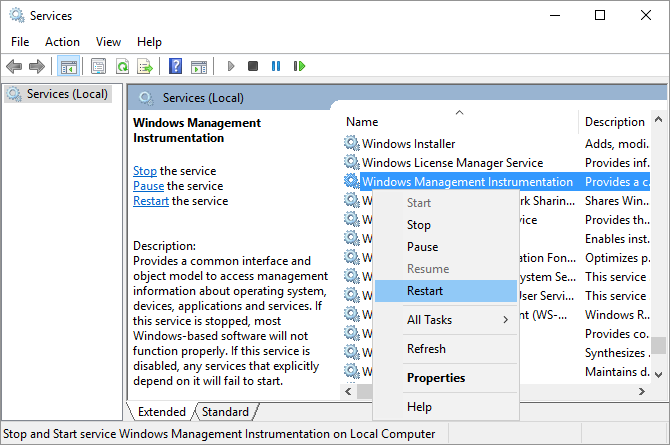
P.S: Welcome to HP Community 😉
Keep us posted,
If you would like to thank us for our efforts to help you,
Give us a virtual high-five by clicking the 'Thumbs Up' icon below, followed by clicking on the "Accept as solution" on this post,
Have a great day!
Riddle_Decipher
I am an HP Employee
Learning is a journey, not a destination.
Let's keep asking questions and growing together.
07-19-2020 01:41 AM
HP Recommended
@Riddle_Decipher,
Thank you for your reply.
I tried disabling the WMI, set it to manual start, restarted the laptop, but it did not help. Fan is still in high-speed mode.
By the way, I searched on disabling Windows Management Instrumentation, and I get the contrary: while it is possible to disable or turn the service off, it is not advised. A lot of other 'necessary' services depend on WMI.
Refer to these articles/forum posts:
Can I turn off WMI service permanently?
Safe to disable Windows Management Instrumentation - W2K Server
Are you sure that you suggested turning off WMI?
07-19-2020 11:34 AM
HP Recommended
@PrfyVdlxSg I suggested restarting it, although it's up to you if turning off is what you choose to do, that said, if restarting didn't help, try the below steps:
- Updating your Notebook computer BIOS
- Keeping notebook air vents clear and clean
- Increasing the efficiency of the notebook to reduce heat
- Using Windows Task Manager to identify corrupt processes
- Selecting power save settings to shut off your computer when it is not in use
CLICK HERE FOR MORE STEPS AND INSTRUCTIONS - To resolve both the fan noise and the high CPU usage, let me know if it works,
Keep me posted.
Riddle_Decipher
I am an HP Employee
Learning is a journey, not a destination.
Let's keep asking questions and growing together.
07-19-2020 10:52 PM
HP Recommended
Hi @Riddle_Decipher,
I did not misunderstand at all what you said about WMI, but mentioning it is up to me if I want to disable WMI, which means your suggestion carried it that far. Not blaming you; I was just clarifying. And you did clarify. So thanks for that.
I will say I have done all those. BIOS is updated. The laptop is clean. I'm allergic to dust. Fingerprints and oil smudges make my eyes sore. And oh, the whining sound!
To clear out everything in the equation, I opted to 'Reset this PC'. Now you wouldn't say some applications are corrupt, or that some services are using much of the CPU, etc. Guess what. the CPU fan is still whining!
What I did next is to disconnect the CPU fan. I flicked that small, black connector and had it disengaged from the motherboard. Of course, the system detects that the CPU fan is not functioning properly and proceeding may endanger the system due to overheating. I proceeded anyway. I monitored the heat generation via Core Temp, and I don't see the CPU core heat register any higher than 60'C. And since there is no whining sound, I'm better.
Anyway, I would think that it is the fan (part# 697914-001) itself that is the problem. Once I get a new one I will confirm mu hunch. Just want to thank you for taking the time to reply to my query.
Kudos!
07-20-2020 01:50 PM
HP Recommended
@PrfyVdlxSg Alright, good luck and keep us posted.
Riddle_Decipher
I am an HP Employee
Learning is a journey, not a destination.
Let's keep asking questions and growing together.

Be alert for scammers posting fake support phone numbers and/or email addresses on the community.
If you think you have received a fake HP Support message, please report it to us by clicking on "Flag Post".
† The opinions expressed above are the personal opinions of the authors, not of HP. By using this site, you accept the Terms of Use and Rules of Participation.


Didn't find what you were looking for?
Ask the community
† The opinions expressed above are the personal opinions of the authors, not of HP. By using this site, you accept the <a href="https://www8.hp.com/us/en/terms-of-use.html" class="udrlinesmall">Terms of Use</a> and <a href="/t5/custom/page/page-id/hp.rulespage" class="udrlinesmall"> Rules of Participation</a>.