
-
×InformationNeed Windows 11 help?Check documents on compatibility, FAQs, upgrade information and available fixes.
Windows 11 Support Center. -
-
×InformationNeed Windows 11 help?Check documents on compatibility, FAQs, upgrade information and available fixes.
Windows 11 Support Center. -
- HP Community
- Notebooks
- Notebook Hardware and Upgrade Questions
- Re: hp envy 13t backlit exhibits erratic behavior

Create an account on the HP Community to personalize your profile and ask a question
Your account also allows you to connect with HP support faster, access a personal dashboard to manage all of your devices in one place, view warranty information, case status and more.
Common problems for Battery
We would like to share some of the most frequently asked questions about: Battery Reports, Hold a charge, Test and Calibrating Battery . Check out this link: Is your notebook plugged in and not charging?

It has been a while since anyone has replied. Simply ask a new question if you would like to start the discussion again.

11-10-2019 03:23 PM - edited 11-10-2019 03:24 PM
 HP Recommended
Product: HP Envy 13t
Operating System: Microsoft Windows 10 (64-bit)
Hello,
The backlit of my laptop "turns on" on its own when asleep. While on sleep mode, the backlit won't turn off by using function key.
After waking up, the backlit cycle through on, half on, and very dim (not off) using function key. If I let it stay idle eventually it starts behaving as expected.
There is another strange behavior as well. Normally, the backlit should be turn off after some idle time (30 seconds or so). However, the backlit won't turn off in some occasions no matter how long the system is idle.
P.S. Please do not answer with cliche resolution like bios update, windows update, etc. Thanks.
8 REPLIES 8


11-29-2019 04:58 PM
HP Recommended
@Neptunia, Welcome to the HP Support Community!
What model HP PC are you using?
Refer to this document to know how to find the Product Name or Product Number.
For now, let us try these steps:
Install updates using HP Support Assistant
- In the search box, type and open HP Support Assistant.
- Check for updates.
- If the updates are available, click on install and restart the computer.
Note: If you do not have HP Support Assistant installed, Click here to download the same.
The proximity sensor uses Proximity Sensor Control software to change the keyboard lighting behavior. If you are not satisfied with the way the proximity sensor is responding, try adjusting these settings to suit your needs:
-
To open the Proximity Sensor Control software click Start, All Programs, HP Proximity Sensor, HP and select HP Proximity Sensor.
-
Click the Sensitivity (Range) button to select either Maximum or Minimum range. Selecting Maximum will cause the keyboard to illuminate more often than the Minimum setting as the proximity sensor will be more sensitive.
-
Click the Delay until off button and select one of the following delay times:
-
10 Second(s)
-
1 Minute(s)
-
3 Minute(s)
-
-
The time you select is the time it takes for the keyboard illumination to turn off when not in use.
-
Click Apply.
-
Click OK to return to the Windows desktop.
For more details: Click here
For shortcuts and information about turning a Backlit Keyboard On or Off: Click here
Let me know how this goes.
If you feel my post solved your issue, please click “Accept as Solution”, it will help others find the solution. Click the “Kudos/Thumbs Up" on the bottom right to say “Thanks” for helping!
KUMAR0307
I am an HP Employee
12-03-2019 05:32 PM
HP Recommended
Hi KUMAR0307,
Well, did you even bother read my original post. It has included model name as well. HP Envy 13t (it's laptop).
I already have HP Support Assistant installed and as the drivers are up-to-date.
Also, there is no proximity sensor control in my system and your suggestion is not helpful.
12-04-2019 11:35 AM
HP Recommended
Thank you for the response. I have read your post. There are several 'HP Envy 13t' Notebooks as shown below. To provide you with accurate information, I need to know the exact model of the Notebook you are using.
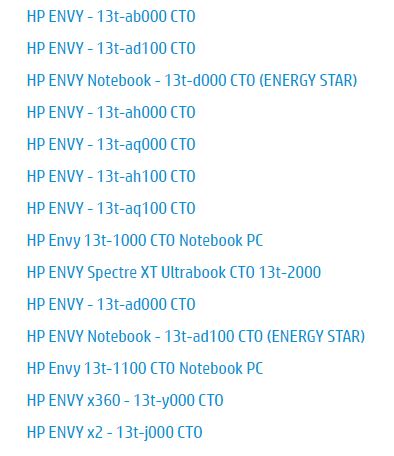
Keep me posted.
KUMAR0307
I am an HP Employee

12-05-2019 11:36 AM - edited 12-05-2019 11:37 AM
HP Recommended
@Neptunia, thank you for the information. Let us try these steps:
- Click the Start button, type cp, and then press Enter.
- Control panel will be visible on the screen, locate Windows mobility center. Once you find this application click and open.
- Locate a tile Keyboard backlight on Windows mobility center. Click the icon of keyboard backlit.
- Keyboard backlit pop-up will appear, select On under Keyboard lighting. If you adjust keyboard brightness, select the option either Bright or Dim. Few more Keyboard backlit options are available here so customize on your own preferences.
- At last, click OK to implement the changed settings.
If you do not find Keyboard backlight option, try these steps:
- Open the start menu and write troubleshooting. Once you see the same troubleshooting under Best match, press Enter key.
- Select View all options in the right pane and allow the list of various troubleshooters to appear on the screen. Now search Keyboard in the list.
- Click on Keyboard from the troubleshooter’s list.
- Soon the Keyboard Troubleshooter comes out on the screen. Click Next.
- It will scan the system for trouble and then displays the found problem in al list. Follow the on-screen instructions and this will fix Keyboard Backlight enabling or disabling issue.
Let me know how this goes.
If you feel my post solved your issue, please click “Accept as Solution”, it will help others find the solution. Click the “Kudos/Thumbs Up" on the bottom right to say “Thanks” for helping!
KUMAR0307
I am an HP Employee


12-06-2019 07:09 AM
HP Recommended
In this case, please contact our HP Support team for further assistance:
1) Click on this link - www.hp.com/contacthp/
2) Select your product type below.
3) Enter the serial of your device.
4) Select the country from the drop-down.
5) Select the appropriate option based on your preference.
6) Fill the web-form and proceed further.
Keep me posted for any other assistance.
KUMAR0307
I am an HP Employee

Be alert for scammers posting fake support phone numbers and/or email addresses on the community.
If you think you have received a fake HP Support message, please report it to us by clicking on "Flag Post".
† The opinions expressed above are the personal opinions of the authors, not of HP. By using this site, you accept the Terms of Use and Rules of Participation.


Didn't find what you were looking for?
Ask the community
† The opinions expressed above are the personal opinions of the authors, not of HP. By using this site, you accept the <a href="https://www8.hp.com/us/en/terms-of-use.html" class="udrlinesmall">Terms of Use</a> and <a href="/t5/custom/page/page-id/hp.rulespage" class="udrlinesmall"> Rules of Participation</a>.