-
×InformationNeed Windows 11 help?Check documents on compatibility, FAQs, upgrade information and available fixes.
Windows 11 Support Center. -

-
×InformationNeed Windows 11 help?Check documents on compatibility, FAQs, upgrade information and available fixes.
Windows 11 Support Center. -
- HP Community
- Notebooks
- Notebook Hardware and Upgrade Questions
- Re: problem with video drivers

Create an account on the HP Community to personalize your profile and ask a question
01-04-2022 06:49 AM - edited 01-04-2022 06:57 AM
Thank you for posting back.
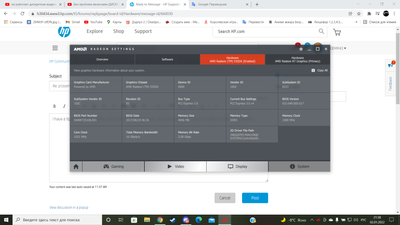
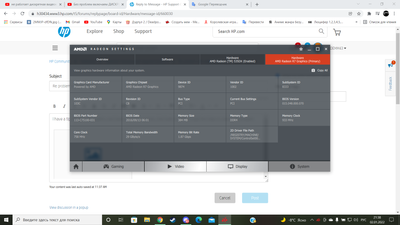
To get the answer to this question the switchable graphics are purely system managed.
HP computers, depending on the model, have two different configurations of switchable graphics. For more specific information related to the configuration of dynamic and fixed mode, OpenGL and DirectX, see one of the following documents:
- Switchable Graphics on Notebooks Configured with Intel and ATI GPUs
- Switchable Graphics on Notebooks Configured with Dual AMD GPUs
HP Notebook PCs - Recovering the BIOS (Basic Input Output System)
If you still need additional technical assistance that can be better provided through one-on-one interaction or a remote session with our HP Support team if you would like to continue troubleshooting. I would request you to contact our Support and our Support Engineers should be able to sort this out. HP Support can be reached by clicking on the following link: www.hp.com/contacthp/
Hope this helps! Keep me posted for further assistance.
Please click “Accept as Solution” if you feel my post solved your issue, it will help others find the solution.
ECHO_LAKE
I am an HP Employee
01-07-2022 03:34 PM
Thank you for posting back.
Many HP computers have an HP BIOS Restore tool that might be able to recover the BIOS from an earlier version and restore basic functionality. This tool might or might not work in the event of BIOS corruption depending on many factors, but is worth trying in the event the BIOS is corrupted.
-
Turn off the computer, and then connect the power cord.
-
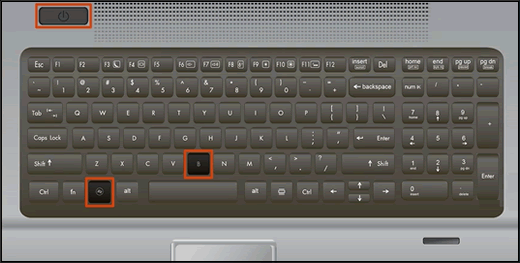
Press and hold the Windows key and the B key at the same time, and then press and hold the Power button for 2 to 3 seconds.

-
Release the Power button but continue pressing the Windows and B keys. You might hear a series of beeps.
-
If the HP BIOS Update screen does not display, repeat the previous steps but press the Windows key and the V key. If the screen still does not display, your computer might not support the feature or there is a hard drive issue. Continue to the next section to Recover the BIOS using a USB recovery drive.
-
Hope this helps! Keep me posted for further assistance.
Please click “Accept as Solution” if you feel my post solved your issue, it will help others find the solution.
ECHO_LAKE
I am an HP Employee
- « Previous
-
- 1
- 2
- Next »